LABORIE Goby Owner’s Manual GOBY-UM02 74
5.8.6.3 Customize Colors and Fonts and Adjust Button Size
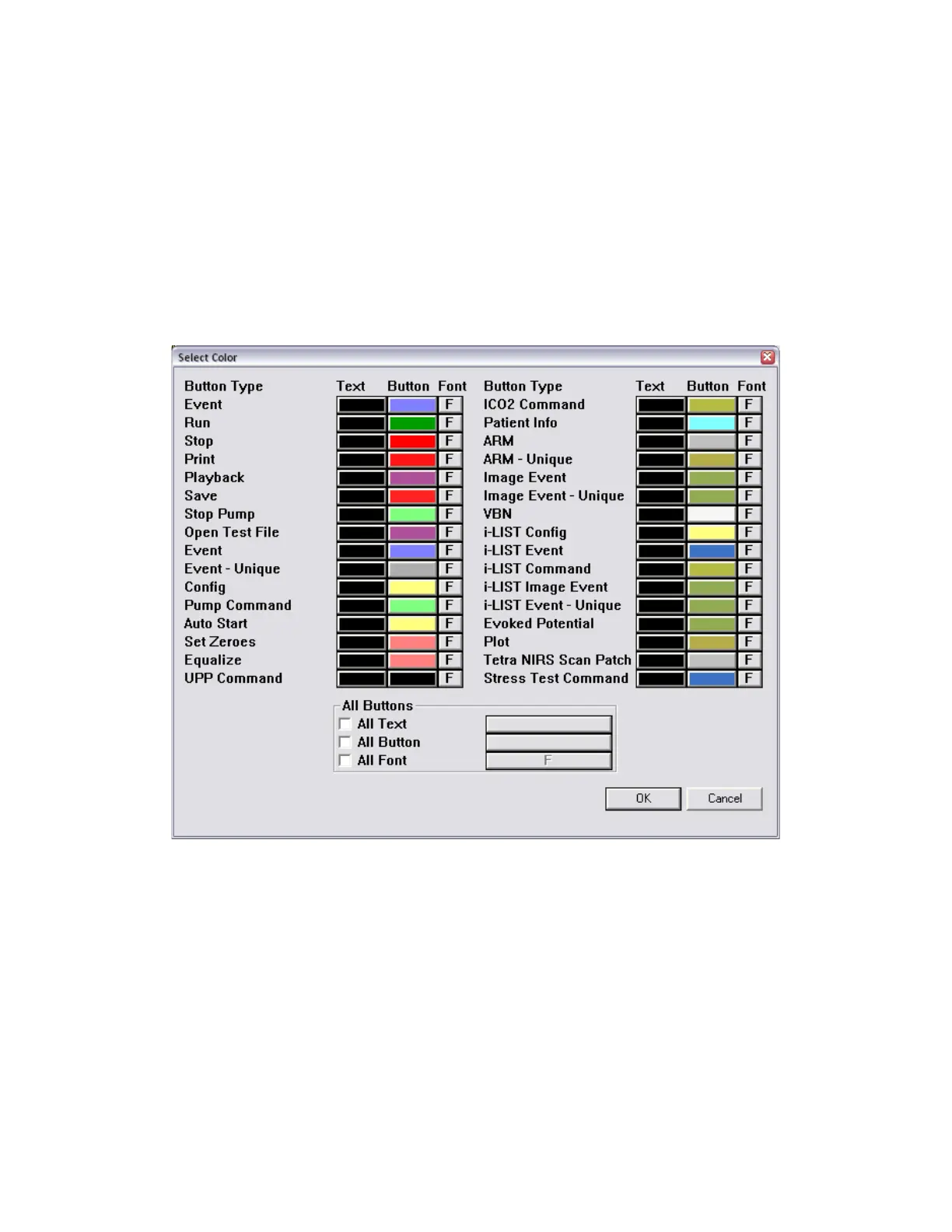
Click the Button Color button in the Command window to open the Select Color window. Choose the background color
and font for individual Control Panel buttons as well as the color of the button names. Once complete click
OK to save
changes. The chosen colors and fonts will display on the main UDS screen.
To select the color and/or the text font for the buttons:
1. Click inside the colored box under the Text or Button column for the Button Type. The Color window will appear.
2. Select the colors for the button and/or text.
3. Click the F button under the Font column and select the new font from the resulting font selection window.
4. Click OK.
Standardize coloring and fonts of all Control Panel buttons in the Select Color window (Figure 89). In the All Buttons section
at the bottom of the window, select the button property to change. Click the rectangle next to the property to select the
color or font. Click
OK and exit the Command window. The chosen colors will display in the main UDS screen.
Figure 89: Select Color Window
The Button Height slider on the Command window can be used to adjust the size of the buttons in the Control Panel. Slide
it to the right to increase the size of the button (Figure 86).



 To Next Page