LABORIE Goby Owner’s Manual GOBY-UM02 72
5.8.6.1 Multiple Control Panel Sets and Hot Key Configuration
Multiple Control Panel Sets can be set up in the UDS software. This allows multiple users to create their own customized
Control Panel that can be selected for use before beginning testing. Up to sixteen Control Panel Sets can be set up in
addition to the Default Control Panel Set.
To Configure New Control Panel Sets:
1. Click Options > Control Panel Settings.
2. Type in a new name in the Control Panel Set Name box. A maximum of 15 characters (including spaces) can be
used for the name. To duplicate an existing configuration for customization, select the applicable control panel
from the
Control Panel Set Name box and enter a new name.
3. Customize the Control Panel buttons.
4. Click OK to save the Control Panel Set. The new settings are saved and ready for use.
To use another configured Control Panel Set:
1. Click Options > Control Panel Settings to launch the Control Panel Command box.
2. Click the drop-down button of the Control Panel Set Name box and select the appropriate name.
3. Click OK.
In addition to Control Panel Configuration, the Hot Key feature allows the creation a shortcut key combinations for control
panel buttons.
To configure the Hot Keys:
1. Click
>
2. Click the
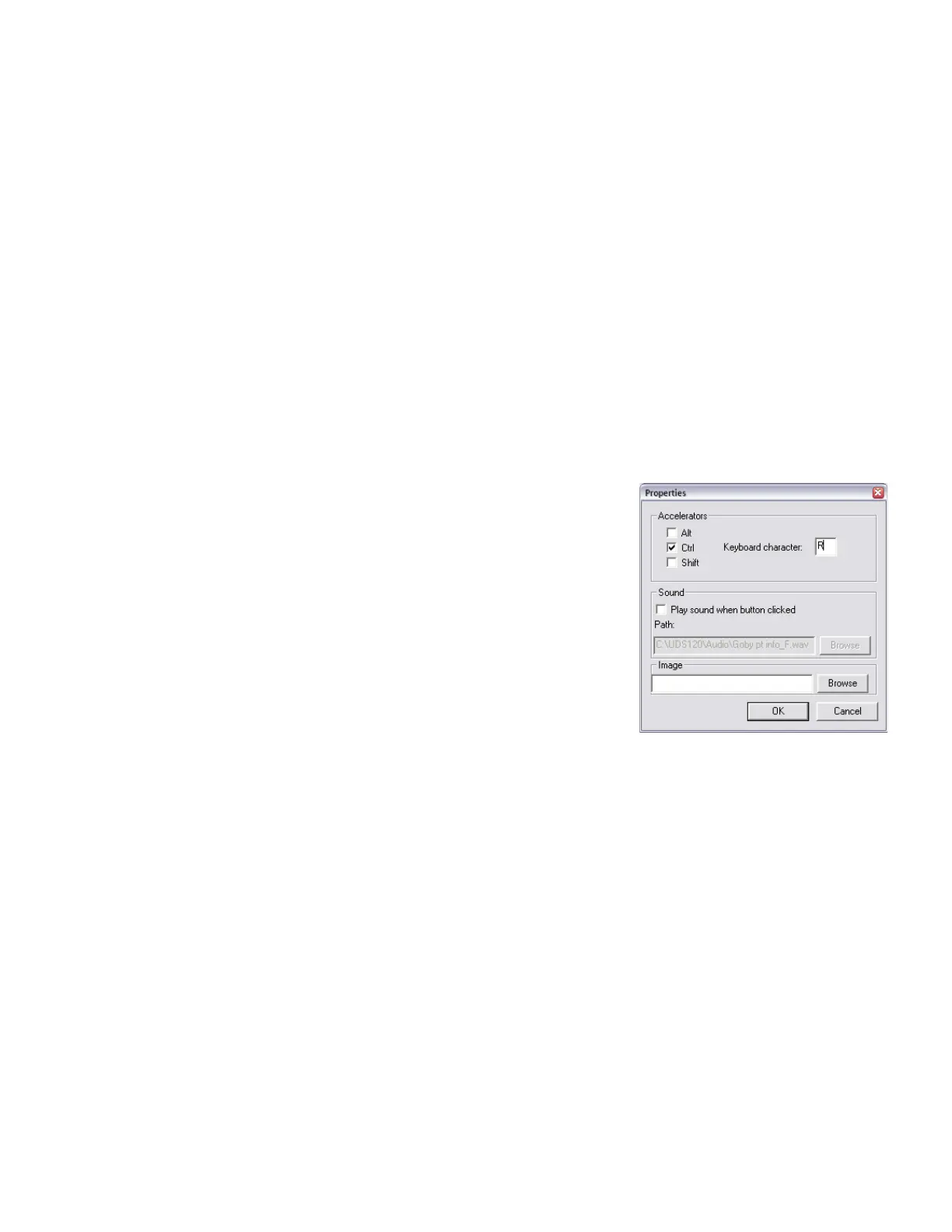
button next to the control panel button (Figure 84).
3. The Properties window will appear (Figure 85). Select a key
combination that will correspond to the control panel button. In our
example, we will apply a shortcut key combination of
CTRL+R to the
First Sensation button.
4. Click
.
Mark the event during a test using either the control panel button or the shortcut
key.
Figure 85: Properties Window



 To Next Page