LABORIE Goby Owner’s Manual GOBY-UM02 67
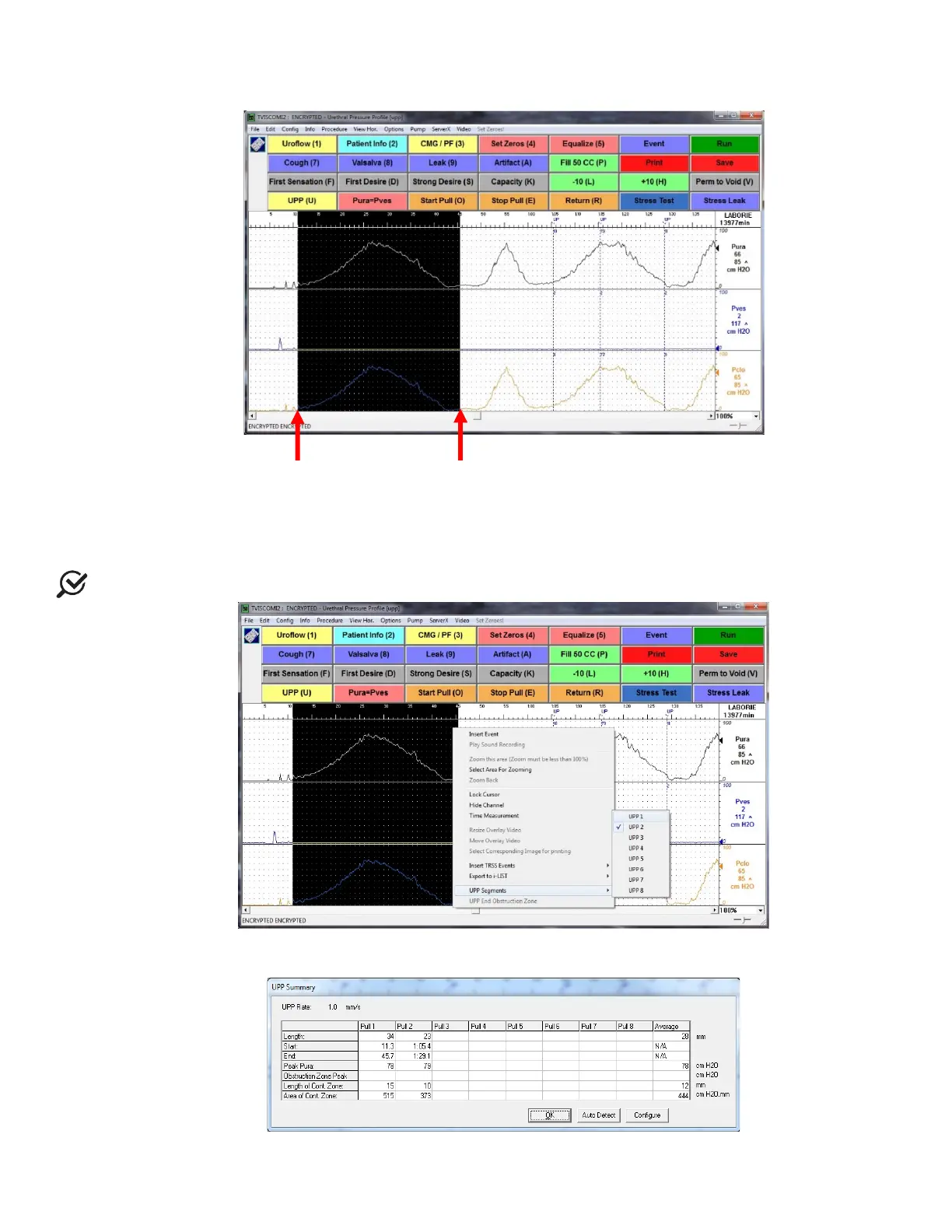
2. Select the UPP segment for re-marking. Left-click on the UDS Graph before the UPP pull requiring marking and
drag the mouse to the end of the UPP pull to highlight the segment in black.
Figure 78: Marking a UPP Segment
3. Right-click on the highlighted section of the graph to open the context menu.
4. Click UPP Segments in the context menu and select an unused UPP Segment. UPP Start, UPP Peak, and UPP Stop
events are added to the graph for that pull. Figure 79 shows remarking of UPP 1 which was removed in step 1.
NOTE: Used segments are indicated by a check mark beside the segment name.
Figure 79: Adding the UPP Segment
5. Verify the UPP Summary (found under the Info menu) is updated with the newly marked UPP pull information.
Figure 80: UPP Summary – Updated Segment



 To Next Page