LABORIE Goby Owner’s Manual GOBY-UM02 73
5.8.6.2 Add an Image to a Control Panel Button
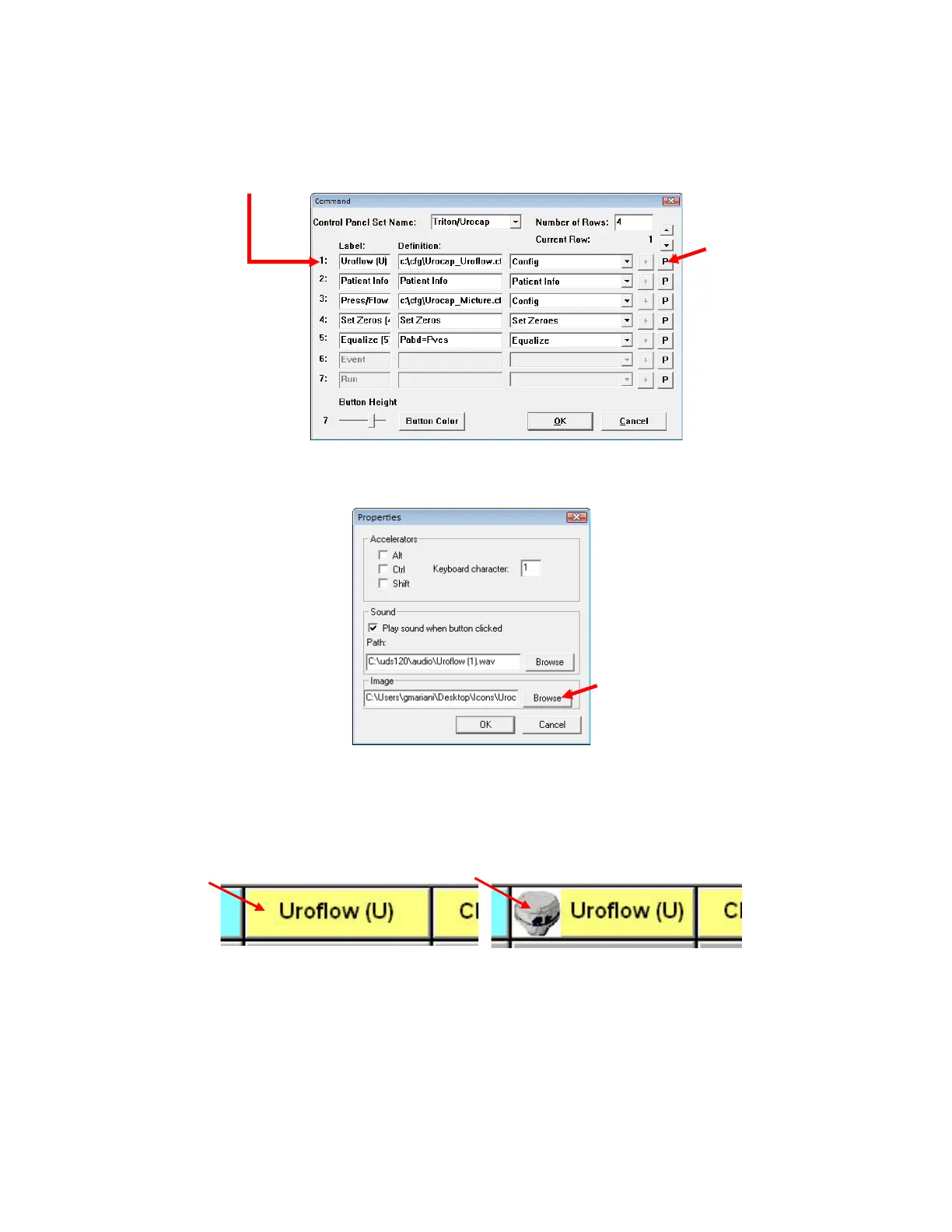
Add an image to a control panel button to make it easily distinguishable from other buttons.
To add an image to a button:
1. Click Options > Control Panel Settings.
2. Click the P button next to the control panel button. In this example we will add an image of a Uroflowmeter to the
Uroflow button:
Figure 86: Uroflow Button Properties window
3. In the Properties window, click the Browse button in the
Image
section to select the image:
Figure 87: Adding Image to Label – Properties Window
4. Once the image is selected, click Open to add the image. The name of the image file will appear in the image
field within the Properties window.
5. Click OK on the Properties window, and then click OK to close the Command window.
The image will now appear in the button on the control panel as shown in Figure 88:
Before After
Figure 88: Edited Uroflow Button



 To Next Page