LABORIE Goby Owner’s Manual GOBY-UM02 38
5.5 CONFIG MENU
The Config menu contains items to help you set up files that can be loaded and used as standard configurations for testing.
5.5.1 Open
The Open feature serves a similar function as the control panel procedure buttons. Both controls load a test configuration
to start a procedure. Select the test configuration file (example,
CMG.cfg) and click Open to load the file using the Open
feature.
5.5.2 Save As
The Save As feature under the Config menu is used to save or redefine a configuration. Remember that a new file name
should
not include any punctuation marks. It is important that a system for filing be established so that test data may be
recognized and retrieved easily. For example
: A file may be named Uroflow.CFG for Uroflow studies or CMG.CFG for
Cystometry.
To save a configuration with a different filename:
1. Click Config on the menu bar and select Save As.
2. Save Test File dialog box will appear.
3. Enter the desired filename and click Save.
NOTE: All test configuration files are automatically stored in the C:\CFG folder.Select the Encrypt Patient Information
checkbox to encrypt patient information.
5.5.3 Set up/Modify
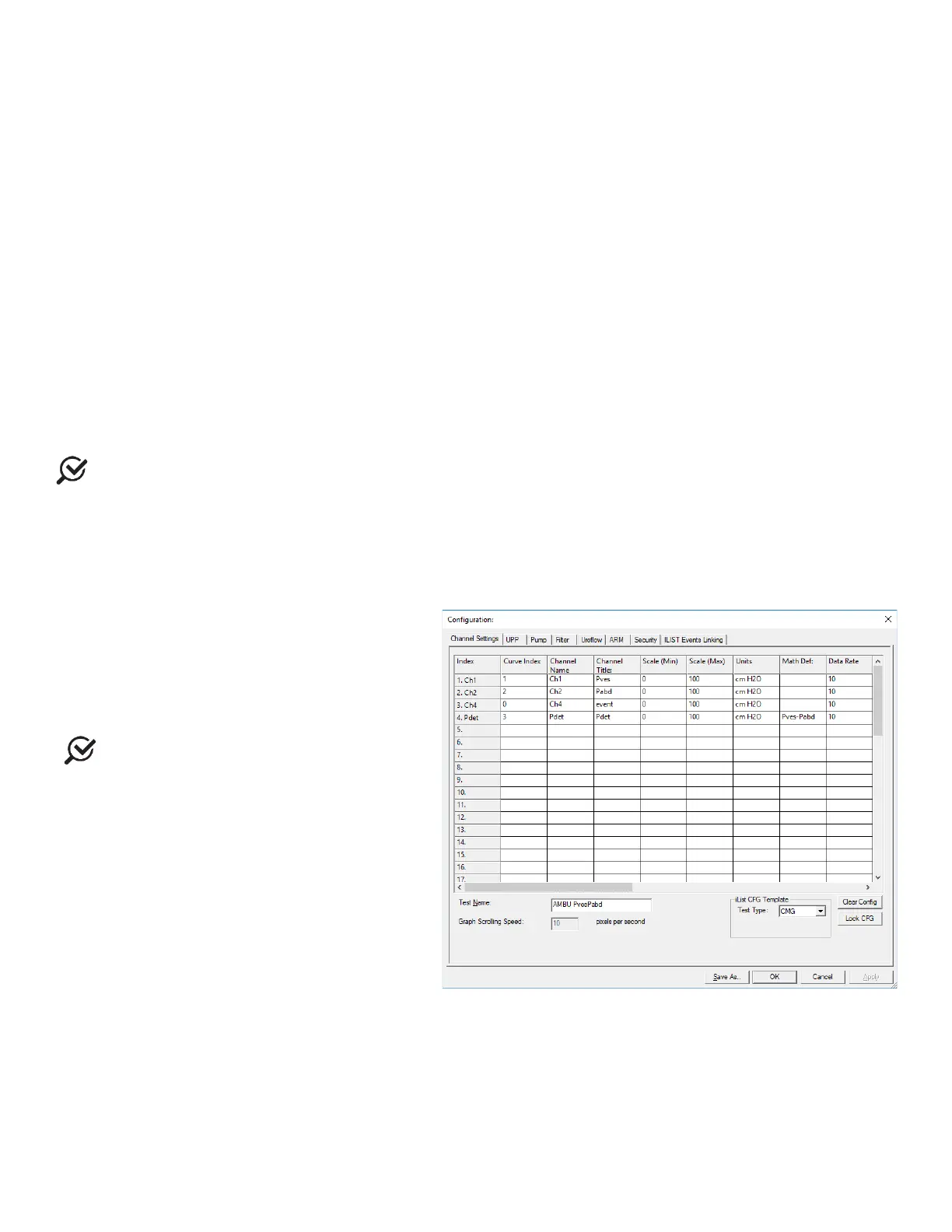
Select Config > Set up/Modify to configure test files and features. The configuration window will load.
5.5.3.1 Channel Settings Tab
Use the
Channel Settings
tab to select which
channels will be displayed on the graph, the channel
colors, and the channel order (
Figure 38).
Once a file is set up, type a name into the Test Name
box and click
to save the configuration.
Some of the features listed may not be
available with your software.
Figure 38: Configuration – Channel Settings Tab
To perform the following actions, locate the feature in the column header and select the box aligned with the appropriate
channel:
• To change the Channel Order, click the
Curve Index
box of the channel to be moved and select its position
on the graph.
• To change the Channel Title, click in the
Channel Title
box and type a new channel title name.
• To change the Minimum and Maximum scale, click the
Scale (Min)
or
Scale (Max)
box of a channel and type
the desired value for the
Min and the Max values.



 To Next Page