LABORIE Goby Owner’s Manual GOBY-UM02 79
5.10 VIDEO MENU
The Goby software has the capability to capture live images and videos of the functions of the bladder and the events that
occur during a test. Use the video functions with an x-ray machine to view a live image of the test. For information on how
to use the Video software and its functions, please refer to the Uropix Owner’s manual included with your system.
NOTE: a maximum of 100 images can be captured with video.
5.11 CALIBRATION SETS MENU
The Calibration Sets Menu provides access preset fluid densities and catheter information. Fluid density and catheter size
information is used during pump calibration. Select a calibration set name before starting a test.
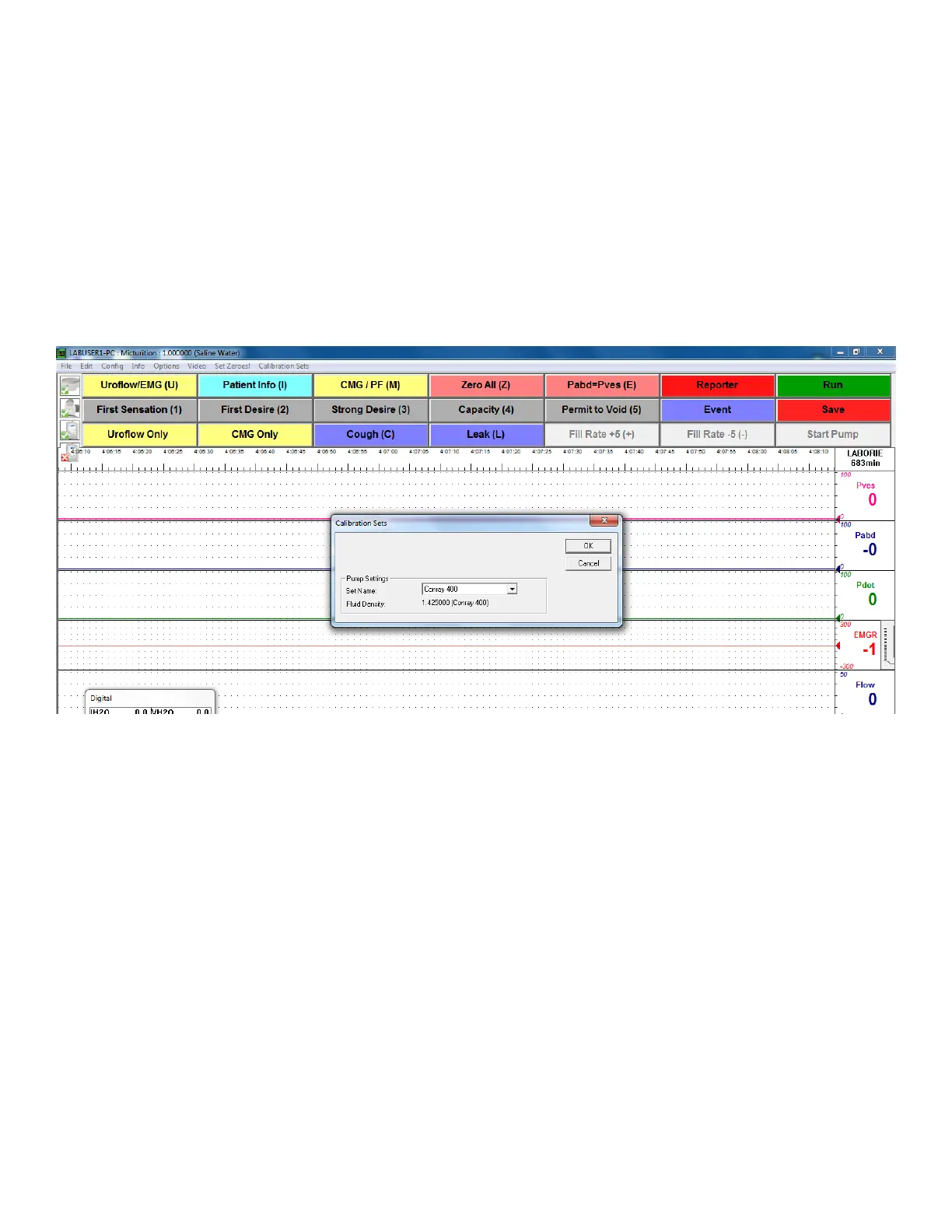
Click the Calibration Sets menu from the toolbar to launch the Calibration Sets window. Select a different fluid density or
catheter type by selecting a new preset from the Set Name dropdown menu. Click
OK to save changes (Figure 94).
Figure 94: Updating Calibration sets Dialog
Once a calibration set is selected, an event will be marked on the UDS graph to specify that a particular calibration set was
used for that portion of the test. The test can be paused to switch calibration sets. The switch will then be marked as a new
event on the graph.
For more information on setting up the calibration sets, see page 90.
5.12 SELECTING GRAPH SEGMENTS FOR ILIST™ REPORTS
Refer to the
iList™
Office Reporter Owner’s Manual for information.



 To Next Page