LABORIE Goby Owner’s Manual GOBY-UM02 70
Select Compliance Events
Use the Select Compliance Events menu to select the calculation end events. Select the checkbox of the desired events.
Press
OK to save changes to compliance settings.
5.7 VIEW HORIZONTAL MENU
The View Horizontal Menu provides resize options that will scale down or up the graphs shown in the scrolling graph section.
To select specific areas of the graph for closer inspection, refer to the Zoom – Selected Area and Back on page 37
.
5.8 OPTIONS MENU
The Options menu activates/accesses miscellaneous functions of the software.
5.8.1 Test Restart
The Test Restart feature restarts a procedure from the beginning of the test. Sometimes when the patient coughs,
sneezes, or kicks the transducer during a test, a re-evaluation is required.
To restart a test procedure:
• Click Options on the menu bar and select Test Restart.
5.8.2 Test Playback
The Test Playback feature enables a pre-saved test to be viewed again like a recording. After the test is complete, it may
be viewed by using the playback feature. The playback speed may be different from when it was recorded.
Click Options and select Test Playback. The test plays from the beginning of the test and runs until the procedure is over.
• To Pause the test, click Stop.
• To Resume playback, click Test Playback.
• To exit the playback mode, click Options then select Test Playback.
NOTE: Audio is not available during playback at 2X speed or faster.
5.8.3 Uroflow Auto Start
Another method of starting a test using the Goby™ is selecting the Uroflow Auto Start option. It enables the recording
process as soon as the
Urocap™ IV detects the first flow of data. This selection is appropriate for Uroflowmetry studies in
instances where the patient requires privacy before and during Micturition.
To set up Auto Start for a Uroflow test:
• Click Options from the menu bar and select Uroflow Auto Start.
5.8.4 Cursor Value Indicator
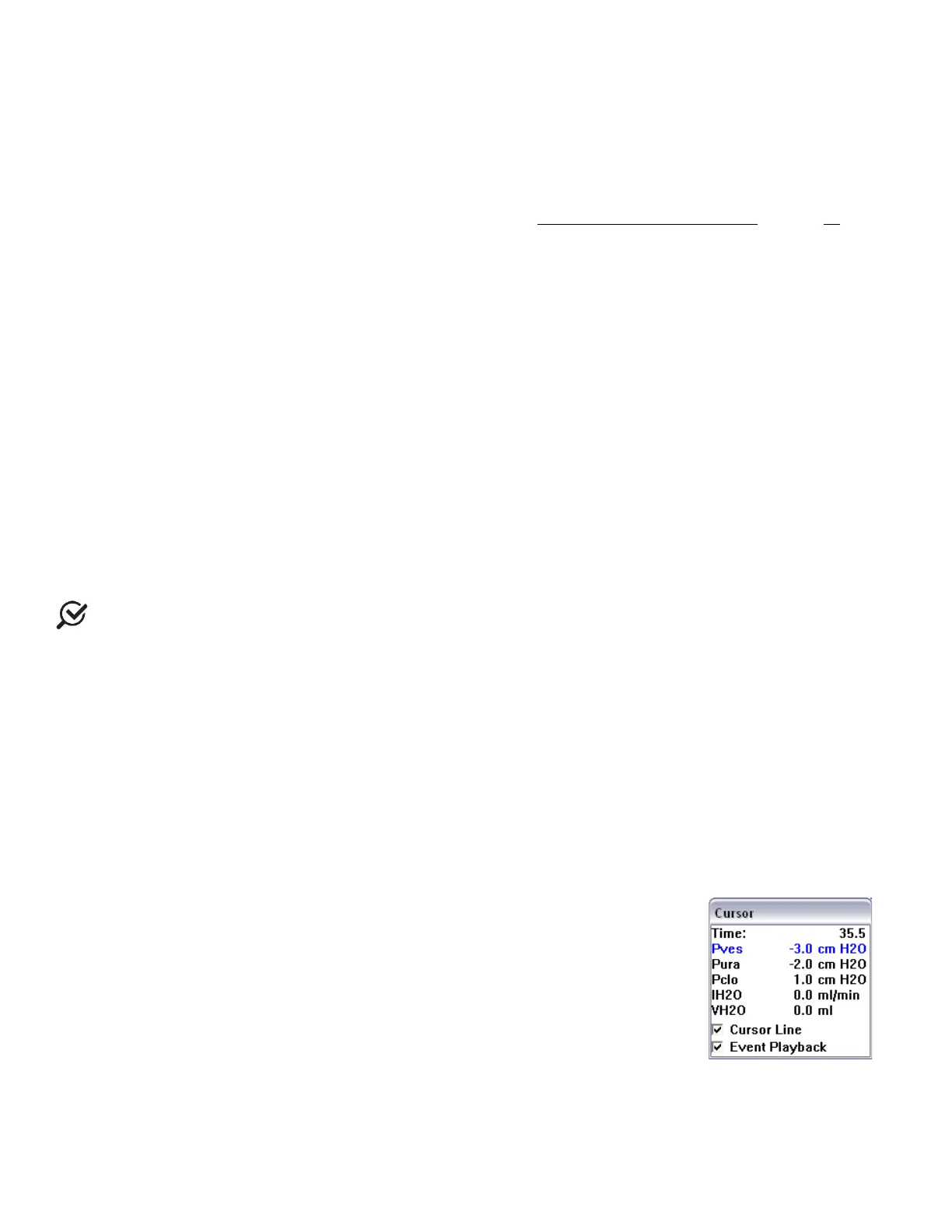
The Cursor window displays the exact location of the mouse cursor and the values of each channel at that location. This
feature is particularly useful for marking events and reviewing test data.
To access the Cursor window:
• Click
>
or Press the F9 key on the keyboard.
This will launch he Cursor window (
Figure 83).
To move the Cursor Window:
1. Click the title bar on the Cursor window.
2. Drag the window to the desired location on the screen.
3. Release the mouse button.
To cancel the Cursor Option:
• Click
>
or press the
key on the keyboard.



 To Next Page