LABORIE Goby Owner’s Manual GOBY-UM02 28
4.2 ICON INDICATORS
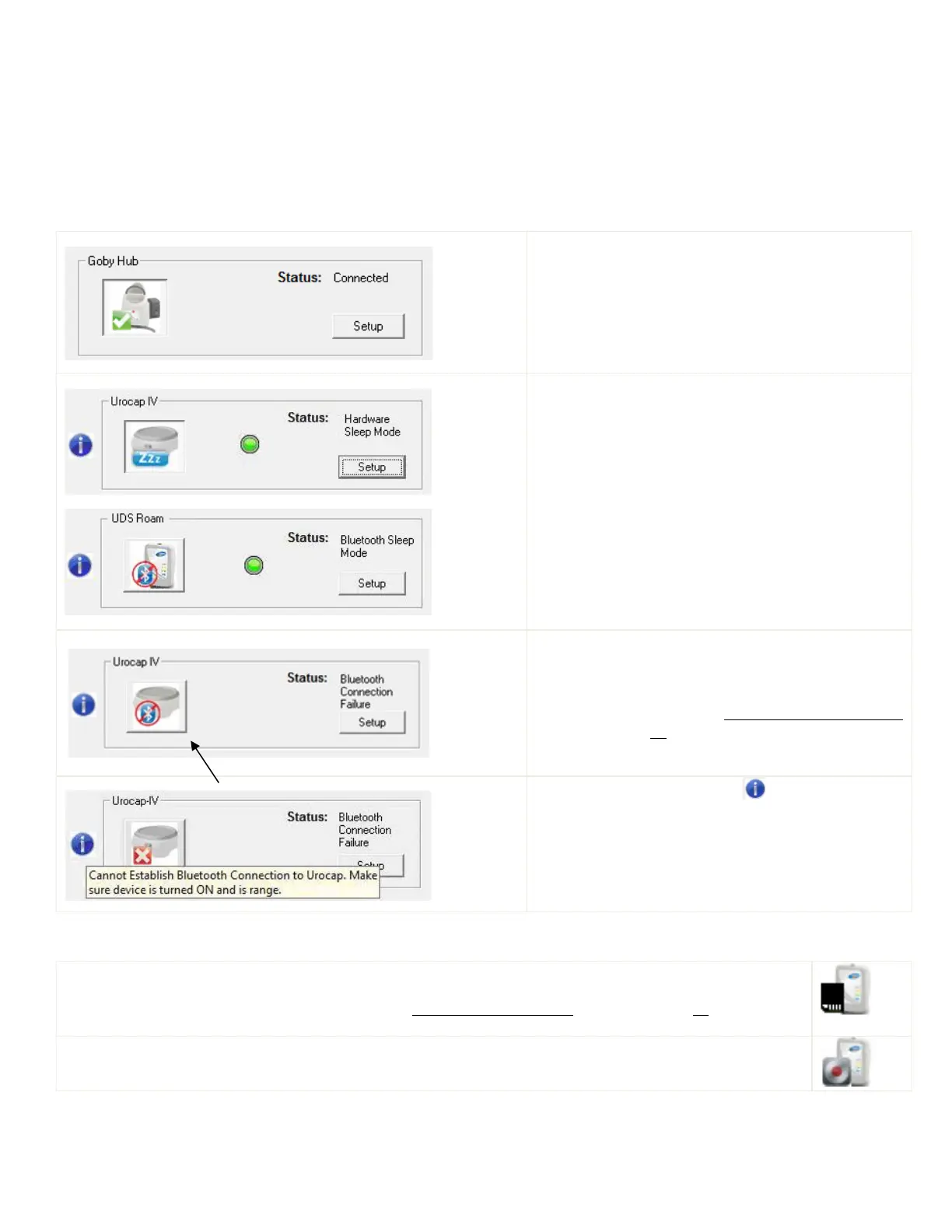
Icon indicators in the Goby Device Manager window will display the status of a device in addition to battery status. The
battery status is shown as a LED icon in the center of the window.
4.2.1 Connection Status
Table 2 provides an overview of the status icons provided in the Device Manager Window with instructions on how to
proceed based on the connection status indicated:
When devices are connected and functional a green
check mark will appear next to the device picture.
After a period of inactivity, w
connected but not in use, the device will go to “sleep”
to conserve battery power.
The device will auto activate from
Mode once a new study is started by clicking the
button located on the
.
To restart the device in Bluetooth Sleep Mode, click
the
button on the control panel.
If there is a connection failure, re-
equipment. Click the device button to reconnect. If
the device does not connect after this attempt, follow
the steps provided in the
Connect Goby™ Devices
section on page 24.
If an information bubble icon is displayed next to
the device icon, place the mouse cursor over it to read
the message and follow the instructions.
Table 2: Device Manager Status Icons
Table 3 describes device icon indicators for Ambulatory Monitoring:
This icon displays when ambulatory recording has stopped and data is ready for downloading:
For instructions on downloading data, refer to the Ambulatory Monitoring section on page 84
.
.
This icon indicates that ambulatory recording has begun:
Table 3: Ambulatory Device Icons



 To Next Page