LABORIE Goby Owner’s Manual GOBY-UM02 86
6.4.1.3 Part 3: Configure the Buttons
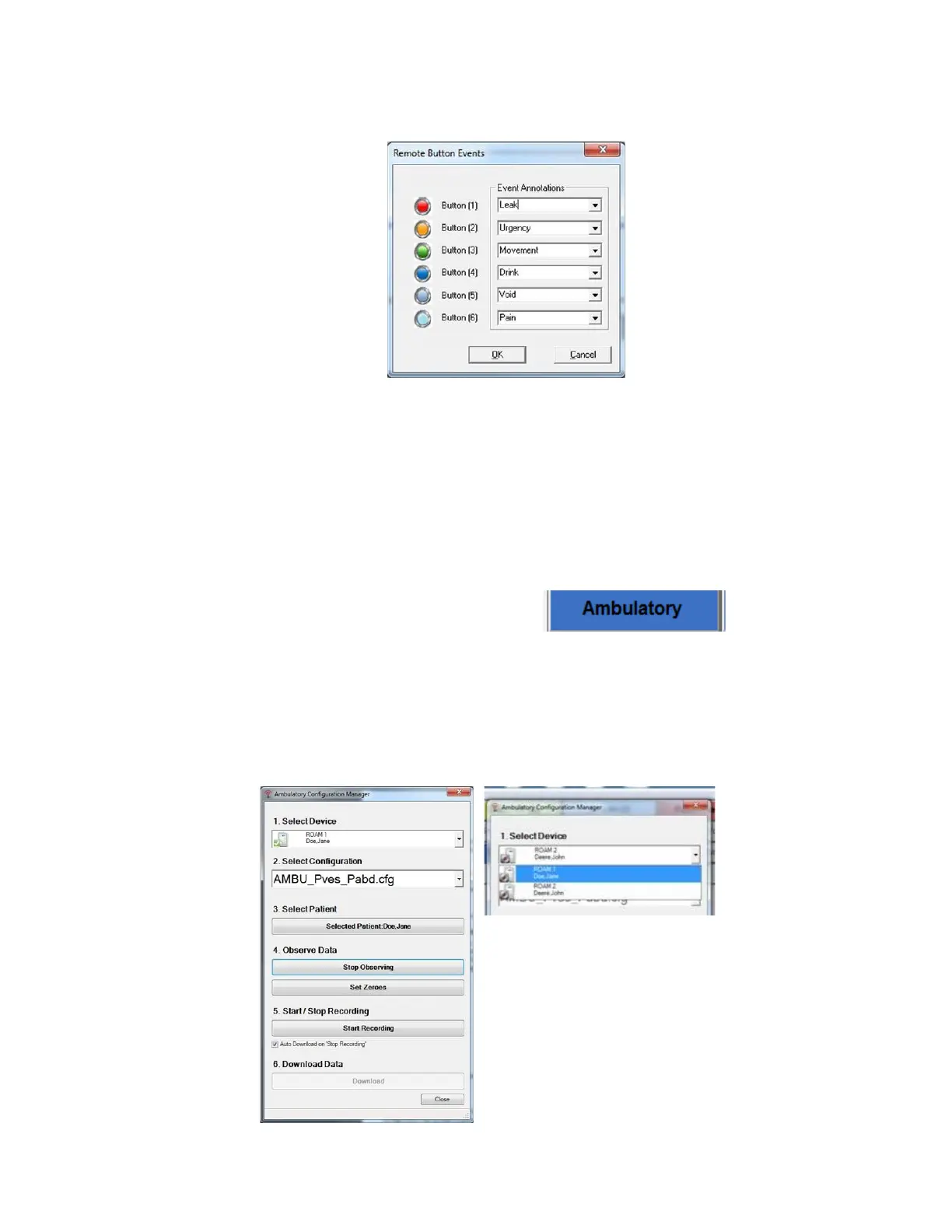
1. Click Options > Remote Button Events Settings to configure the buttons on the remote for use during a test
(
Figure 100).
Figure 100: Remote Button Events Window
2. Select an action for each button from the drop down menu next to each button number.
3. Click OK to set the button actions.
A printable copy of the remote button functions screen is available in the
Intake and Voiding Diary
PDF document found
on the LABORIE software disc. Write in the name of the event next to each button to help keep track of which event is
configured for each button.
6.4.2 Running an Ambulatory Monitoring Test
1. Click the
button on the UDS120 control panel: .
2. In the resulting Ambulatory Configuration Manager, select the UDS Roam™ device that will record the data
from the drop-down menu under section 1.
3. Ambulatory testing can be performed with two separate
devices on two separate patients at the
same time. When setting up the test ensure to select a different
device for each patient.
4. Select the configuration file to use for the ambulatory test from the drop-down menu under section 2.
5. Select the patient name under section 3.
6. Click
under section 4 to view the Pretest window for verification of pressures. Refer to Figure 101.
Figure 101: Ambulatory Configuration Manager Window



 To Next Page