LABORIE Goby Owner’s Manual GOBY-UM02 59
5.6.6.3 Deleting Events from the Event Summary
1. Highlight the event. To highlight multiple events, hold down the Ctrl key while clicking on the events.
2. Click Delete!
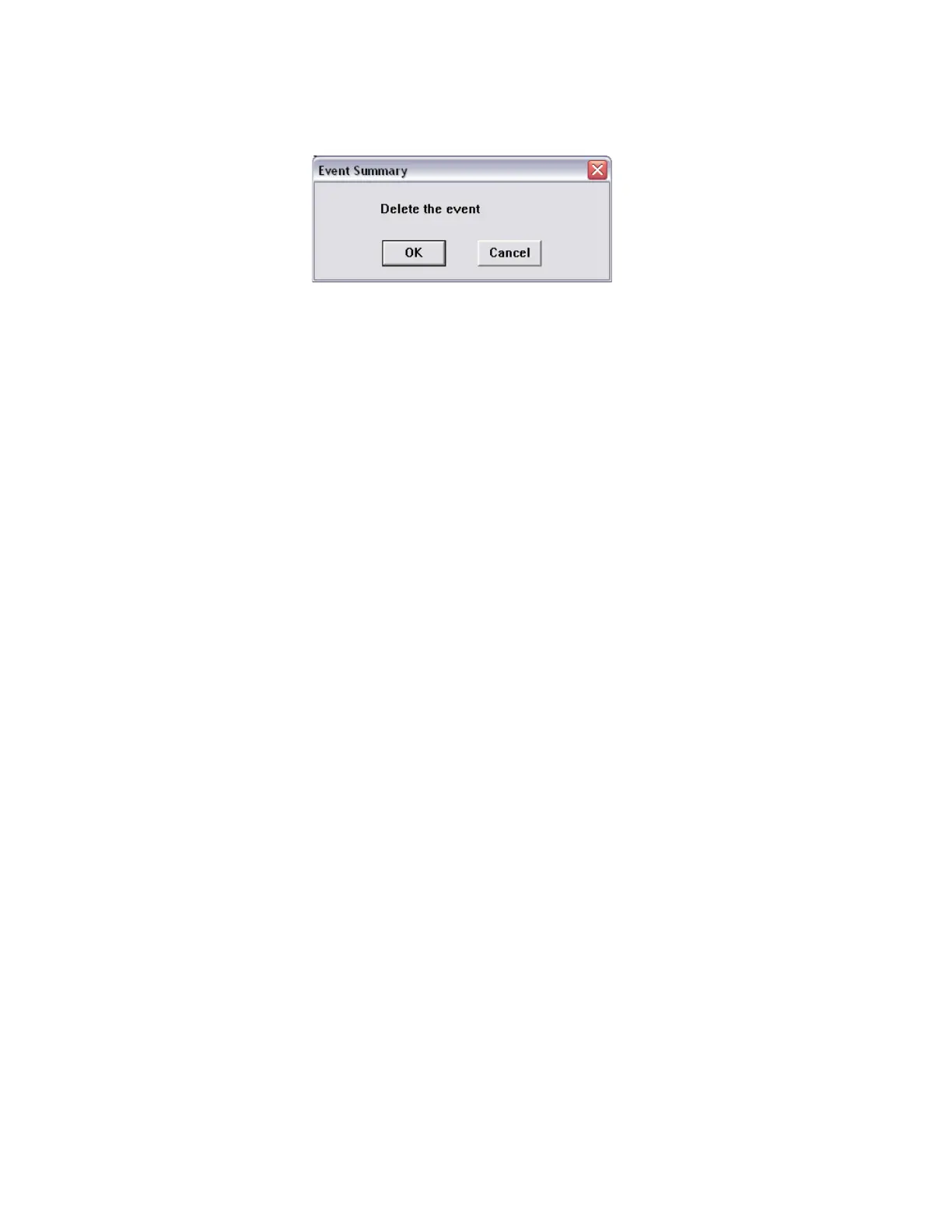
3. Click OK (Figure 70). Highlighted events are deleted from the Event Summary.
Figure 70: Event Summary – Confirm Deletion
5.6.6.4 Move to Event
Once you are in the Event Summary window double-click on an event to move to the point on the graph that corresponds
to that event. A
lways save the DTA file in order to keep the event annotation changes with the files.
5.6.6.5 Selecting/Unselecting Events for Printing
The operator can select events and values for printing in the test results. To have all the events included on the test result
printout click
Select All! All events will be selected as shown in the Printable column where all boxes will be checked. To
select specific events for inclusion, click on check box in the Printable column. To exclude all the events from the printout,
click
UnSelect All!. Refer to the Printable column of Figure 68.



 To Next Page