LABORIE Goby Owner’s Manual GOBY-UM02 31
5 SOFTWARE FEATURES AND FUNCTIONS
Double-click the UDS120 Goby™ shortcut icon on the computer desktop to open the Goby™ software.
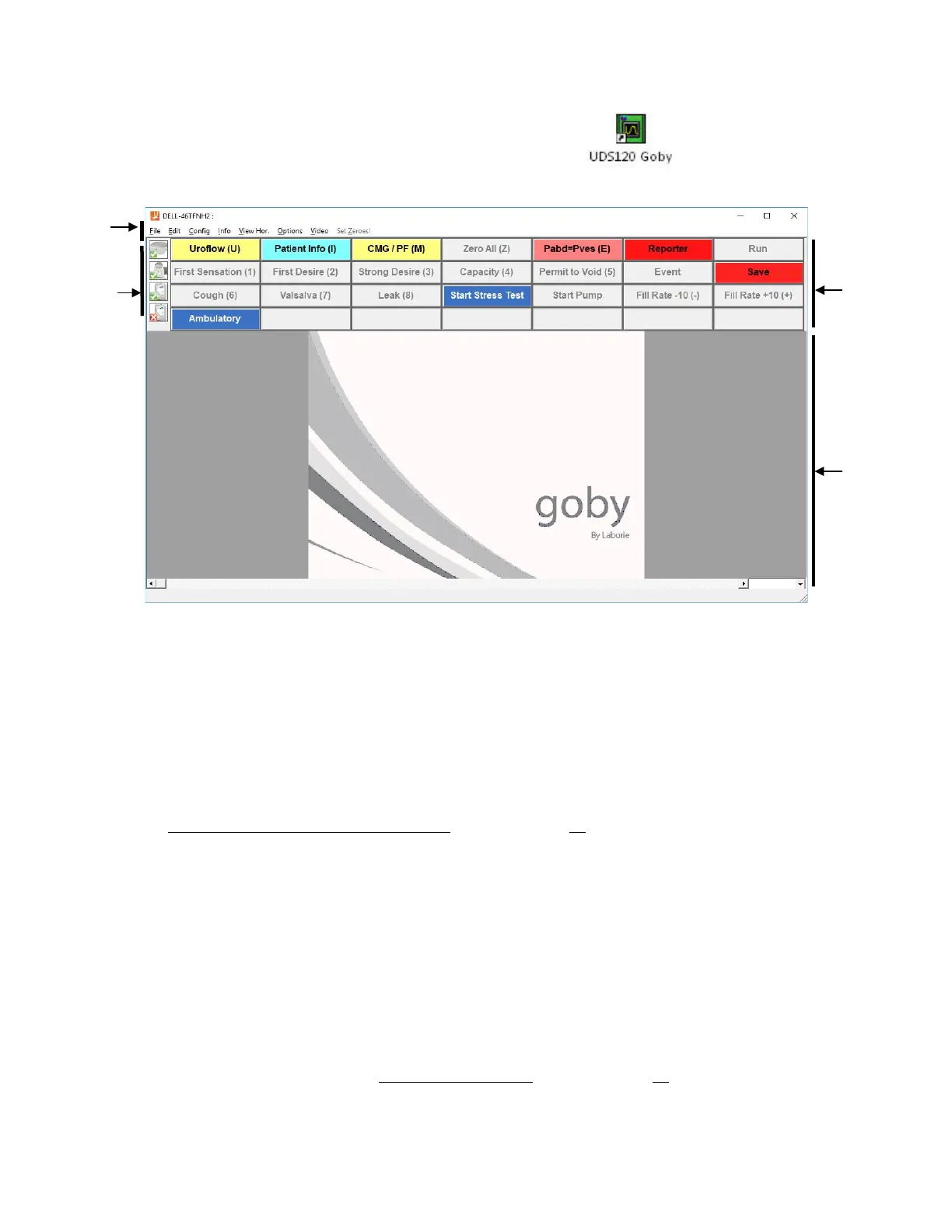
Please refer to the descriptions below for functions available on the Goby software window (
Figure 25).
Figure 25: Goby Software Window
• Menu Bar: Click to access the features available for testing and analysis. The menus in the menu bar at
the top of the
Goby™ software window contain items that allow you to view saved test files, customize the
appearance of the control panel, create custom configurations, and view test summaries. The Menu bar
contains the File, Configure, Info, Options, Video, View Horizontal , and Calibration Sets menus.
• Device Status Icons: Icons display the equipment status. Any changes to the status will automatically
appear here. To view device status changes and perform any re-connections, double click the icon which
will open the Goby Device Manager window. For information on Device Status Icons refer to the
Equipment Status Indicators and Buttons section on page 27.
• Control Panel: Contains buttons for selection during Urodynamics procedures.
• Graph Display Area: Displays the scrolling graph during procedures, saved graph during review, and
contains zoom level options.
The following subsections provide information regarding features available through the Control Panel, Graph Display Area,
and Menus contained in the Menu Bar. In addition, this section provides information for Pediatrics Setup, Remote Control
setup, iList, and Video.
5.1 CONTROL PANELS
The UDS tests can be set to open to a default control panel set each time the software starts. For more information about
adding and configuring control panels see the Control Panel Settings section on page 71
Bar
Status
Icons
Panel
Display
Area



 To Next Page