LABORIE Goby Owner’s Manual GOBY-UM02 88
6.5 PRINT A TEST
Once the test is complete, click the Reporter button on the software control panel to open and print the report. To print
a saved test file, open the test file using the File Menu. Click
File > Open to launch the Open Test window then, select the
patient file. Click the
Reporter button on the control panel to open the iList™ Office Reporter software.
iList™ Office Reports contain information gathered from the Patient Info screen as well as the saved test files. Report
templates are associated with the type of UDS test performed. For example, if you select a report template to view Uroflow
test results then
iList™ Office Reporter will use that template for each Uroflow report unless otherwise configured. Refer
to the
Print Study section on page 36.
The
iList™
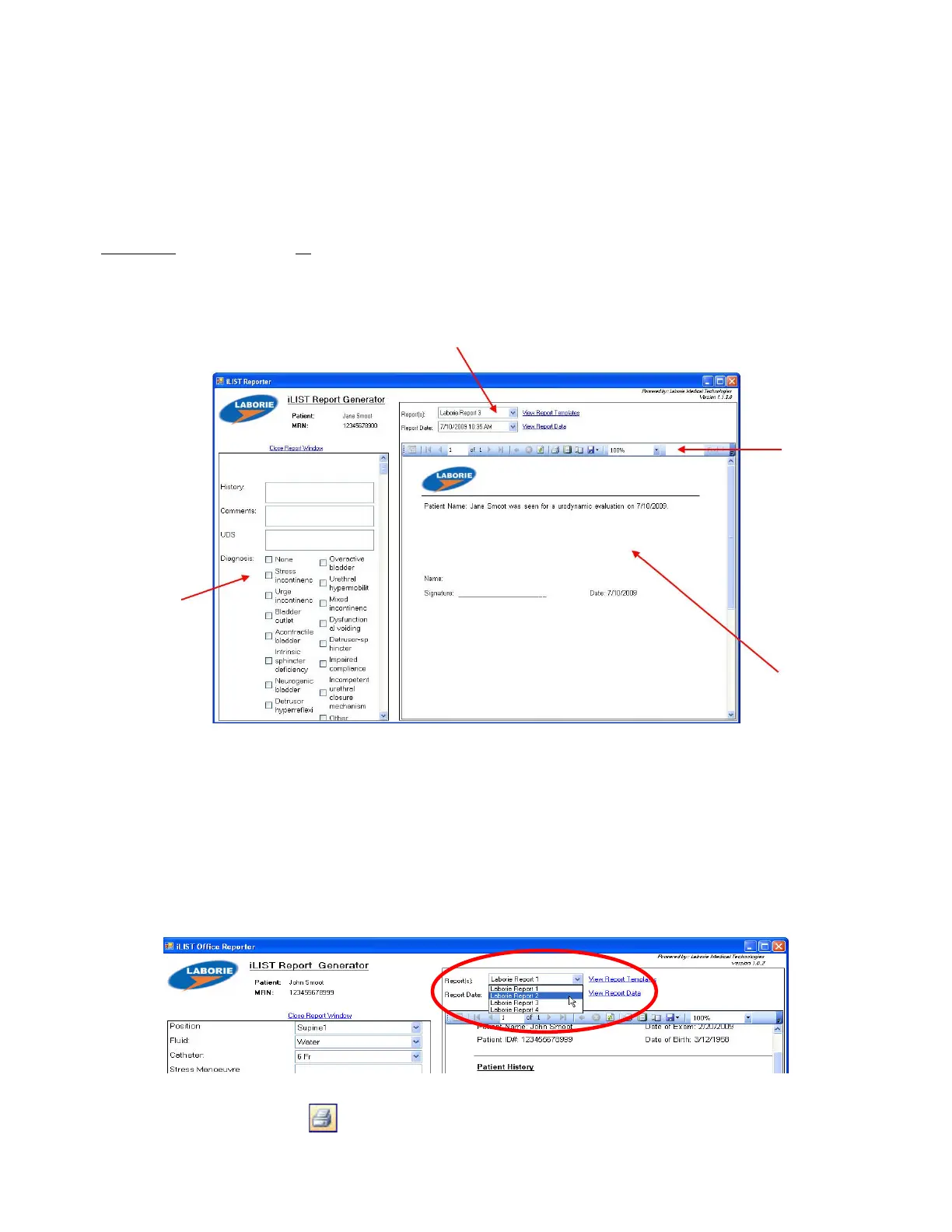
Office Reporter main window has a standard layout. Figure 103 provides an overview of sections in the
iLIST™
Office Reporter main window:
Figure 103: iLIST Reporter Reading Guide – Main Window
Description of iList™ Office Reporter sections:
• The Questionnaire and Additional Report Information section allows for the input of comments to the final report.
• The Report Selector is a listing of the report formats available for the test file. You can also select the report based
on the type of test performed.
• The Toolbar contains quick access buttons for functions such as exporting files, page layout, quick print, navigation
arrows, etc.
• The Report Preview Window section displays test results for the patient’s visit in the selected report format
To select a report template, click the name in the Report(s) Selector and select an option from the drop-down menu.
Figure 104: iList Reporter – Report Template
To print a report, click the Print icon on the toolbar in the iList™ Reporter software.
Toolbar
Additional Report
Information



 To Next Page