95
Harmony
5. When a sound appears that you wish to hear press the green GENIUS 2 button.
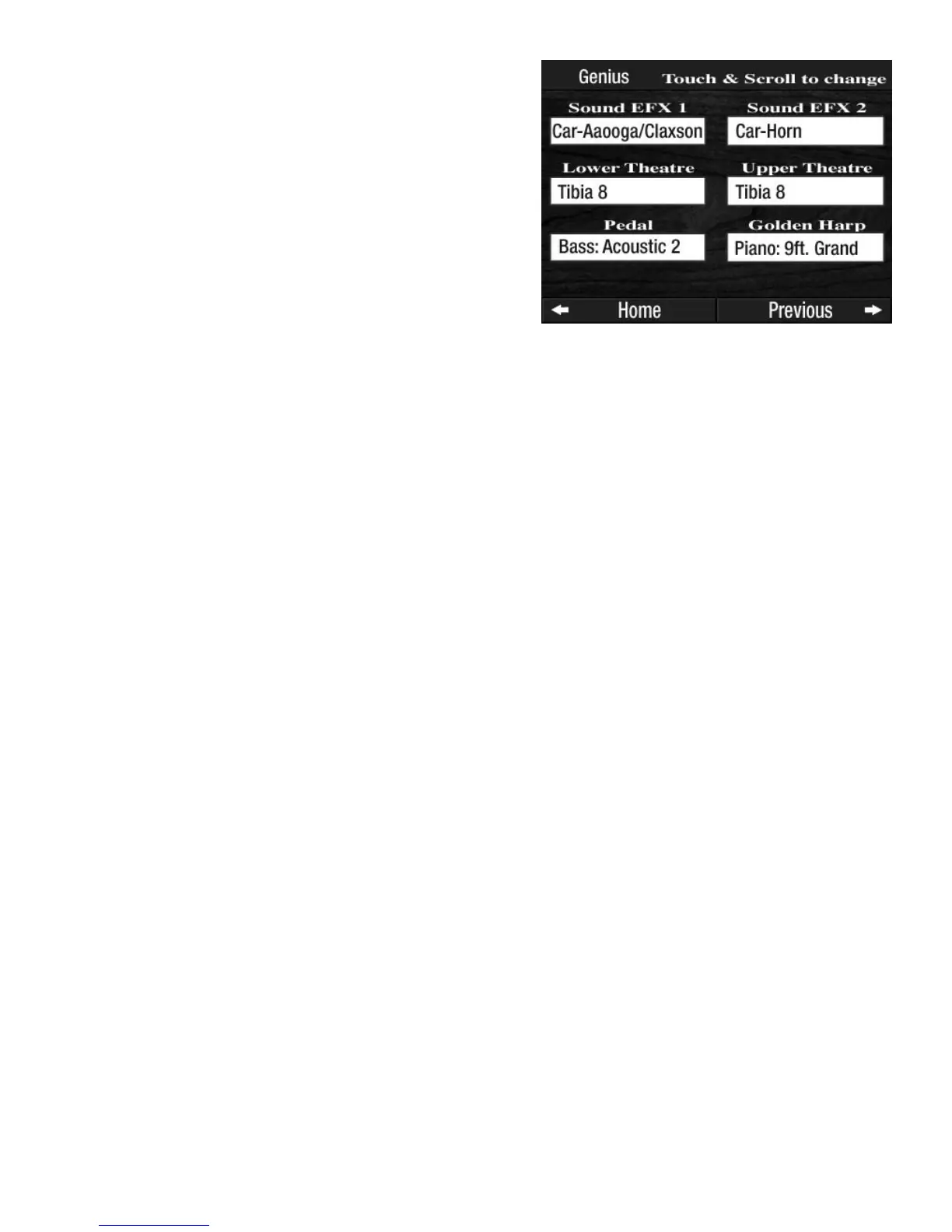
6. To sample other sounds press the SOUND EFX 1 or SOUND EFX 2 button and use the SCROLL
buttons to select new sounds.
Sound EFX 1 = Genius 1 button
Sound EFX 2 = Genius 2 button
TRY THIS: Try the following example to assign a specific SOUND EFFECTS sound (from the number list in
the back of this book) to the Genius 1 and/or Genius 2 buttons.
1. Press the
RESET button.
2. Press the KEYPAD screen button on the TOUCH SCREEN.
3. Press 5, then 5, then 6 on the TOUCH SCREEN.
4. Press the green GENIUS 1 button and you will hear LAUGHTER.
5. Now press 5, then 6, then 6 on the TOUCH SCREEN.
6. Press the green GENIUS 1 button and you will hear a ROOSTER.
If you enter an incorrect number, press the CLEAR ALL box at the bottom of the screen and try again.
How To Use It:
The SOUND EFFECTS add fun and variety to your songs. For example, press the SURF button while play-
ing a Hawaiian song. Some of the Presets may change the GENIUS 1 and GENIUS 2 sounds. Changes made
to the
GENIUS 1 and GENIUS 2 buttons can be saved in a BANK PRESET. Turning the organ off or pressing
the RESET button will restore the factory sounds.
NOTE: All the sound effects shown in the SOUND EFFECTS AND DRUMS VOICE LIST on page 148 can be
assigned to other sections of the organ, including the top portion of the Lower Keyboard and the top por-
tion of the Pedals. For more details see FEATURE PAGE 3 - LOWER SOUND EFFECTS on page 118 and
FEATURE PAGE 9 - PEDAL NATURAL/BLACK on page 135.
TRY THIS: Try the following example to hear some of the
SOUND EFFECTS that can be assigned to the Genius 1 and
Genius 2 buttons.
1. Press the GENIUS screen button on the TOUCH SCREEN.
2. Press the
NEXT screen button, located in the lower right
corner of the
TOUCH SCREEN.
3. Press the box under the heading SOUND EFX 2. The box
will become highlighted.
4. Press either SCROLL button one time to change the
sound name displayed. Press and hold either SCROLL
button to move quickly through the list.



 To Next Page