56
Prestige Owner’s Guide
HOW TO CHANGE SOUNDS AND VOLUMES IN GENIE & ORCH PLUS
1. Press any blue-colored RHYTHM STYLE button, turning it on.
5. You can also change the
ORCH PLUS sound of a Rhythm Style using these same steps. After pressing
any blue Rhythm Style button, the screen will display the Rhythm Style selected, the tempo, and will
present the opportunity to further alter or “edit” the sounds contained in the rhythm style.
TRY THIS example to see the complete “editing” capabilities.
1. Press the RESET button.
2. Press the COUNTRY 2 Rhythm Style button. The screen
will display what is shown to the right.
3. Touch the screen on the words
TOUCH HERE TO EDIT
STYLE. Five different editing categories will appear,
as shown in the next step.
2. Press the button on the TOUCH SCREEN labeled
KEYPAD to display the NUMERIC KEYPAD on the touch
screen.
3. Decide which sound you want from the
GENIUS VOICE
list, located in the back of this book. Look at the
Genius Voice’s corresponding number.
4. Enter the selected Genius Voice corresponding number,
one digit at a time on the
KEYPAD SCREEN, and then
press the GENIE button. The sound selected will now be
heard in the
GENIE section of the Rhythm Style playing.
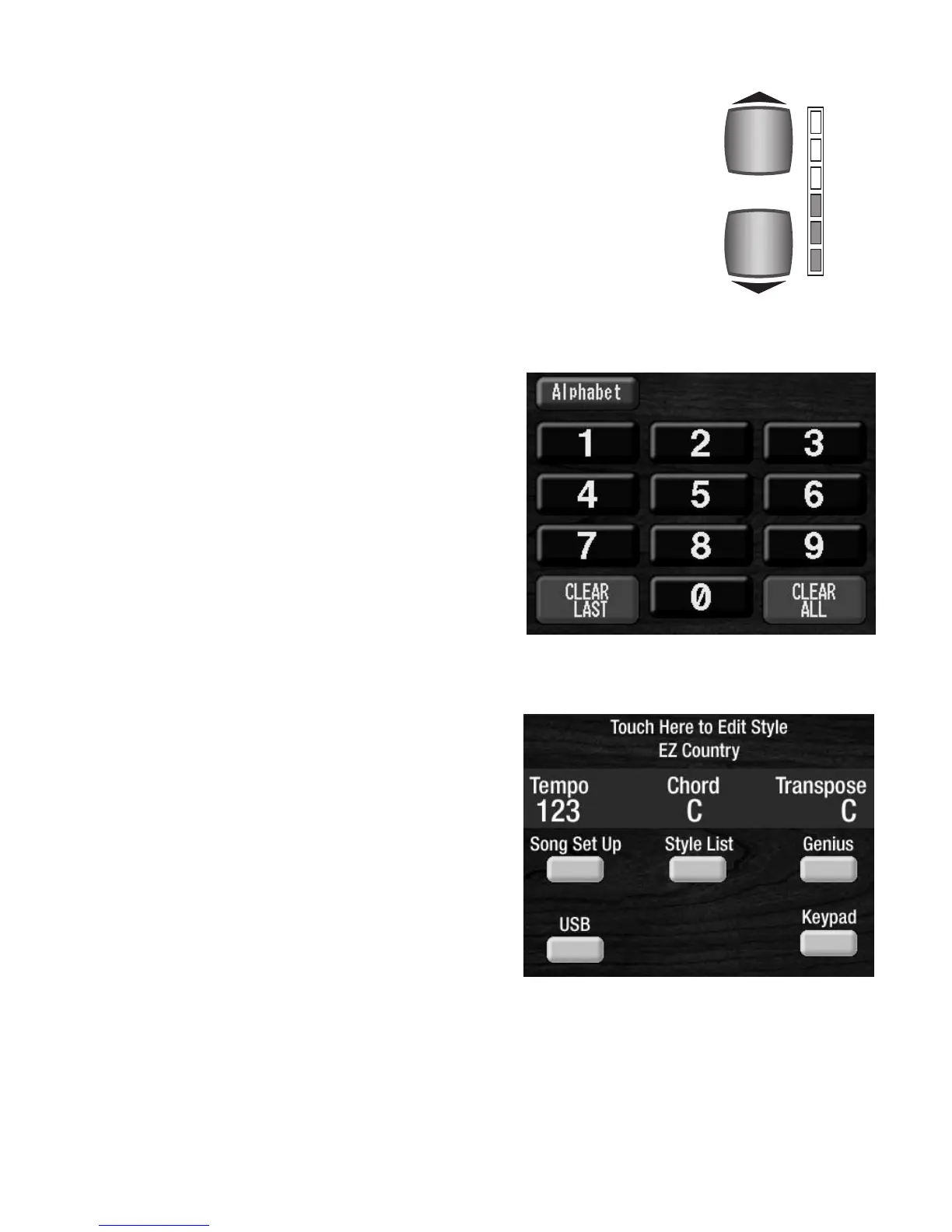
ORCH PLUS VOLUME
The ORCH PLUS buttons control the overall volume of the Genie and Orch
Plus in the Rhythm Plus Orchestration section.




 To Next Page