99
Golden Harp
b. Press either SCROLL button to select among the three sound source choices: GOLDEN HARP, UPPER,
or
LOWER RIGHT. The sound heard when playing the virtuoso keyboard will be the same that is active
for the keyboard (source) selection you make.
The factory set source for sound is
GOLDEN HARP. The sound heard when the playing the virtuoso
keyboard is the same sound heard when the golden harp plays.
The red colored
LOWER RIGHT button, located in the ORCHESTRAL section, must be illuminated in
order for the LOWER RIGHT SOURCE sound to play on the virtuoso keyboard. A red ORCHESTRAL
sound button, or one of the red ORCHESTRAL GENIUS buttons must also be selected.
The red colored
UPPER ON, or blue colored UPPER ON button, located in the ORCHESTRAL and SOLO
sections, must be illuminated in order for the UPPER SOURCE sound to play on the virtuoso keyboard.
A red
ORCHESTRAL sound button, a blue SOLO sound button, one of the blue SOLO GENIUS buttons, or
one of the red ORCHESTRAL GENIUS buttons must also be selected.
When both the red and blue colored
UPPER ON buttons are illuminated, and a red ORCHESTRAL and blue
SOLO sound buttons are illuminated, both sounds will be the sound heard when you play the virtuoso
keyboard.
Pattern
a. Touch the box on the screen to the right of the word PATTERN.
b. Press either
SCROLL button to select among the two pattern choices: NORMAL and SKIP.
The factory set pattern is NORMAL.
HINT: When the sound on the Upper Keyboard is PIANO, set the VIRTUOSO SOURCE to UPPER. Play the
Virtuoso Keyboard and activate the GLIDE/SUSTAIN FOOT SWITCH to add Sustain to the Piano sound. This
step will make your piano arpeggio sound really professional.
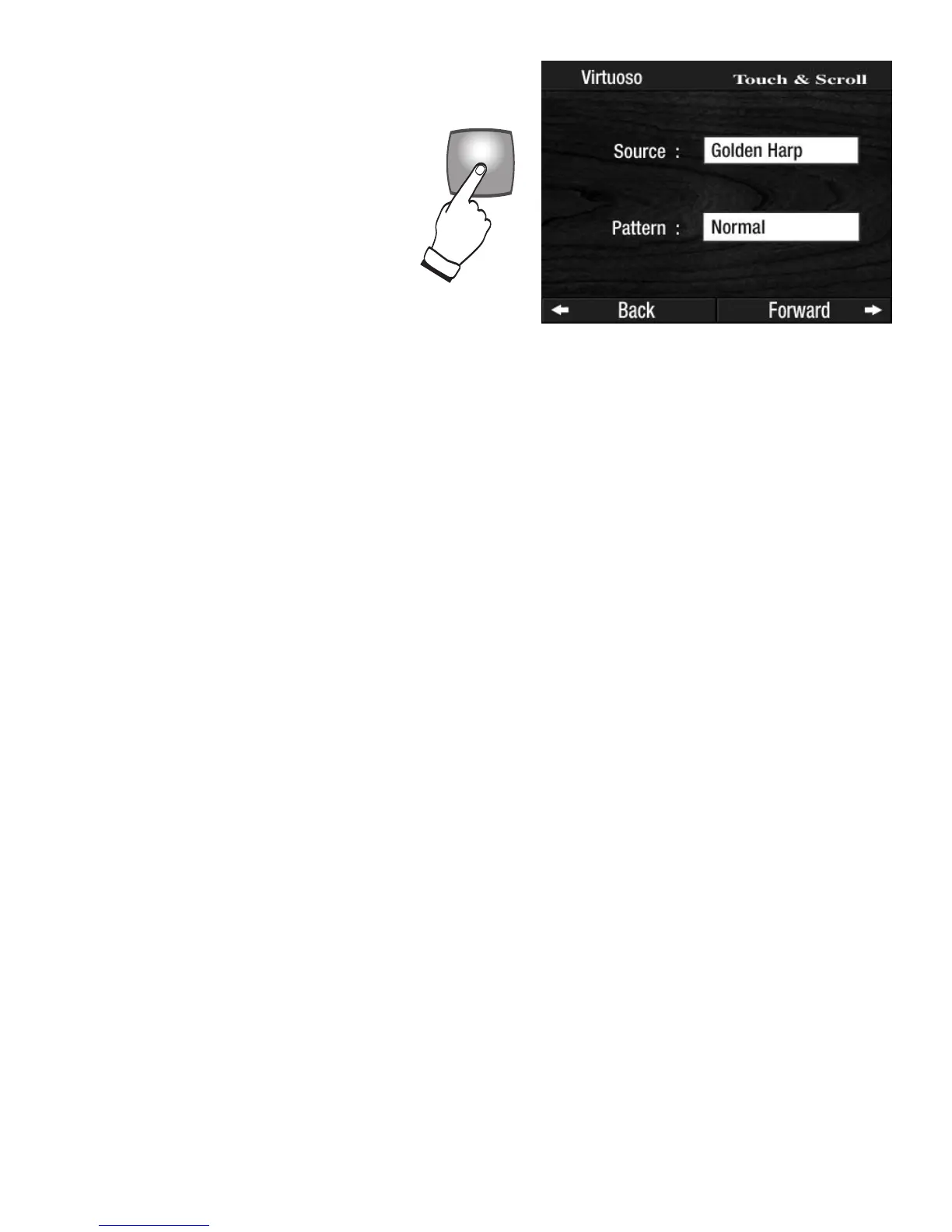
GOLDEN HARP VIRTUOSO
The VIRTUOSO button, located in the
GOLDEN HARP section, lets you select a
source for the sound heard when playing
the virtuoso keyboard and choose a
pattern for the sound.
Press the
VIRTUOSO button in the
GOLDEN HARP section.
Source
a. Touch the box on the screen to the right
of the word SOURCE.



 To Next Page