100
Prestige Owner’s Guide
2. Change the setting of a Feature.
3. Press another button on the panel for you that may be difficult to reach.
4. Activate a Foot Switch on the Volume Pedal.
How It Works:
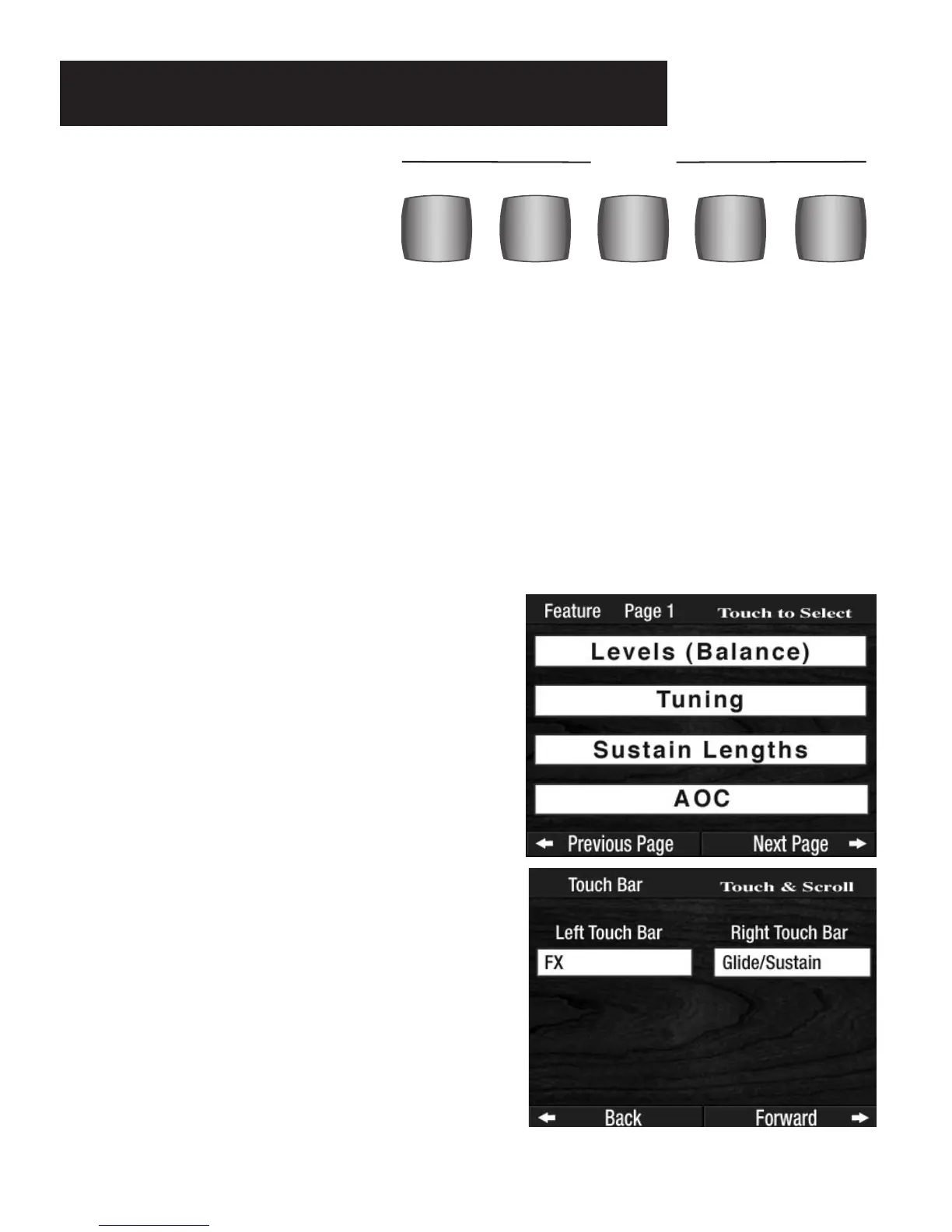
Each CUSTOM button is preset from the factory with a certain function.
#1: Pressing this button changes the TOUCH SCREEN to the More Rhythm Style display.
#2: Pressing this button changes the
TOUCH SCREEN to the Upper Drawbar display.
#3: Pressing this button changes the TOUCH SCREEN to the Next Preset display.
#4: Pressing this button changes the TOUCH SCREEN to the Preset Info. display.
#5: Pressing this button changes the
TOUCH SCREEN to the Keyboard Screen display.
More detail regarding
NEXT PRESET can be found on page 128. PRESET INFORMATION detail is found on
pages 17 and 127.
3. Press the words TOUCH BAR on the screen. The display
will change to show the left and right Touch Bar control
settings.
Jump to a Feature Display
TRY THIS: Let’s Jump to a feature on the screen. Try the
following example to see how to save a
TOUCH SCREEN
display on one of the CUSTOM buttons.
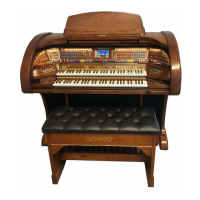
1. Press the FEATURE (CLEAR) button to display SCREEN
PAGE 1
.
2. Press either SCROLL button several times to change the
display to FEATURE PAGE 9.
What It Does:
The CUSTOM buttons perform four differ-
ent functions.
1. Jump to a specific Feature display on
the Touch Screen so you can see or
change the setting.
Custom Buttons



 To Next Page