130
Prestige Owner’s Guide
Advanced Features
To set the PEDAL SPLIT POINT, simply press the Pedal where you want the Split to be. The reverse color
will now indicate the new split point. The illustration on the screen will immediately change to reflect your
selection. The box, to the right, will also indicate the change. To the right of the
SPLIT POINT, the natural
and black pedals become capable of having numerous control functions such as: FX, Glide/Sustain, and
Sound Effects assigned to them. The left side of the Split Point functions normally.
You can also use the
SCROLL buttons to set either split point. Press the box containing the key name of the
split point, to the right of the Lower Keyboard or Pedal illustration. It will become highlighted. Press either
SCROLL button to move the Split Point up or down. The illustration and key name displayed on the screen
will change.
The
LOWER SPLIT POINT is activated by any of the following conditions:
•Pressing the blue LOWER ON button in the Solo section, turning it on.
•Pressing the red LOWER RIGHT button in the Orchestral section, turning it on.
•Activating the
KEYED DRUMS feature.
The PEDAL SPLIT POINT is activated by using the PEDAL NATURAL/BLACK control function-Feature Page
9, item 4. 19 different functions may be assigned.
How To Use It:
Use this feature to customize either split point to your liking. KEY SPLITS can be saved to a BANK PRESET.
Pressing the RESET button or turning the organ off will restore both splits to the factory settings.
Press the lighted
FEATURE(CLEAR) button to return to the POWER-UP screen.
2. Keyboard Screen
What It Does:
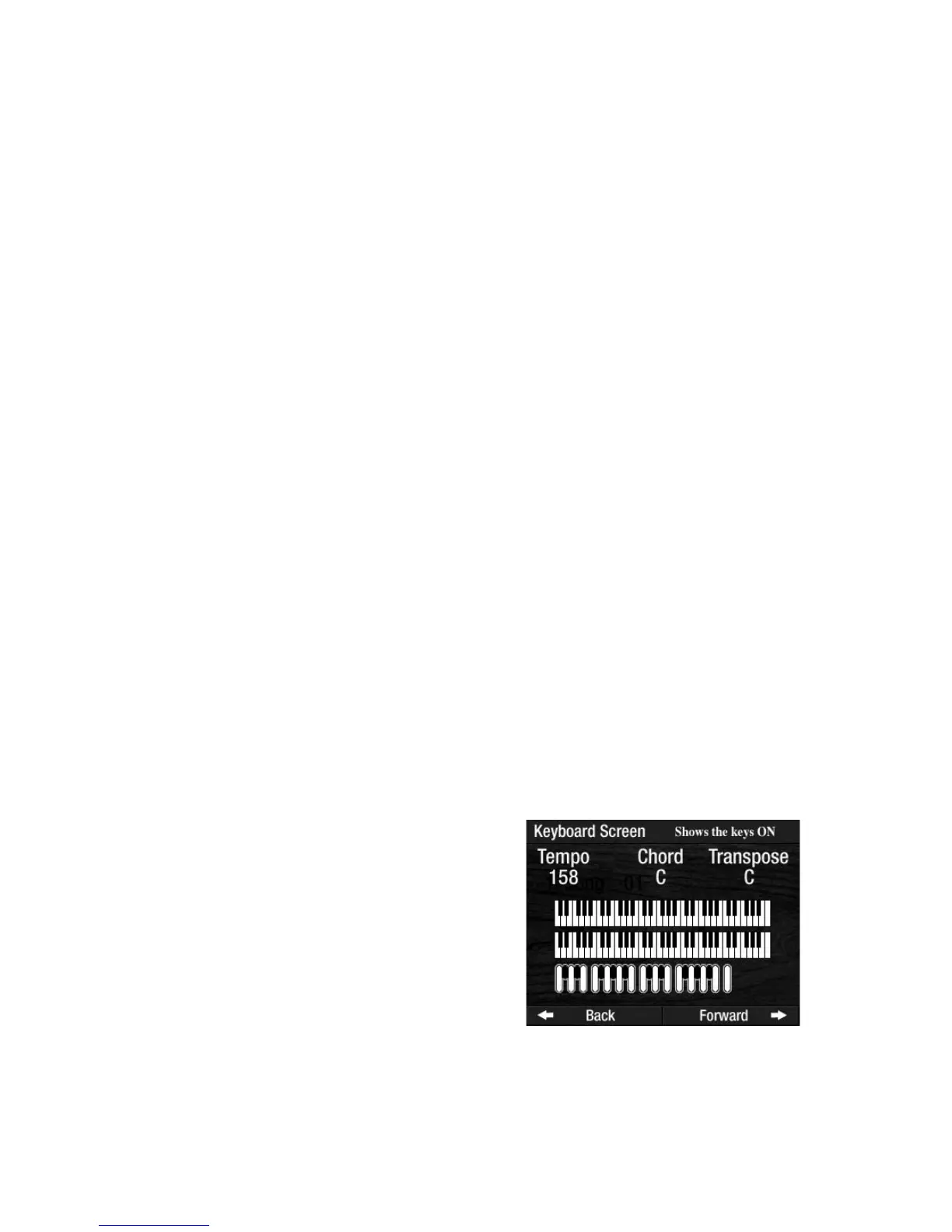
The KEYBOARD SCREEN feature displays, on the screen, the notes you are playing on the organ, or the notes
that are being played from a memory stick with the Music Recorder.
How It Works:
Press the words KEYBOARD SCREEN on the screen to display an illustration of both keyboards and the
Pedals. The notes being played will become highlighted.
How To Use It:
This is a particularly fun feature to use when playing a recorded memory stick.
Press the lighted
FEATURE(CLEAR) button to return to the POWER-UP screen.
Above the keyboards will either be the name of the chord
being played or the name of the style being played (from a
recorded memory stick). If a song is playing from a
recorded memory stick, you will see the notes being
played, on the screen. It’s almost like a player piano except
the keys aren’t going up and down - they’re lighting up.
Note: Standard MIDI files do not display notes on this dis-
play
.



 To Next Page