101
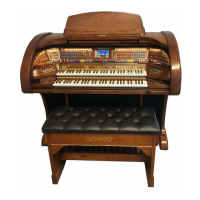
Virtuoso Keyboard
Change a Feature Setting
TRY THIS: Let’s Change the setting of a feature. Try the following example to see how to save a change so
that all the steps are reduced to just pressing a single CUSTOM button. Change the NORMAL GLIDE setting to
SUPER GLIDE. with a Custom button.
1. Press the
FEATURE (CLEAR) button to display FEATURE PAGE 1.
2. Press either SCROLL button several times to change the display to FEATURE PAGE 5.
3. Touch the words GLIDE SETTINGS on the screen. The display will change to show the variety of GLIDE
SETTINGS available.
4. Touch the word
SUPER on the Screen.
5. Press and release the red
MEMORIZE button (next to the BANK PRESETS) causing it to light.
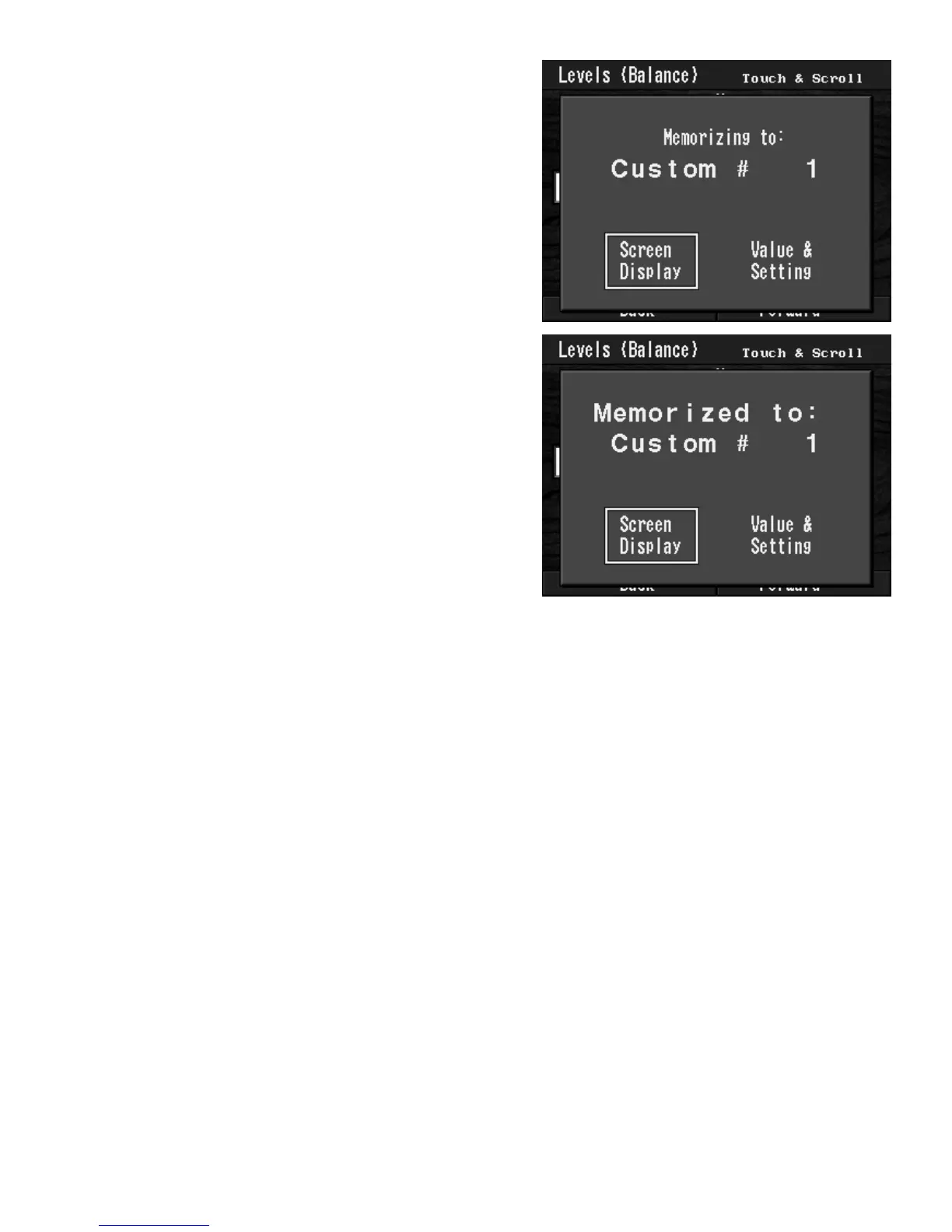
The TOUCH SCREEN will read: MEMORIZING TO:
6. Press the CUSTOM 2 button. The TOUCH SCREEN will read: MEMORIZING TO: CUSTOM #2.
7. Touch the words
VALUE & SETTING on the Screen.
8. Press the red MEMORIZE button again, turning it off. The TOUCH SCREEN will read: MEMORIZED TO:
CUSTOM #2.
Now you can change to the
SUPER GLIDE setting by pressing just the CUSTOM #2 button. You have replaced
the factory setting of
UPPER DRAWBAR DISPLAY that was on the CUSTOM #2 button.
Press a Feature Button
TRY THIS: Let’s Press a button, that may be hard to reach while you are playing, with a CUSTOM button.
Follow these steps to turn on the purple colored
UPPER DUET HARMONY button by pressing the CUSTOM #3
button.
6. Press the red MEMORIZE button again, turning it off.
The TOUCH SCREEN will read: MEMORIZED TO:
CUSTOM #1.
The Touch Bar Control Display has now been placed in the
CUSTOM 1 button and replaces the factory setting of MORE
STYLES.
4. Press and release the red MEMORIZE button (next to the
BANK PRESETS) causing it to light.
The TOUCH SCREEN will read: Memorizing To:
5. Press the CUSTOM 1 button. The TOUCH SCREEN will
read:
MEMORIZING TO: CUSTOM #1.



 To Next Page