120
Prestige Owner’s Guide
Press the name of the section, on the screen, you wish to change. It will become highlighted. Press either
SCROLL button to change the sound. Stop scrolling when the desired sound is in the highlighted box. If you
wish to adjust the volume for that particular sound, press the box labeled LEVEL, which will become high-
lighted. Press either SCROLL button to increase or decrease the volume. 100 is maximum volume. 0 is min-
imum volume. One of the sounds available is
NO SOUND, which permits you to have a single sound, instead
of the two preset on the Lower Keyboard and/or Pedals.
How To Use It:
THEATRE DRUMS give the player a large selection of percussion (and Sound Effects) combinations for the
Lower Keyboard and Pedals.
Press the THEATRE DRUM tab when using a RHYTHM STYLE and RHYTHM PRESET to add either a
drum or cymbal sound that will follow the AUTO BASS pattern.
Pressing the
RESET button or turning the organ off will return this section to the factory setting. A cus-
tomized setting can be saved to a
BANK PRESET.
Press the lighted
FEATURE(CLEAR) button to return to the POWER-UP screen.
1. Effects - SHORTCUT=FEATURE + ANY RED ORCHESTRAL BUTTON (EXCEPT GENIUS)
What It Does:
The EFFECTS feature gives you the ability to alter five sound sections on the organ:
1.
ORCH 1 - The Orchestral sound button that is lighted, including the Genius 1 or Genius 2 button.
2. ORCH 2 - The Orchestral sound button that is blinking (when two Orchestral sounds are used at the
same time, including the Genius 1 or Genius 2 button.
3.
SOLO - The Solo sound button that is lighted, including the Genius 1 or Genius 2 button.
4. LOWER GENIUS (L.Gen) - The sound in the Lower Genius Tab.
5. UPPER GENIUS (U.Gen) - The sound in the Upper Genius Tab.
The10
EFFECTS listed below can be applied to the sounds from the five sections listed above.
ROTARY FLANGER CHORUS TREMULANT ENSEMBLE
AUTO WAH CELESTE AUTO PAN PHASER DELAY
PREVIEW:
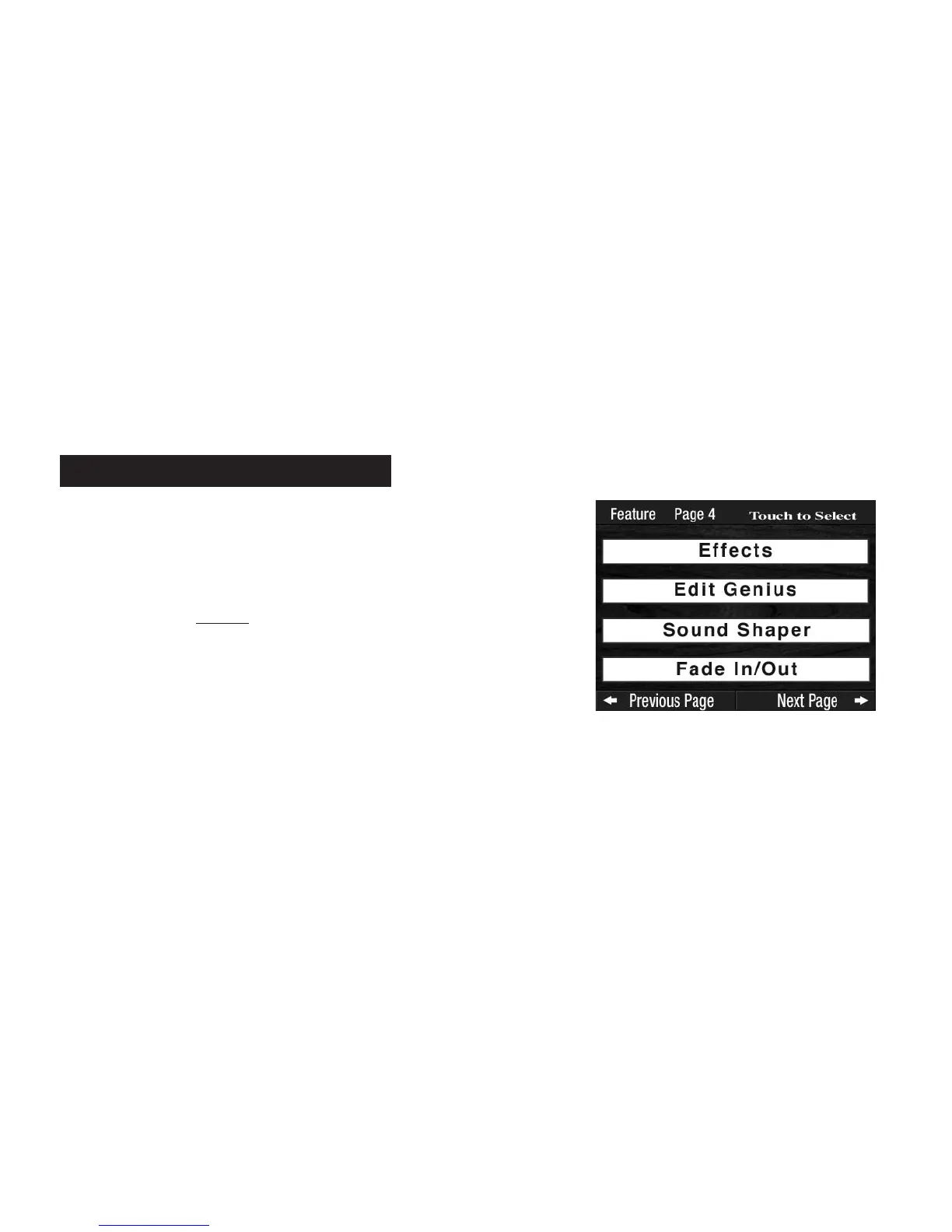
FEATURE PAGE 4 controls three feature categories:
1.
EFFECTS: Adds animation or an effect to existing sounds.
2. EDIT GENIUS SOUNDS: Lets you change the Octave, Vibrato, or
Sustain of a Genius sound.
3.
SOUND SHAPER: Change the character of certain sounds.
4. FADE IN/OUT: Increase or decrease the length of time a
Fade In Introduction or Fade Out Ending plays.
Feature Page 4



 To Next Page