134
Prestige Owner’s Guide
How To Use It:
Use the VIRTUOSO feature page to change the performance of the Virtuoso Keyboard to your liking. Match
the sounds on the Virtuoso to those you are using on other sections of the Prestige.
Press the lighted
FEATURE(CLEAR) button to return to the POWER-UP screen.
1. Dynamic Keying - SHORTCUT=FEATURE +THE DYNAMIC KEYING BUTTON
What It Does:
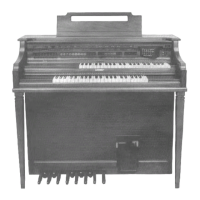
The DYNAMIC KEYING feature allows you to assign the Dynamic Keying function to certain buttons and tab
sounds on the organ.
U.STG. VOC.: Upper Strings 16, 8, 4, and Vocal Ensemble tabs.
L.STG. VOC.: Lower Strings 8, 4, and Vocal Ensemble tabs.
U.GENIUS: The Upper Genius tab.
L.GENIUS: The Lower Genius tab.
ORCH 1: The lighted red Orchestral sound button.
ORCH 2: The blinking red Orchestral sound button.
SOLO 1: The lighted blue Solo sound button.
SOLO 2: The blinking blue Solo sound button.
There is an additional on/off button which activates the
AFTERTOUCH (pressure) feature on the sounds list-
ed above. Aftertouch creates an additional effect on certain sounds when more pressure is applied to a key.
The DYNAMIC KEYING button on the right side of the panel, above the harmony buttons, must be on.
How To Use It:
DYNAMIC KEYING adds authenticity to certain sounds. This feature gives you the ability to assign Dynamic
Keying to the sounds of your choosing.
How It Works:
Pressing the words DYNAMIC KEYING on the screen displays the
current settings for Dynamic Keying.
Press the name of the section, on the screen, that you wish to change-
on or off.
PREVIEW:
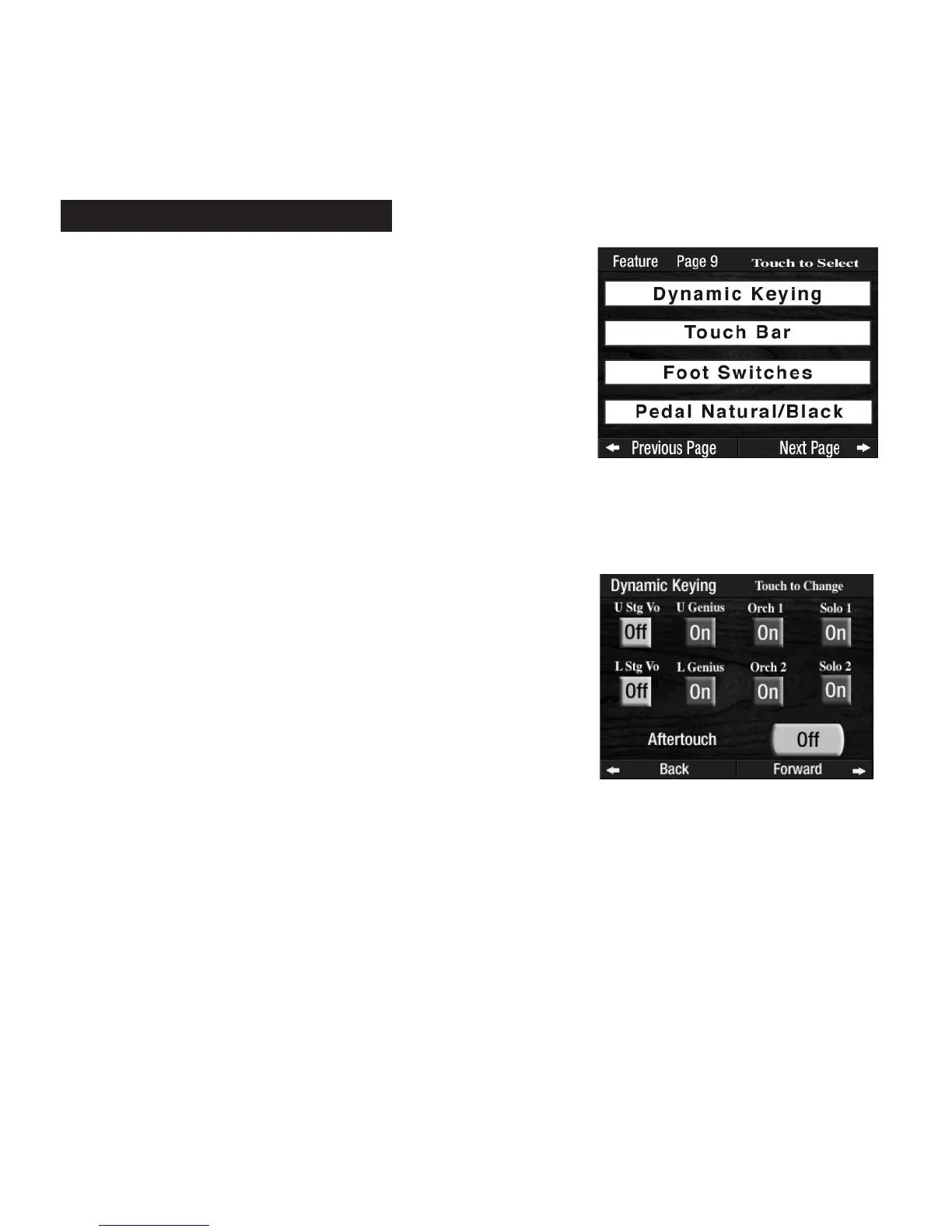
FEATURE PAGE 9
controls four feature categories:
1.
DYNAMIC KEYING -Adds touch sensitivity to the keys.
2.
TOUCH BAR -Assign different controls to the Touch Bars.
3. FOOT SWITCHES -Assign different controls to the Foot Switches.
4.
PEDAL NATURAL/BLACK -Assign different controls to the Pedals.
Feature Page 9



 To Next Page