118
Prestige Owner’s Guide
1. Lower Sound Effects
What It Does:
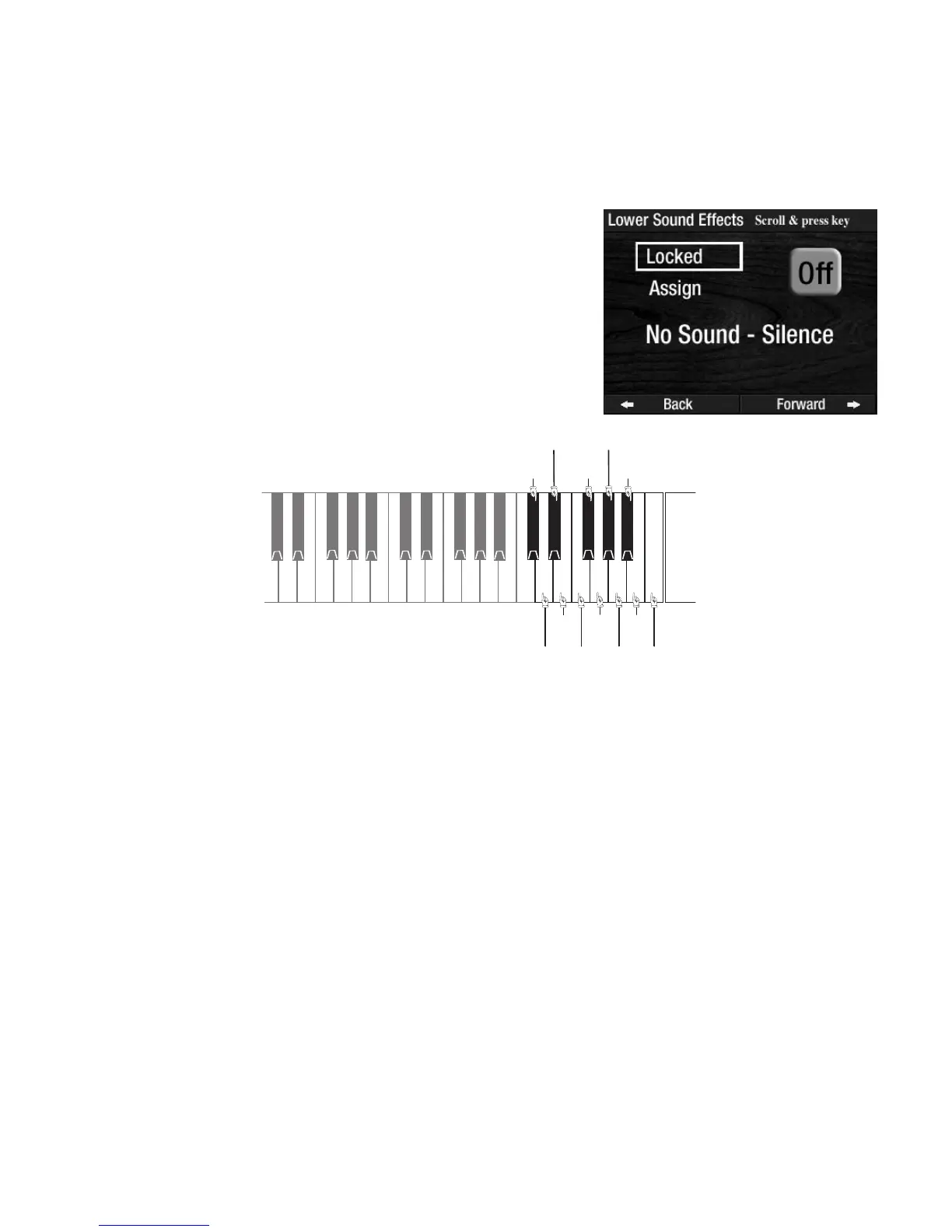
This feature allows you to turn the top or bottom 12 notes on the Lower Keyboard into Sound Effects. The
sounds are an extension of the green Sound Effects buttons on the far right side of the panel. There are fac-
tory settings on the 12 keys which can be changed to any of the sounds in the
SOUND EFFECTS & DRUMS
VOICE LIST
on page 148.
Press the
OFF screen button. It will become highlighted and change to TOP. The sound effects can now
be heard by pressing the desired key on top end of the Lower Keyboard, as shown above.
Pressing the
TOP screen button will turn it to BOTTOM. The sound effects can now be heard by pressing
the desired key on bottom end of the Lower Keyboard
To change the Sound Effect on any of the 12 keys press the box on the screen labeled
ASSIGN. It will
become highlighted. Press either SCROLL button to display sound choices. Press the key, from among the
12, that you wish the new sound be assigned. The screen will confirm that the sound effect has been placed
on the key you selected.
When you have finished changing the Sound Effects, press the word
LOCKED on the screen. It will become
highlighted and lock in the selection.
Note: The sounds on these keys often change when different presets are selected.
How To Use It:
This feature is an extension of the green SOUND EFFECTS buttons on the far right side of the panel. This
lower keyboard section gives you more sound effect choices. However, you do lose the top octave of the
lower keyboard and you would lose an octave of notes if you were using the Keyboard Split feature.
Press the lighted
FEATURE(CLEAR) button to return to the POWER-UP screen.
GONG
1
THUNDER
PLANE
COW
HORSE
WHINNEY
HORSE
GALLUP
TELEPHONE ROOSTER
CAT
DOG
BARK
JINGLE
BELLS
CHURCH
BELL
LOWER KEYBOARD SOUND EFFECTS
(Power Up Setting)
How It Works:
Press the choice on the screen to display the current settings.
With the feature is off you won’t hear anything. By pressing any of
the top twelve notes on the lower keyboard, you will see the name of
the sound effect on the screen.




 To Next Page