85
Genius
Every button and tab labeled with the word GENIUS has a sound, preset from the factory, assigned to it.
Pressing a Genius button or tab activates that sound and changes the screen to display the name of that
Genius sound. This is a quick and easy method of seeing what sounds are in a particular Genius button or
tab. The name of the Genius sound will remain on the screen until the Genius button is pressed off or until
the Touch Screen display is changed to a different function. There are three ways to assign GENIUS sounds
to the buttons and tabs.
1.
SHORTCUT METHOD: Press the GENIUS button or tab you wish to change. Press either SCROLL button
to change the sound displayed on the screen. The sounds are in alphabetical order. Stop when the sound you
desire appears on the screen. That sound is now the sound in that particular Genius tab or button.
You may hear what the sound is like by playing some notes on the appropriate keyboard or the pedals. For
example, if you press the Upper
GENIUS tab and begin scrolling through the sounds available (on the screen)
you can hear the sound that is currently listed by playing notes on the Upper Keyboard. If you like the sound
stop pressing the Scroll buttons. If you wish to hear more sounds continue scrolling and playing keys to hear
different sounds.
2. The following method will allow you to see the status of all the
GENIUS tabs and buttons at once, in addi-
tion to being able to change them.
Press the
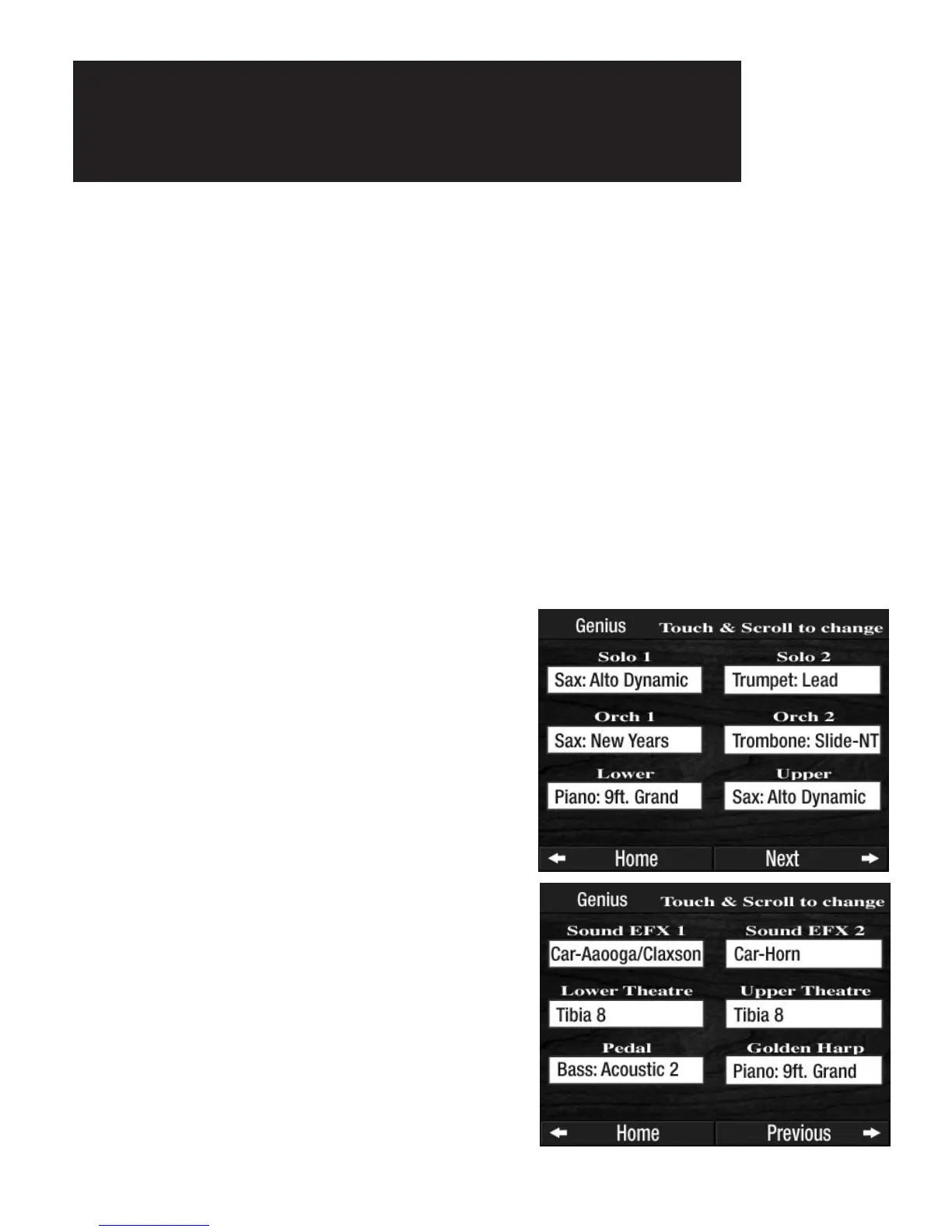
GENIUS screen button, on the normal POWER UP screen. The screen will display a list of the first
six Genius buttons and tabs:
SOUND EFX 1: The sound in the green Sound Effects
GENIUS 1 button.
SOUND EFX 2: The sound in the green Sound Effects
GENIUS 2 button.
LOWER THEATRE: The sound in the purple Lower
THEATRE GENIUS tab.
UPPER THEATRE: The sound in the purple Upper
THEATRE GENIUS tab.
PEDAL: The sound in the orange PEDAL GENIUS tab.
GOLDEN HARP: The sound in the gray Golden Harp
GENIUS button.
SOLO 1: The sound in the blue Solo GENIUS 1 button.
SOLO 2: The sound in the blue Solo GENIUS 2 button.
ORCH 1: The sound in the red Orchestral GENIUS 1 button.
ORCH 2: The sound in the red Orchestral GENIUS 2 button.
UPPER: The sound in the gray UPPER GENIUS tab.
LOWER: The sound in the gray LOWER GENIUS tab.
Press the
NEXT screen button, located at the bottom of the
screen. The remaining six Genius buttons and tabs will be
displayed.
How to Change the Sound in
a Genius Tab or Button



 To Next Page