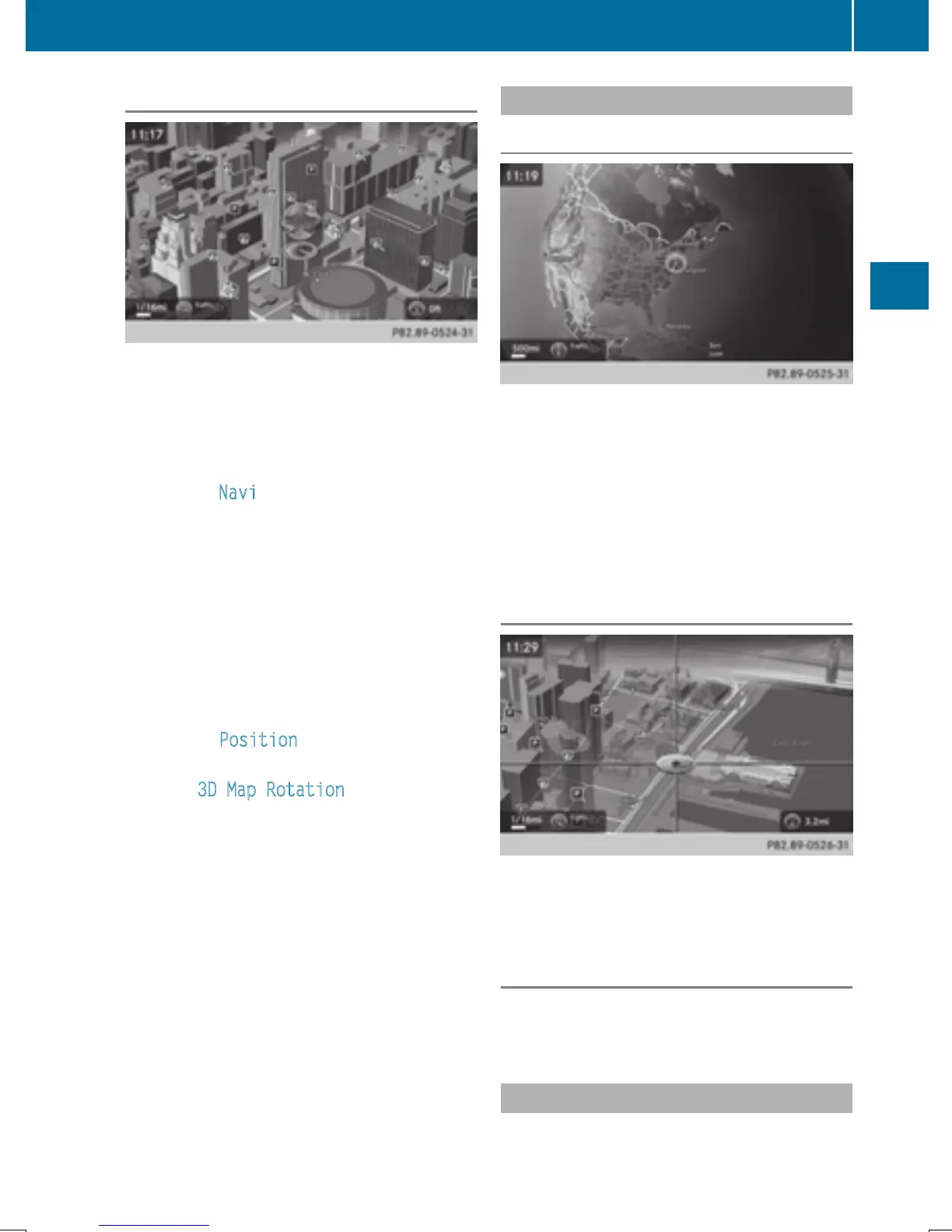
Rotating the 3D map
You can use this function to explore the vicin-
ity of the destination in a 3D view. The func-
tion is available in all map scales.
X
To switch to navigation mode: slide 5
the controller.
X
To select Navi: turn and press the control-
ler.
The map displays the current vehicle posi-
tion or the navigation menu appears.
X
If the navigation menu appears, press the
controller.
The map shows the vehicle's current posi-
tion.
X
To show the menu: slide 6 the control-
ler.
X
To select Position: turn and press the
controller.
X
Select 3D Map Rotation.
X
Turn the controller to change to the 3D map
perspective.
Additional functions:
R
Moving the map (Y page 60)
Map display
Displaying the navigation map
COMAND displays the navigation map and
globe satellite images. This allows for a real-
istic map display free from distortion in all
map scales.
Other functions:
R
Moving the map (Y page 60)
R
Changing the map scale (Y page 98)
Building images
In small map scales (20 m, 50 m), important
buildings are depicted realistically on the
map; other buildings are shown as models.
Elevation model
The example shows a realistic depiction with
elevation modeling.
Country-specific information
You can call up information on the traffic con-
ditions in the country you are currently driving
Map functions
101
Navigation
Z


 To Next Page
 Loading...