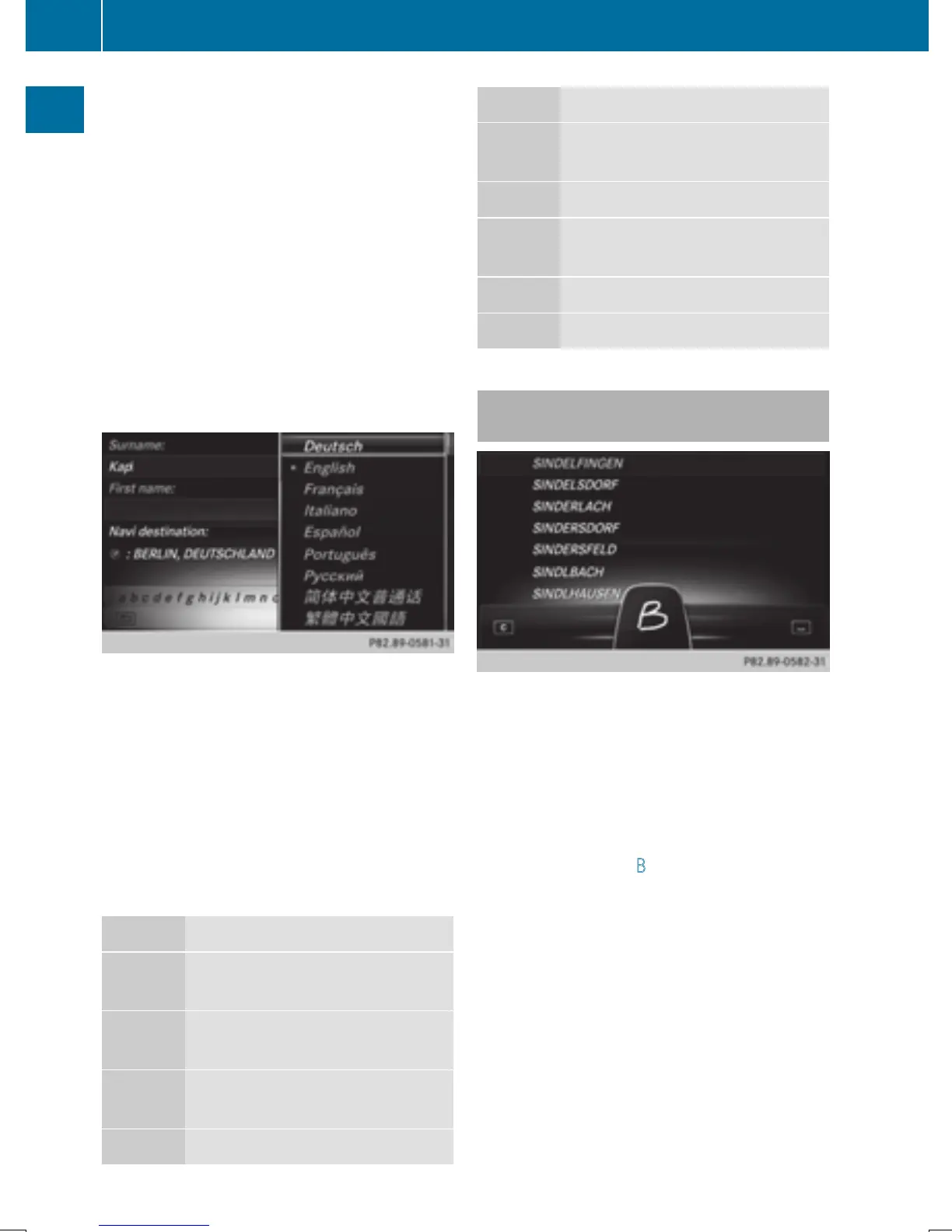
The example shows the character entry when
you save a destination as a navigable contact
in the address book (
Y page 65).
X
To select an input line: slide 6 and turn
the controller, then press it after selecting
4 or 5.
or
X
Slide 5 the controller repeatedly until the
character bar disappears.
X
Turn and press the controller.
X
To move the cursor: select the input line.
X
Slide 6 and turn the controller, then
press it after selecting 2 or 3.
X
To change the character bar language:
slide 6 and turn the controller, then
press it after selecting B.
A menu appears.
X
To select the language: turn and press the
controller.
The character set for the selected language
is set.
The character bar entry functions are listed in
the table.
Symbol Function
Ä
Switches between digits and
symbols
*
Switches the character bar to
uppercase/lowercase letters
B
Changes the character bar lan-
guage
F
Deletes a character/an entry
Symbol Function
è
Switches to keyword search
(
Y page 66)
4, 5 Selects the input line
2, 3 Moves the cursor within the
input line
¬
Confirms an entry
&
Cancels input
Entering characters using the touch-
pad
Alternatively, you can enter characters using
the touchpad (
Y page 25). Character entry is
supported by a handwriting recognition func-
tion.
An example is the address entry
(
Y page 64).
X
With one finger, draw the desired charac-
ter, e.g. the letter B
, on the touch-sensitive
surface.
In the list (e.g. City), the first entry that
starts with the letter entered is highlighted.
You can draw the next character on the
touch-sensitive surface.
If the character that you have entered can
be interpreted in different ways, these
options are displayed.
34
Character entry (navigation)
Overview and operation


 To Next Page
 Loading...