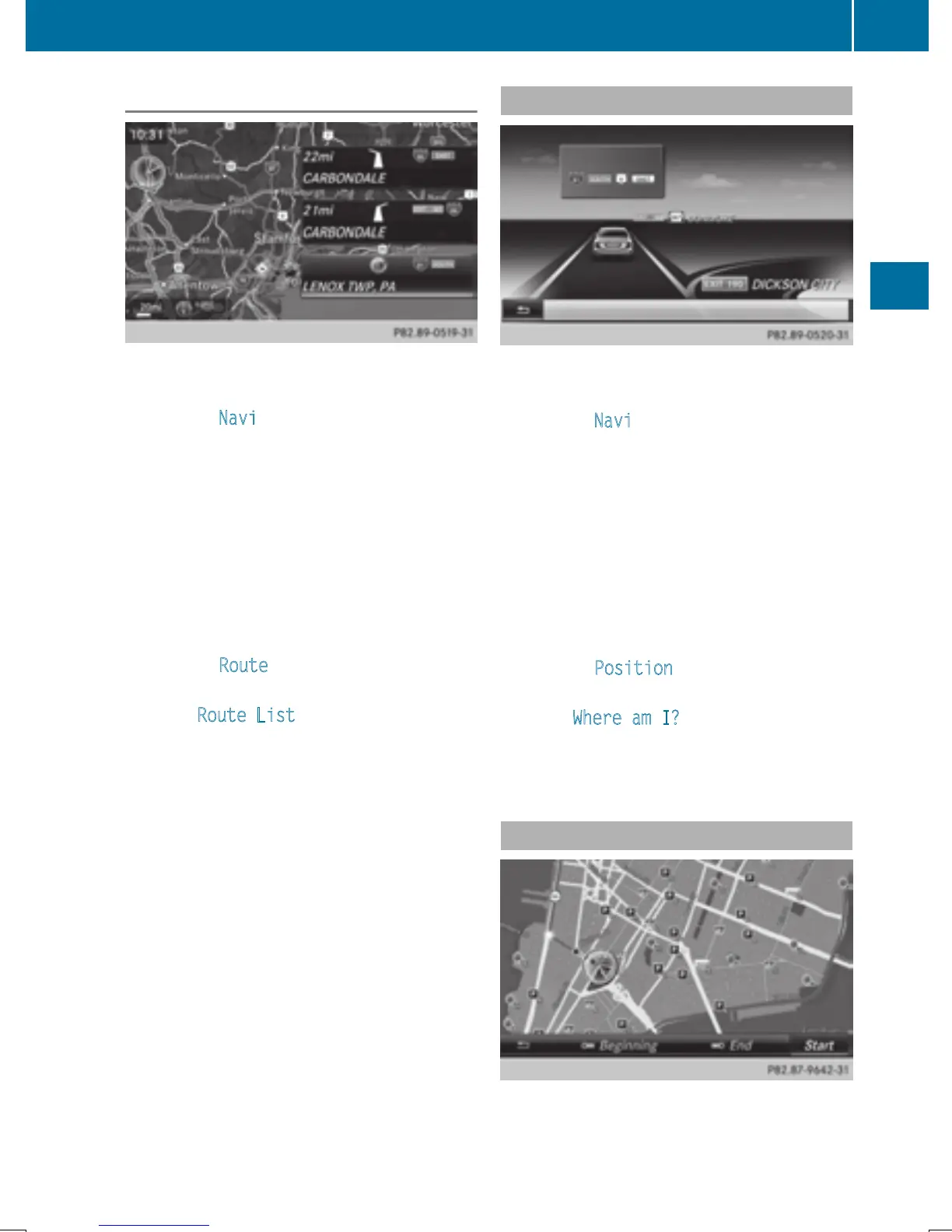
Route list
X
To switch to navigation mode: slide 5
the controller.
X
To select Navi: turn and press the control-
ler.
The map displays the current vehicle posi-
tion or the navigation menu appears.
X
If the navigation menu appears, press the
controller.
The map shows the vehicle's current posi-
tion.
X
To show the menu: slide 6 the control-
ler.
X
To select Route: turn and press the con-
troller.
X
Select Route List.
The route list shows the next change of
direction and the immediate distances
from the current vehicle position.
X
To display additional route sections:
turn the controller.
The position of the change of direction that
belongs to the respective route section is
indicated on the map with a cross.
Where am I?
X
To switch to navigation mode: slide 5
the controller.
X
To select Navi: turn and press the control-
ler.
The map displays the current vehicle posi-
tion or the navigation menu appears.
X
If the navigation menu appears, press the
controller.
The map shows the vehicle's current posi-
tion.
X
To show the menu: slide 6 the control-
ler.
X
To select Position: turn and press the
controller.
X
Select Where am I?.
The street you are currently on and the pre-
vious and next intersections are displayed.
Traffic jam function
Route guidance
89
Navigation
Z


 To Next Page
 Loading...