Function restrictions
Depending on the DVD, certain functions or
actions may not function at all. The symbol K
appears in the display.
Switching on video DVD mode
R
Insert and eject a disc from the single drive
(
Y page 183)
Further options for switching on:
R
Using the main function bar (Y page 180)
R
Using the device list (Y page 181)
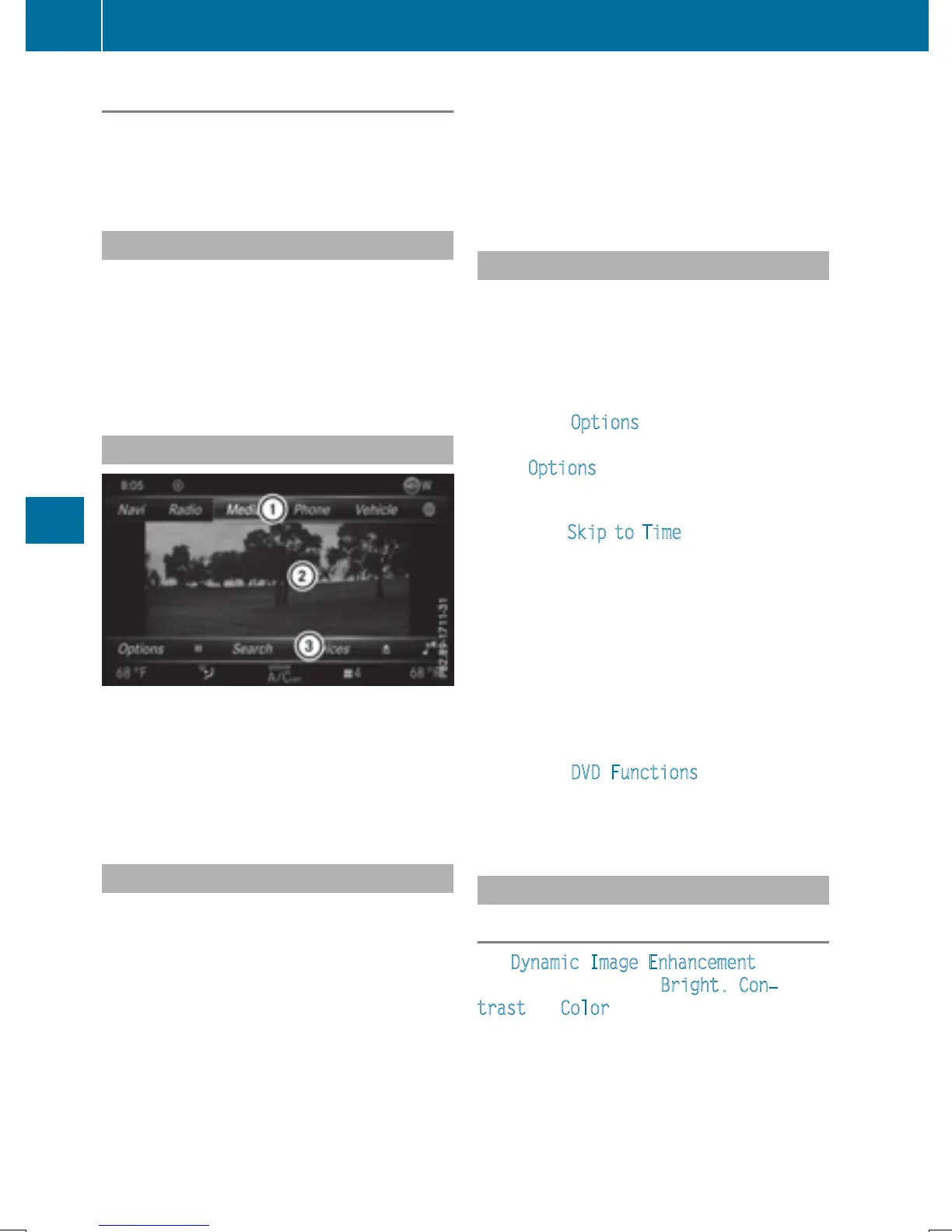
DVD basic display
:
Main function bar
;
Main display field
=
Media menu bar
The DVD basic display appears once the DVD
has been inserted.
DVD full-screen mode
Once the DVD has been inserted, the disc is
played. The video will first appear in the over-
view display.
X
To set full-screen mode: slide 5 the
controller.
The main function bar and menu bar are
hidden. A full-screen symbol will be shown.
X
Press the controller.
The full-screen mode appears.
X
To show the DVD basic display in full-
screen mode: slide 6 the controller.
The video menu appears.
X
Press the controller.
The basic display appears.
Menu options
X
To select options: in full-screen mode,
slide 6 the controller.
The video menu appears.
X
Press the controller.
The DVD basic display appears.
X
To select Options in the menu bar: turn
and press the controller.
The Options
menu appears.
Skip to time
X
To select Skip to Time: turn and press the
controller.
A menu appears.
X
To set the time: turn the controller.
or
Set the desired time using the number key-
pad.
X
To hide the menu: press the % button.
DVD functions
X
To select DVD Functions: turn and press
the controller.
A menu appears (
Y page 206).
Video settings
Dynamic image enhancement
The Dynamic Image Enhancement function
automatically matches Bright.
, Con‐
trastand Color to the film being played.
204
Video DVD mode
Media




 To Next Page