Requirements for "Viewing the vicinity of the
destination" and "Loading data from the Inter-
net" (Canada): a mobile phone must be con-
nected via Bluetooth
®
(Y page 114) or USB
(
Y page 200) with COMAND.
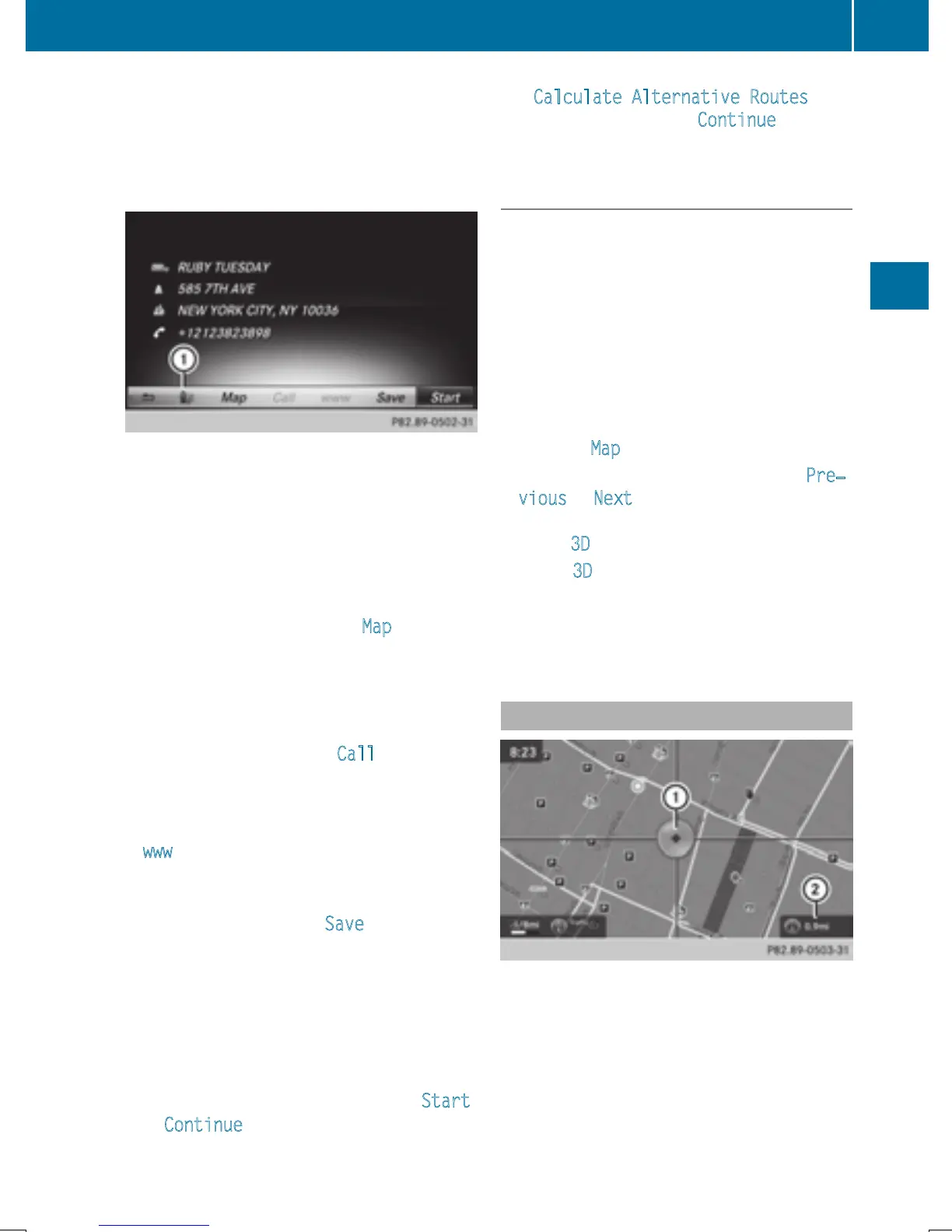
The complete address of the POI is shown.
X
To view the vicinity of the destination:
select : by turning and pressing the con-
troller.
If street images are available, the street in
the vicinity of the destination address is
shown.
X
To call up the map: select Map.
X
Move the map, change the map scale
(
Y page 73) and select the POI.
3D POIs can be displayed in an all-round
view (
Y page 73)
X
To call up a POI: select Call.
If a phone number is available, COMAND
switches to the telephone function.
X
To load data from the Internet: select
www
.
If an Internet address is available, data is
loaded from the Internet.
X
To store a POI: select Save.
The POI can be saved as:
R
home address
R
a navigable address book contact
(
Y page 127)
R
a personal destination on the SD memory
card (
Y page 96)
X
To start route calculation: select Start
or Continue by turning and pressing the
controller.
If Calculate Alternative Routes
is
activated (
Y page 60), Continue is availa-
ble.
Rotating a 3D POI
Realistically modeled buildings are shown on
the map in an all-round view. These 3D POIs
are sights or buildings of regional importance,
e.g. a main railway station.
3D POIs can be turned on the 20 m, 50 m and
100 m map scales. To aid orientation, the
points of the compass are shown while turn-
ing.
X
Select a point of interest (Y page 72).
X
To select Map: turn and press the controller.
X
Select a 3D POI from the map using Pre‐
vious or Next.
If the 3D POI is marked in gold, you can
select 3D
.
X
Select 3D.
The 3D POI turns on its own axis.
X
To exit the all-round view, press the con-
troller.
Using the map
:
Crosshair
;
Distance of crosshair position from cur-
rent vehicle position
Destination entry
73
Navigation
Z


 To Next Page
 Loading...