X
To switch to navigation mode: slide 5
the controller.
X
To select Navi: turn and press the control-
ler.
The map displays the current vehicle posi-
tion or the navigation menu appears.
X
If the navigation menu appears, press the
controller.
The map shows the vehicle's current posi-
tion.
X
To show the menu: slide 6 the control-
ler.
X
To select Destination: turn and press the
controller.
X
Select Using Map.
The map with crosshair is shown.
X
To move the map: slide 1, 4 or
2 the controller.
X
To change the map scale: turn the con-
troller until the desired map scale is selec-
ted.
The scale is displayed at the bottom.
To enlarge the map: turn the controller
counter-clockwise.
To zoom the map out: turn the controller
clockwise.
X
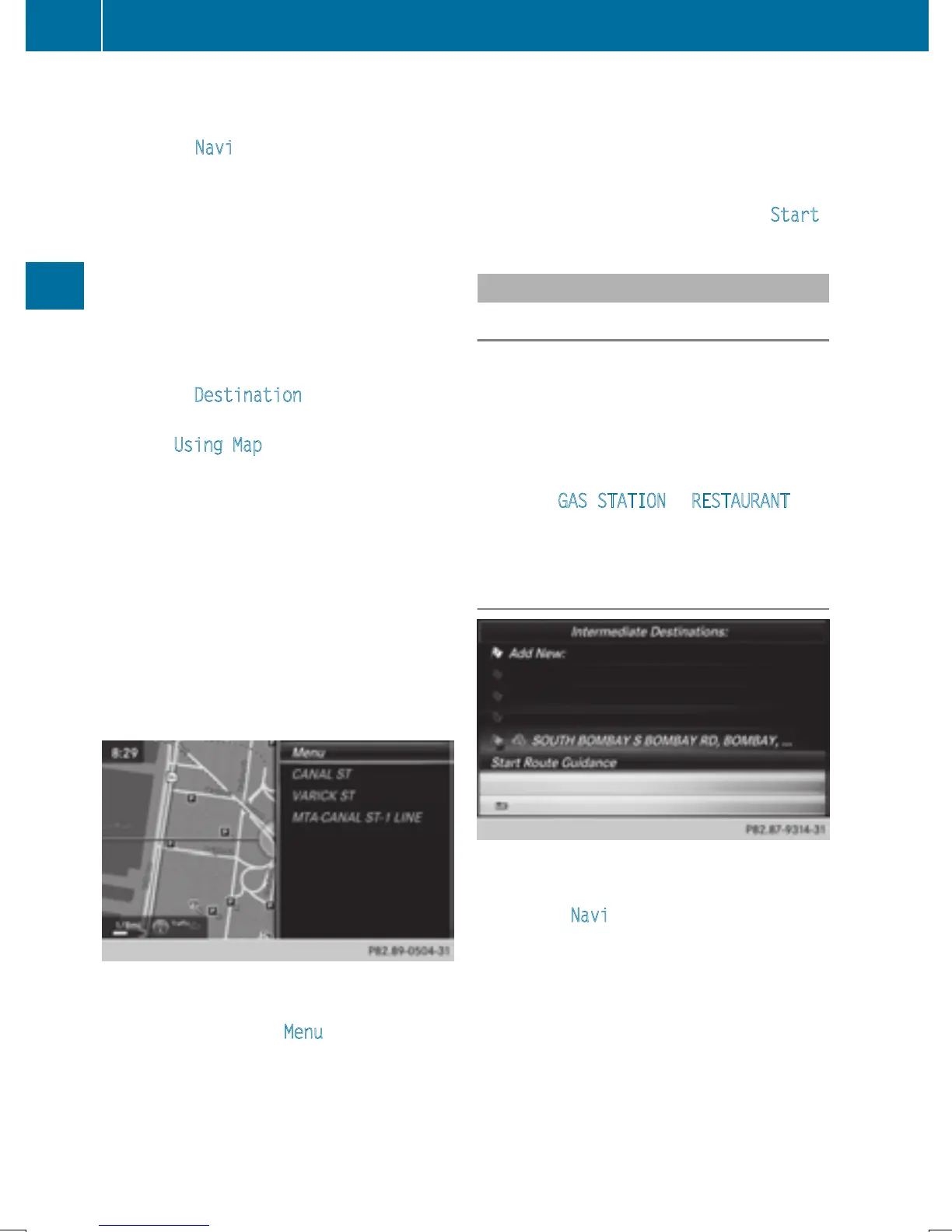
To select a destination: press the con-
troller.
The list contains the Menu
menu item. If
several destinations are available in the
area around the crosshair, these are also
displayed.
X
To show the menu: press the controller.
X
To select a destination from the selection
list: turn and press the controller.
If the digital map provides navigable
address data, you will see the destination
address in the address entry menu.
X
To start route calculation: select Start .
Entering intermediate destinations
Introduction
You can also map the route to the destination
yourself by entering up to four intermediate
destinations. The sequence of the intermedi-
ate destinations can be changed at any time.
COMAND provides a selection of predefined
destinations in eight categories for this pur-
pose, e.g. GAS STATION
or RESTAURANT. You
can also use the destination entry options to
enter intermediate destinations.
Creating intermediate destinations
X
To switch to navigation mode: slide 5
the controller.
X
To select Navi: turn and press the control-
ler.
The map displays the current vehicle posi-
tion or the navigation menu appears.
X
If the navigation menu appears, press the
controller.
The map shows the vehicle's current posi-
tion.
X
To show the menu: slide 6 the control-
ler.
74
Destination entry
Navigation


 To Next Page
 Loading...