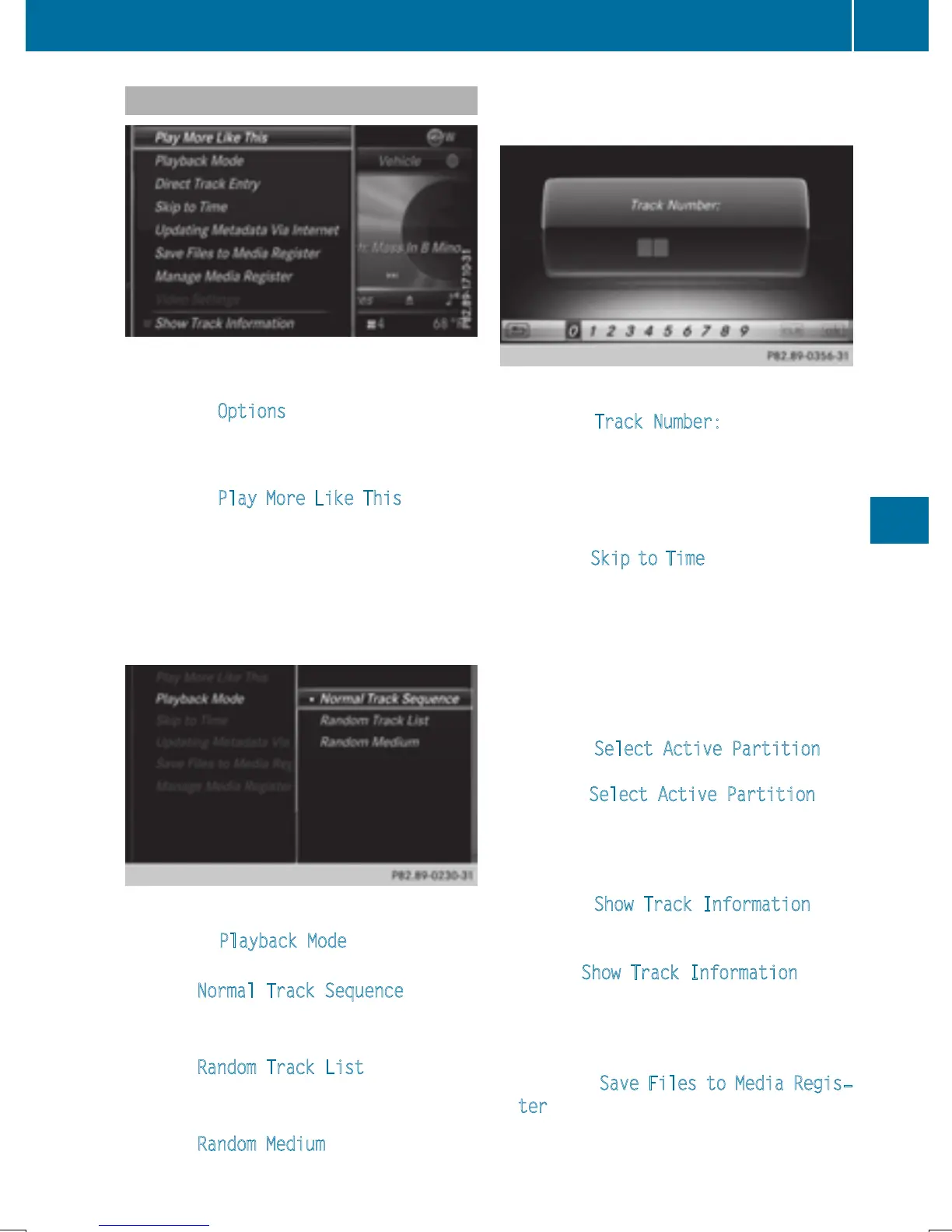
Playback options
X
In media mode, slide 6 the controller.
The media menu bar is shown.
X
To select Options: turn and press the con-
troller.
Playing similar tracks
X
To select Play More Like This: turn and
press the controller.
COMAND automatically creates and plays
a track list with similar tracks. If there are
no comparable tracks on the data carrier,
you will see a message to this effect.
X
Select the required track.
Play mode
X
To select Playback Mode: turn and press
the controller.
X
Select Normal Track Sequence.
The current track list is played in the order
it appears on the data medium.
X
Select Random Track List.
The current track list is played in random
order.
X
Select Random Medium.
All tracks on the data medium are played in
random order.
Direct track entry
X
To select Track Number:: turn and press
the controller.
A menu appears.
X
Enter the desired track number.
Skip to time
X
To select Skip to Time: turn and press the
controller.
A menu appears.
X
To set the time: turn the controller
or
X
Set the desired time.
Selecting an active partition
X
To select Select Active Partition:
turn and press the controller.
With the Select Active Partition
option, you can select a partition in the USB
data medium.
Showing track information
X
To select Show Track Information: turn
and press the controller.
Ticking or removing the tick from the box in
front of Show Track Information
dis-
plays or hides the information on the track,
artist and album in the main display field.
Saving files to Media Register
i
With the Save Files to Media Regis‐
ter option, you can transfer supported
audio, image or video files to the COMAND
hard drive.
Audio/video mode
185
Media
Z



 To Next Page