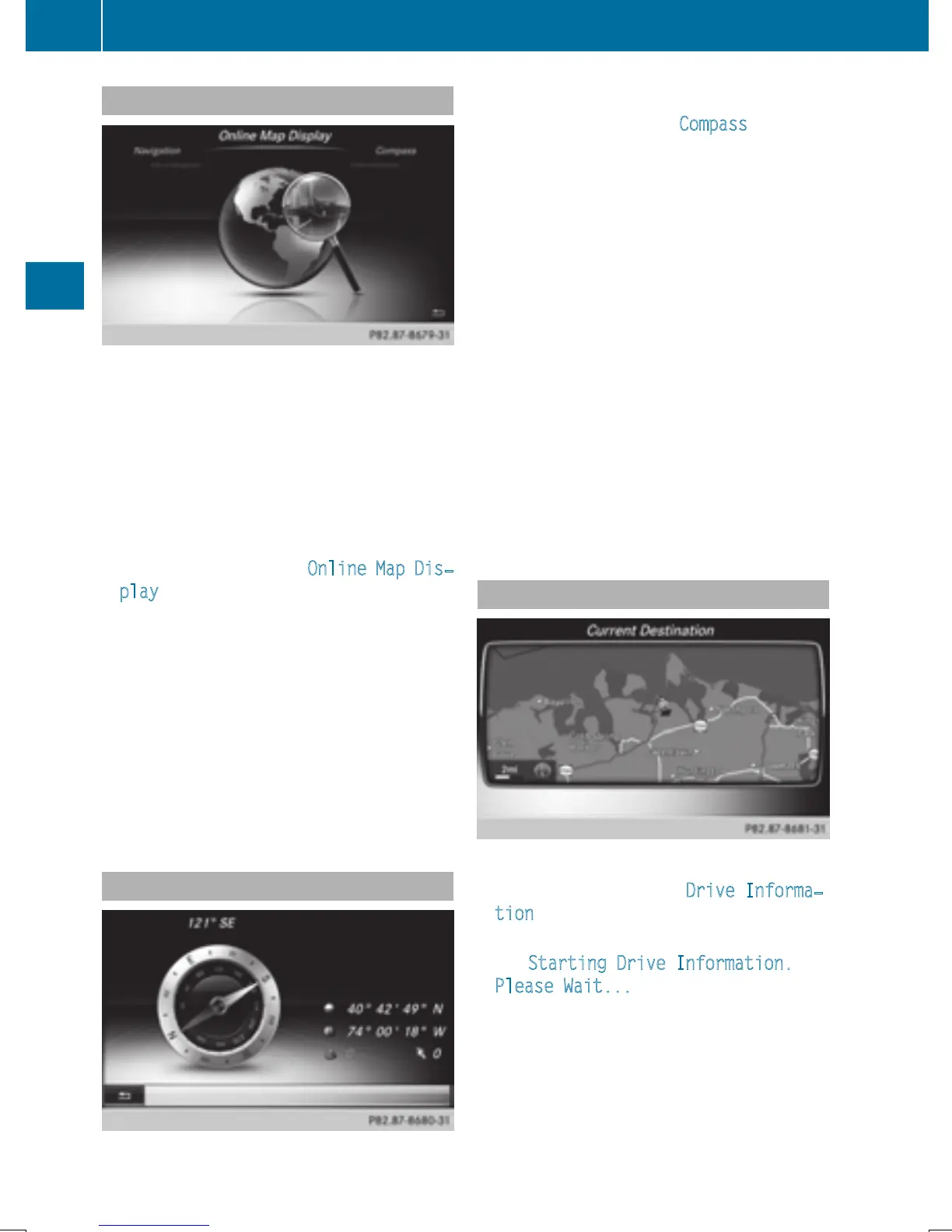
Calling up the online map display
Requirement for online map display (USA):
mbrace must be activated for Internet access
(
Y page 148).
Requirement for online map display (Canada):
a mobile phone must be connected via Blue-
tooth
®
(Y page 114) or USB (Y page 200)
with COMAND.
X
Call up the navigation menu (Y page 105).
X
Turn the controller until Online Map Dis‐
play is brought to the front.
X
Press the controller.
The online connection is established. Once
the connection is established, the Google
Maps™ map shows the vicinity of the cur-
rent vehicle position.
i
Alternatively you can call up this function
using the touchpad (
Y page 25).
X
To exit the online map display: press the
% button.
Calling up the compass display
X
Call up the navigation menu (Y page 105).
X
Turn the controller until Compass is brought
to the front.
X
Press the controller.
The compass display provides the following
information:
R
The current direction of travel with bear-
ing (360 degree format) and compass
direction
R
Longitude and latitude coordinates in
degrees, minutes and seconds
R
Height (rounded off) above sea level
R
Number of GPS satellites from which
a signal can be received
i
Alternatively you can call up this function
using the touchpad (
Y page 25).
X
To exit the compass display: press the
% button.
Drive information
X
Call up the navigation menu (Y page 105).
X
Turn the controller until Drive Informa‐
tion is brought to the front.
X
Press the controller.
The Starting Drive Information.
Please Wait... message appears.
You will then see maps with the current
vehicle position and the vicinity of the des-
tination in different scales, these are auto-
matically displayed one after another.
If mbrace is activated for Internet access
(
Y page 148), additional information can
106
Navigation functions
Navigation



 To Next Page