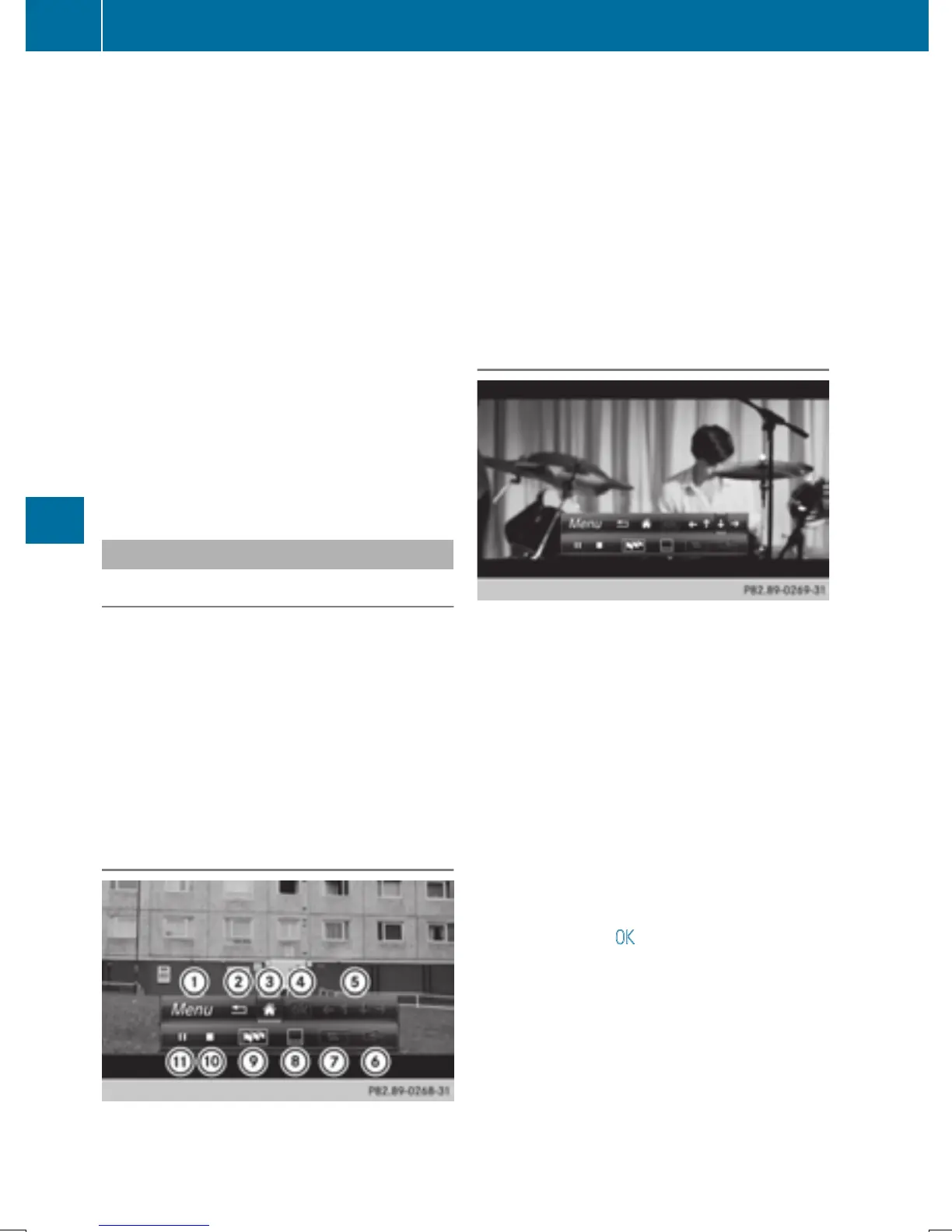
Operating the video menu
X
To show: in full-screen video mode, slide
6 the controller.
X
To hide: slide 5 the controller.
X
To select the next or previous scene: turn
the controller clockwise/counter-clock-
wise.
X
To fast forward or rewind: slide 9 or
8 and hold the controller until the
desired position has been reached.
X
To hide the video menu: slide 5 the con-
troller.
X
To show the menu bars for the DVD basic
display: press the controller.
The video menu is hidden and the DVD
basic menu appears.
DVD functions
Showing/hiding the DVD functions
X
To show DVD functions: in full-screen
video mode, press the controller.
The DVD functions menu is shown.
X
To hide: in DVD functions select %: turn
and press the controller
X
To show the DVD basic display: select
ò from the DVD functions: turn and
press the controller.
Overview of DVD functions
:
Activates DVD control menu
;
Hides DVD functions
=
Shows the DVD basic display
?
Confirms entry in control menu
A
Navigates DVD lists
B
Jumps to the start of the scene
C
Displays camera perspectives
D
Shows subtitles
E
Selects language
F
Stop function
G
Pause function
Using the DVD functions
X
In full-screen mode, press the controller
The DVD functions menu is shown.
It is possible to navigate in the DVD's con-
trol menu when the arrows in the upper
menu bar are activated.
X
To select the XZ¬Y arrow to navigate in the
menu: turn the controller.
The active arrow is highlighted.
X
To select a menu entry: press the control-
ler.
The next menu entry in the direction of the
arrow is highlighted.
X
To call up a highlighted menu entry: turn the
controller until OK
is highlighted.
X
Press the controller.
The selected DVD scene is played.
X
To hide DVD functions: select & using the
controller.
X
Press the controller.
The DVD functions are hidden.
If there are functions such as Display cam-
era perspectives on the DVD, these are
shown in the DVD functions menu.
206
Video DVD mode
Media



 To Next Page