X
To switch to navigation mode: slide 5
the controller.
X
To select Navi: turn and press the control-
ler.
The map displays the current vehicle posi-
tion or the navigation menu appears.
X
If the navigation menu appears, press the
controller.
The map shows the vehicle's current posi-
tion.
X
To show the menu: slide 6 the control-
ler.
X
To select Destination: turn and press the
controller.
X
Select From Previous Destinations.
X
Select the destination.
The address entry menu appears, showing
the destination address.
X
To start route calculation: select Start .
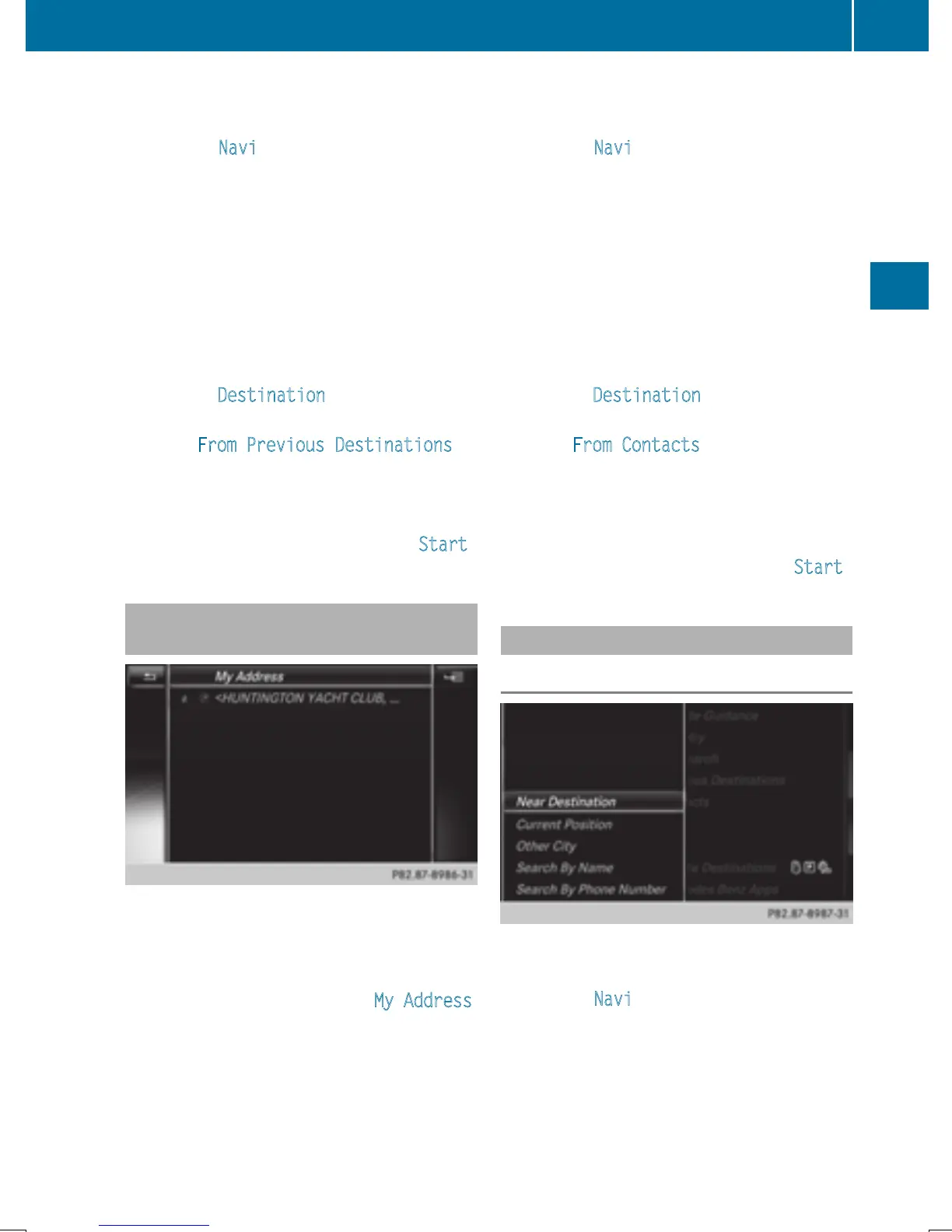
Selecting an address book contact as
a destination
You can select navigable address book con-
tacts as the destination. These are identified
by the L symbol. If you have already entered
and saved your home address, you can select
this as the destination by using My Address
.
X
To switch to navigation mode: slide 5
the controller.
X
To select Navi: turn and press the control-
ler.
The map displays the current vehicle posi-
tion or the navigation menu appears.
X
If the navigation menu appears, press the
controller.
The map shows the vehicle's current posi-
tion.
X
To show the menu: slide 6 the control-
ler.
X
To select Destination: turn and press the
controller.
X
Select From Contacts.
X
Select the destination.
The address entry menu appears, showing
the contact and associated destination
address.
X
To start route calculation: select Start .
Selecting a destination from POIs
Calling up the POI menu
X
To switch to navigation mode: slide 5
the controller.
X
To select Navi: turn and press the control-
ler.
The map displays the current vehicle posi-
tion or the navigation menu appears.
X
If the navigation menu appears, press the
controller.
The map shows the vehicle's current posi-
tion.
Destination entry
69
Navigation
Z



 To Next Page
 Loading...