ted files are saved to the main directory of
the Media Register.
X
To select Target Folder: turn and press
the controller.
X
Select a folder.
X
Select Continue.
X
To select Start: press the controller.
The copying procedure starts and is shown
in the progress bar.
It may take some time for the copying proc-
ess to be completed, depending on the
amount of data. If there is not enough mem-
ory space, a message to this effect
appears.
Once the copying procedure is complete,
you will hear the first track of the copied
album. You can now copy more files to the
MEDIA REGISTER.
X
To cancel copying: select Cancel.
Files are stored in the MEDIA REGISTER up
until the point of cancellation.
i
It is possible to change to a different func-
tion (e.g. radio) during the copying proce-
dure. The copying procedure continues in
the background. While the copying proce-
dure is taking place, this is shown by a sym-
bol in the status bar.
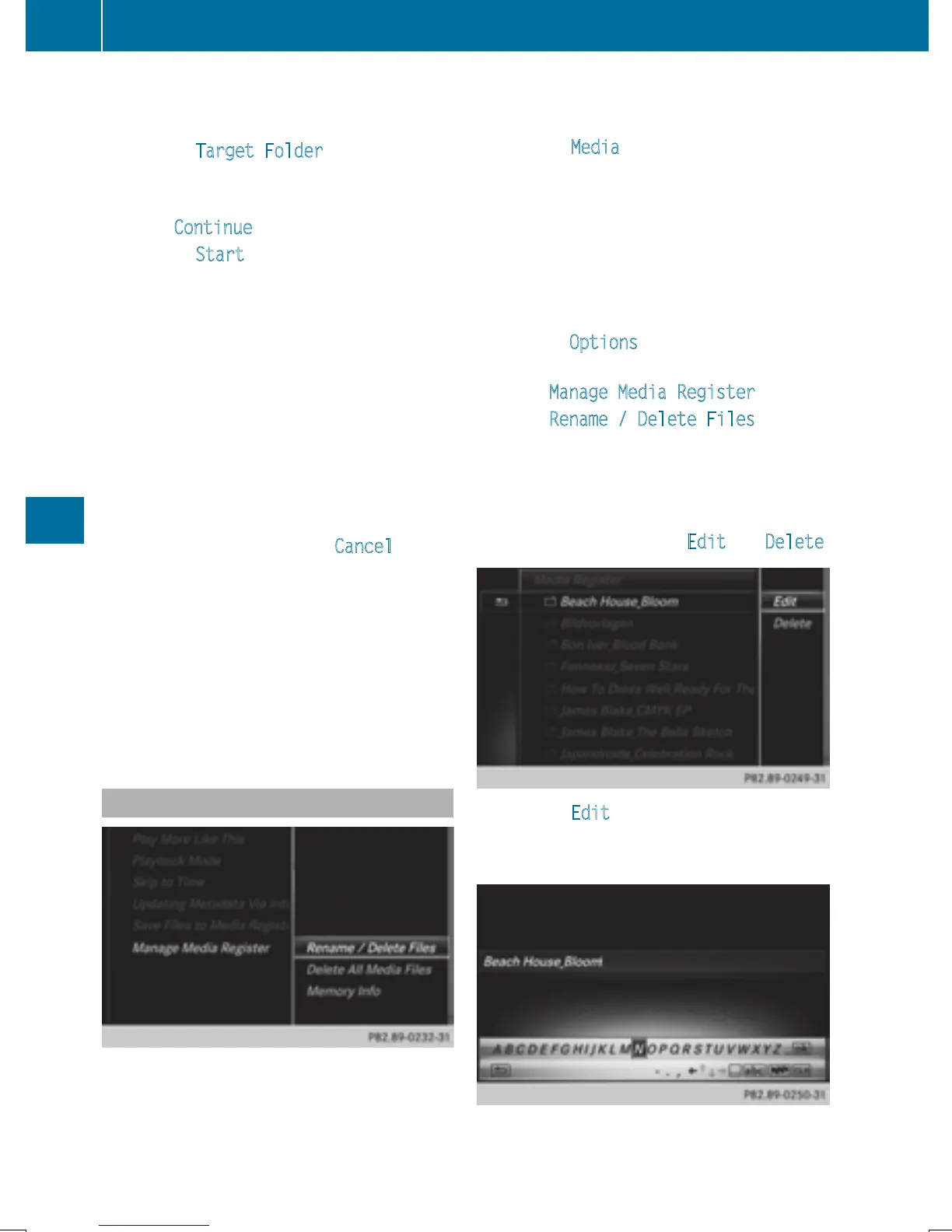
Renaming/deleting files
X
To show the main function bar: slide 5
the controller.
X
To select Media: turn and press the con-
troller.
The menu appears with the available media
sources.
X
To select the media source: turn the con-
troller and press to confirm.
X
To switch to the menu bar: slide 6 the
controller.
X
To select Options: turn and press the con-
troller.
X
Select Manage Media Register.
X
Select Rename / Delete Files.
The file list is displayed.
X
To highlight the selected files: turn and
press the controller.
X
Slide 9 the controller.
You can select between Edit
and Delete.
X
To select Edit for the file: turn and press
the controller.
The following entry field appears:
192
Media Register
Media



 To Next Page