Prerequisite:
For this type of connection, the device to be
connected must support "Connect via push
button".
X
To select Vehicle from the main function
bar: turn and press the controller.
X
To switch to the menu bar: slide 6 the
controller.
X
Select System Settings.
The System Settings
menu is displayed.
X
Select WiFi.
The WiFi menu appears.
X
Select Connect via WPS PBC.
X
Select the vehicle from the device to be
connected and Connect via WPS PBC
.
The vehicle is displayed with the SSID MB
WLAN XXXXX.
X
Select Continue in COMAND.
Connecting the device via the security
key
X
To select Vehicle from the main function
bar: turn and press the controller.
X
To switch to the menu bar: slide 6 the
controller.
X
Select System Settings.
The System Settings
menu is displayed.
X
Select WiFi.
The WiFi menu appears.
X
Select Connect Using Security Key.
X
Select the vehicle from the device to be
connected. The vehicle is displayed with
the SSID MB WLAN XXXXX
.
X
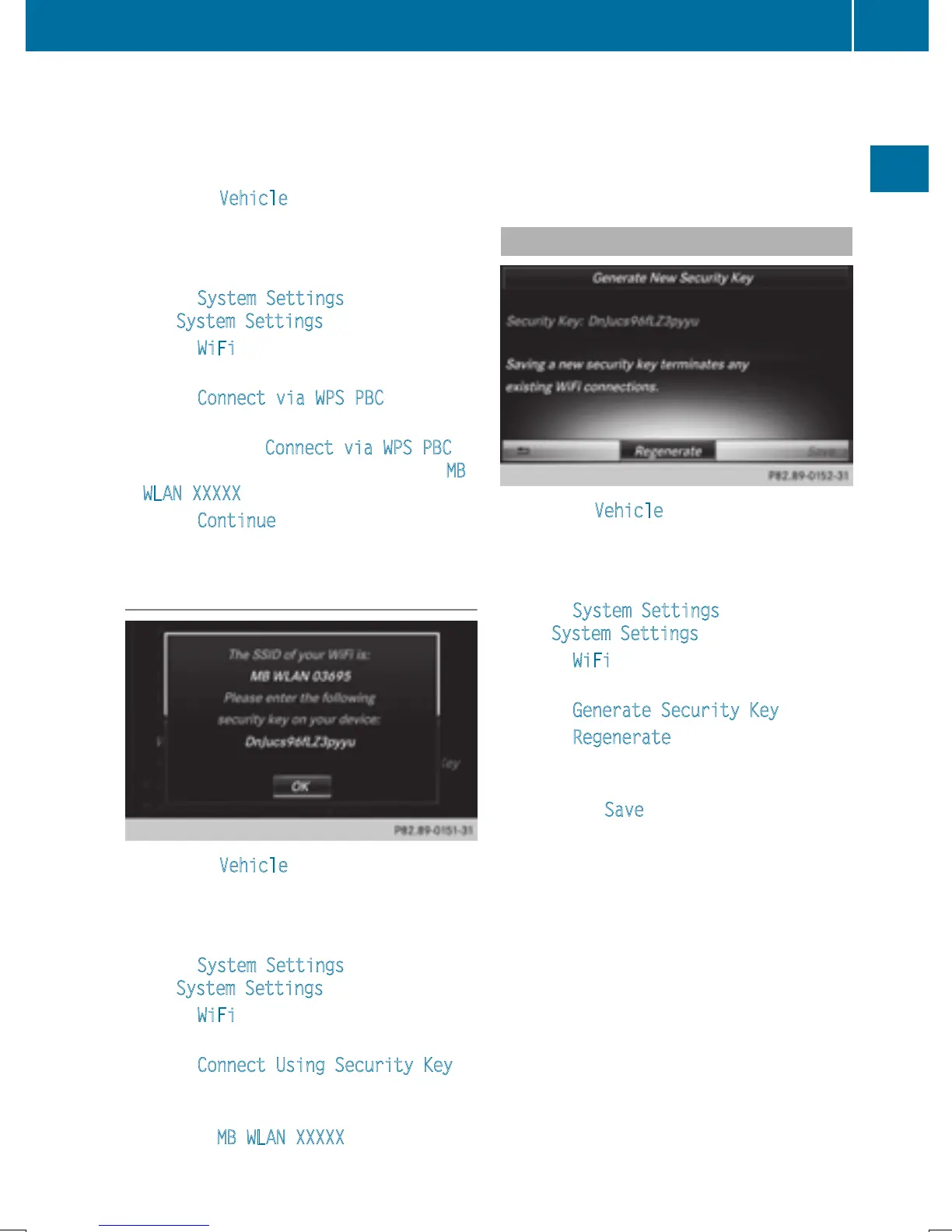
Enter the security key that appears on the
COMAND display for the device to be con-
nected.
X
Confirm the entry.
Generating a new security key
X
To select Vehicle from the main function
bar: turn and press the controller.
X
To switch to the menu bar: slide 6 the
controller.
X
Select System Settings.
The System Settings
menu appears.
X
Select WiFi.
The WiFi menu appears.
X
Select Generate Security Key.
X
Select Regenerate.
A new security key is generated.
X
To save the security key: turn the controller
and select Save
.
The WiFi menu appears. The new security
key will now be displayed and verified when
a connection is established via the security
key. The connection must be re-estab-
lished with the newly created security key.
i
Device connections established using the
previous security key will no longer work
after the security key is changed. You have
to reconnect these devices (
Y page 42).
WiFi
43
System settings
Z


 To Next Page
 Loading...