Displaying real-time traffic reports
Starting a search for traffic reports
X
To switch to navigation mode: slide 5
the controller.
X
To select Navi: turn and press the control-
ler.
The map displays the current vehicle posi-
tion or the navigation menu appears.
X
If the navigation menu appears, press the
controller.
The map shows the vehicle's current posi-
tion.
X
To show the menu: slide 6 the control-
ler.
X
To select Traffic: turn and press the con-
troller.
If satellite signals cannot be received or
there are no traffic reports, you will see a
message to this effect.
X
To close the report: press the controller.
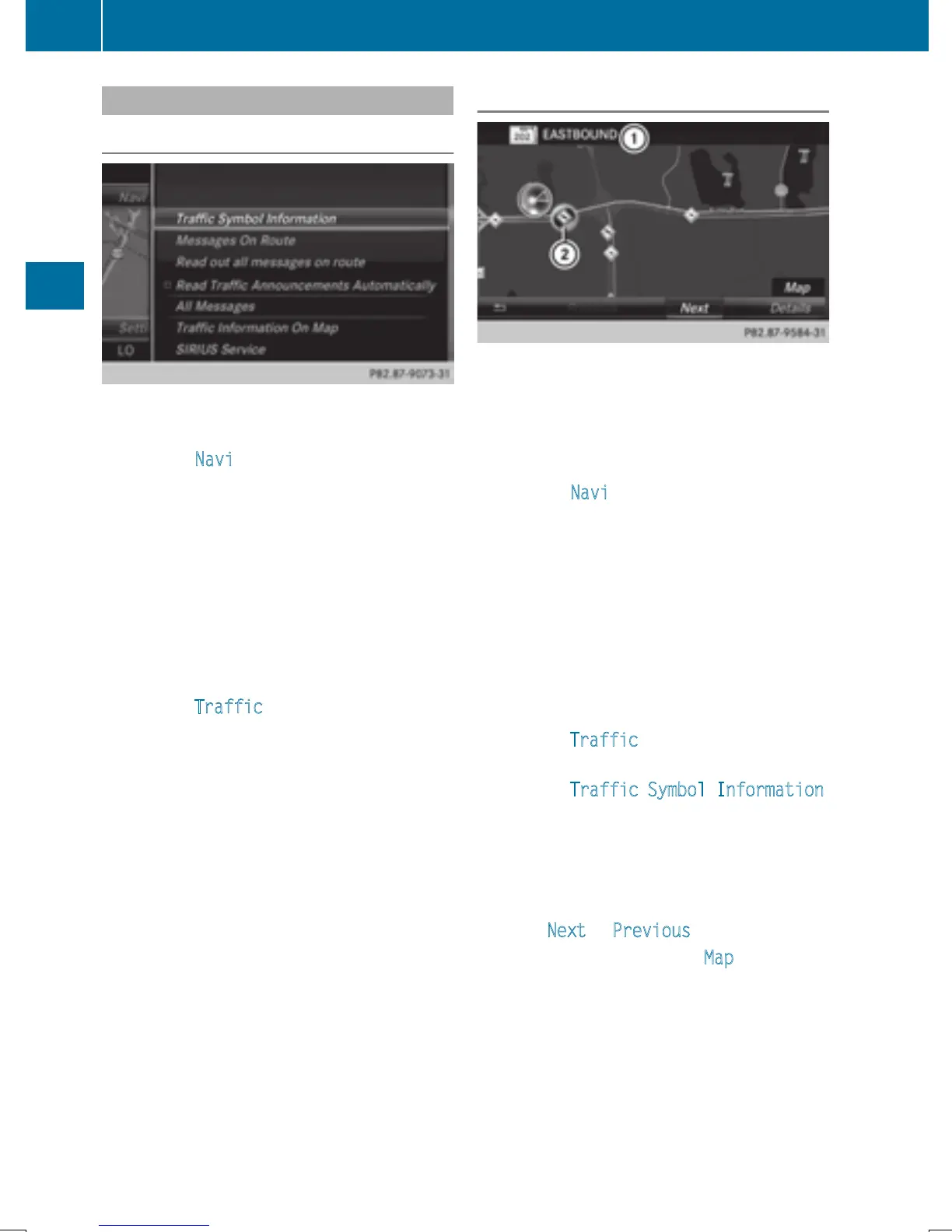
Traffic symbol information
:
Affected roads with indication of direction
;
Symbol for report type, e.g. traffic flow
message
X
To switch to navigation mode: slide 5
the controller.
X
To select Navi: turn and press the control-
ler.
The map displays the current vehicle posi-
tion or the navigation menu appears.
X
If the navigation menu appears, press the
controller.
The map shows the vehicle's current posi-
tion.
X
To show the menu: slide 6 the control-
ler.
X
To select Traffic: turn and press the con-
troller.
X
To select Traffic Symbol Information:
turn and press the controller.
The map appears and shows the available
traffic information as icons. The first traffic
information is highlighted.
X
To highlight additional traffic symbols,
select Next
or Previous.
X
To move the map: select Map.
You can move the map to enable further
traffic information to be displayed.
92
Real-time traffic reports
Navigation


 To Next Page
 Loading...