186 SyncServer 600 Series User’s Guide 098-00720-000 Revision D1 – February, 2018
Chapter 6 Provisioning
Provisioning Input References
Use the following methods to provision the GNSS port state and GNSS parameters
for the SyncServer S6x0.
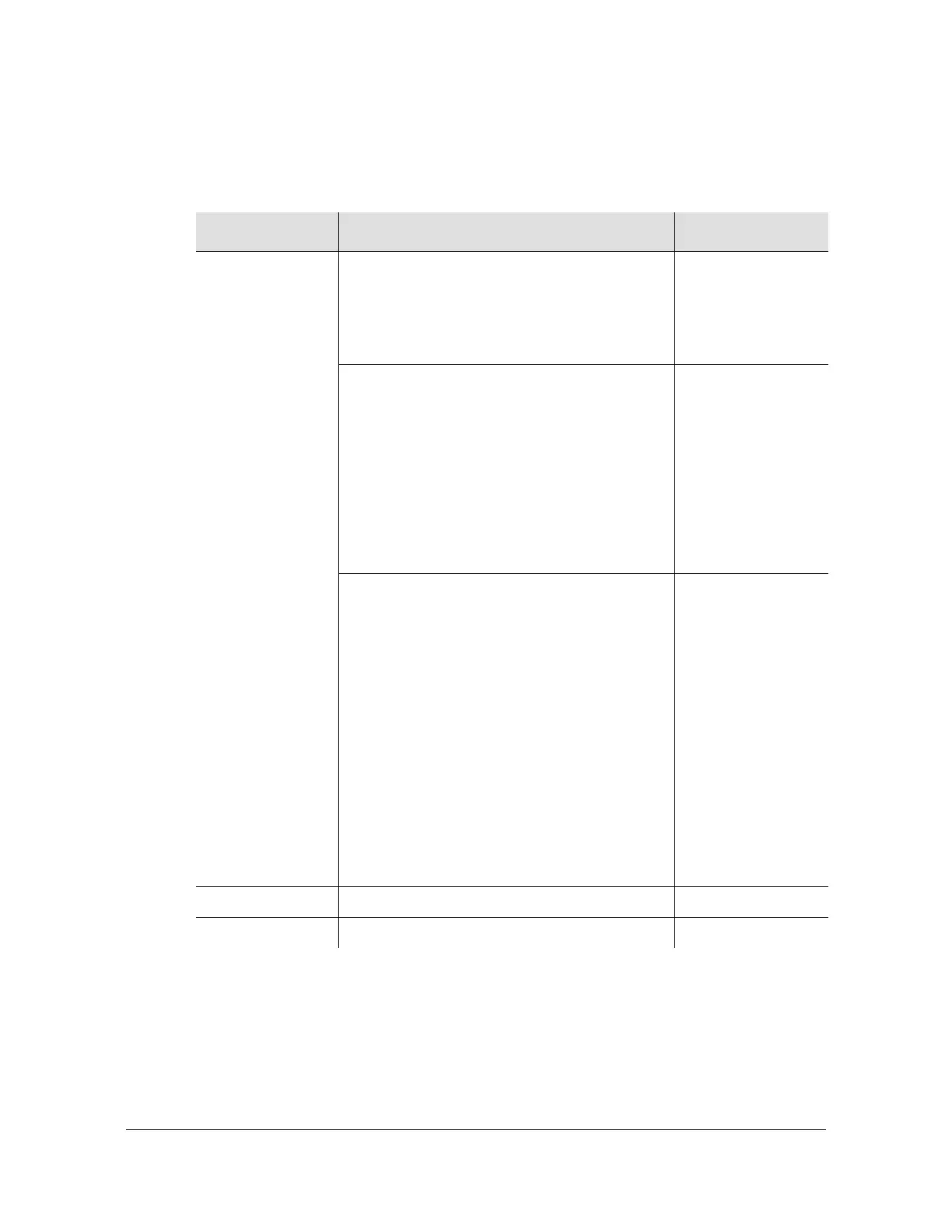
Table 6-6. Enable GNSS Port and Set GNSS Parameters
Method Steps Notes
Web Interface Timing >Input Control
1. Select radio button for External Input
Sources.
2. Click the GNSS check box.
3. Click the Apply button.
Enable GNSS Port.
References > GNSS Configuration
1. In the GNSS Constellation Selection
section, click the check box for GPS,
GLONASS, or BEIDOU.
2. In the Space Based Augmentation System
section, click the Enable check box to
enable SBAS.
3. Click the Apply button.
Select GNSS
Constellation
GPS | GLONASS |
BEIDOU | SBAS
Multi-constellation
license is required
for BEIDOU and
GLONASS access.
References > GNSS
1. Enter Elevation Mask value.
2. Use drop-down box to select Mode of
“Survey” or “Position Hold”.
3. Enter Latitude value if “Position Hold”
mode.Use drop-down box to select North
or South.
4. Enter Longitude value if “Position Hold”
mode. Use drop-down box to select East
or West.
5. Enter Altitude value if “Position Hold”
mode. Use drop-down box to select
dimensions.
6. Enter Cable Delay value.
7. Click the Apply button.
Set GNSS
parameters.
CLI n/a
Front Panel n/a



 To Next Page