098-00720-000 Revision D1 – February, 2018 SyncServer 600 Series User’s Guide 63
Chapter 2 Installing
Applying Power to the SyncServer S6x0
Applying Power to the SyncServer S6x0
The SyncServer S6x0 is not equipped with a Power switch. After installing the unit
in a rack and making the necessary connections described in previous sections,
turn on power at the distribution panel.
Normal Power Up Indications
As the SyncServer S6x0 powers up and begins normal operation, the LEDs all turn
on. After the self-test is complete and the firmware is operational, the LED states
may change to indicate the appropriate state or status.
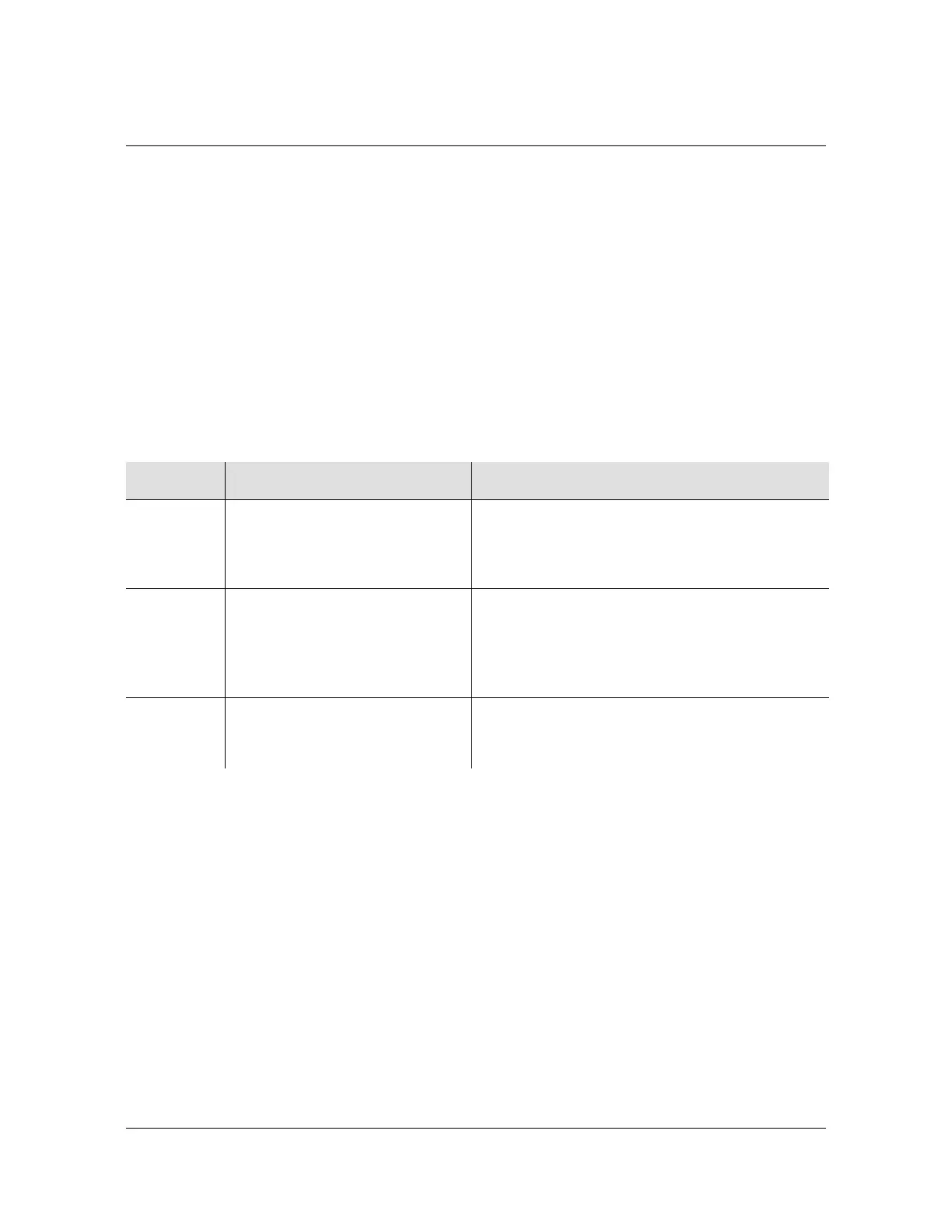
Table 2-6 provides a description of the SyncServer S6x0 LEDs.
The SyncServer 6x0 does not contain a battery-backed real time clock. Therefore, it
will always boot up with a default value for the system time. This time will be
updated when it obtains time from a time reference such as GNSS, IRIG, or NTP.
The default value for the date is the software build date. This date will be used for
the first log entries when booting up the unit. The time will change to local time
during the boot-up process if a time zone has been configured.
Table 2-6. LED Descriptions
Label LED Description
SYNC Clock Status Green - Time or Frequency clock in Normal or
Bridging state
Amber - Time or Frequency clock in Freerun or
Holdover state
NETWORK Network Status Red - Management port (LAN1) is not configured
or is down
Amber - Some configured ports are down (LAN2
to LAN4)
Green - All configured ports are up
ALARM Alarm
System alarm/fault indicator
Off -Operating normally
Amber - Minor Alarm(s)
Red - Major/Critical Alarm(s)



 To Next Page