Appendix B Communications Setup
164 Lynx II DSA User's Manual - 7096089
Verify the USB Connection
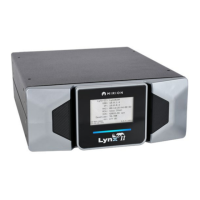
To verify the USB connection, and to access the Lynx II system.
1. Disconnect your Ethernet cable connection, if it is connected (temporarily for
testing the USB connection).
2. Connect the USB cable from your PC to the Lynx II and activate your Internet
Browser.
3. In the URL line, type in 10.0.1.4, and press Enter to connect. The Lynx II’s
main access page should open.
Configuring for Multiple Lynx II using USB
Setup for Multiple USB Connections
Note: When connecting two or more Lynx II devices to the same host computer via USB
it is required to use a 4-port self-powered USB hub. If it is necessary to control
more than four devices with one host computer, it is recommended to use an
Ethernet connection.
When configuring your PC for multiple Lynx II devices it is necessary to change the USB
IP address of each additional Lynx II. Follow these steps:
1. If this is the first time a device is connected to the host PC, there may be the need
to install the USB driver depending on the version of Windows. Follow the steps
provided in Setting Up a USB Connection on page 162.
2. Connect a single Lynx II one at a time at the default address 10.0.1.4 using the
Web Client interface and log in as administrator.
3. Select USB under Maintenance | Network Settings.
4. In the box for Static Address enter a unique IP address for the device. Use
10.0.X.4 where the X is a number other than 1. Each Lynx II requires a different
number for X. Click Save. The new USB IP address will display on the LCD.
5. Repeat steps 2 through 4 for all Lynx II.


 To Next Page
 Loading...