Chapter 6
Using Pipeline in Final Cut Pro & Episode Desktop
84
March, 2009
Editing Clip List Metadata
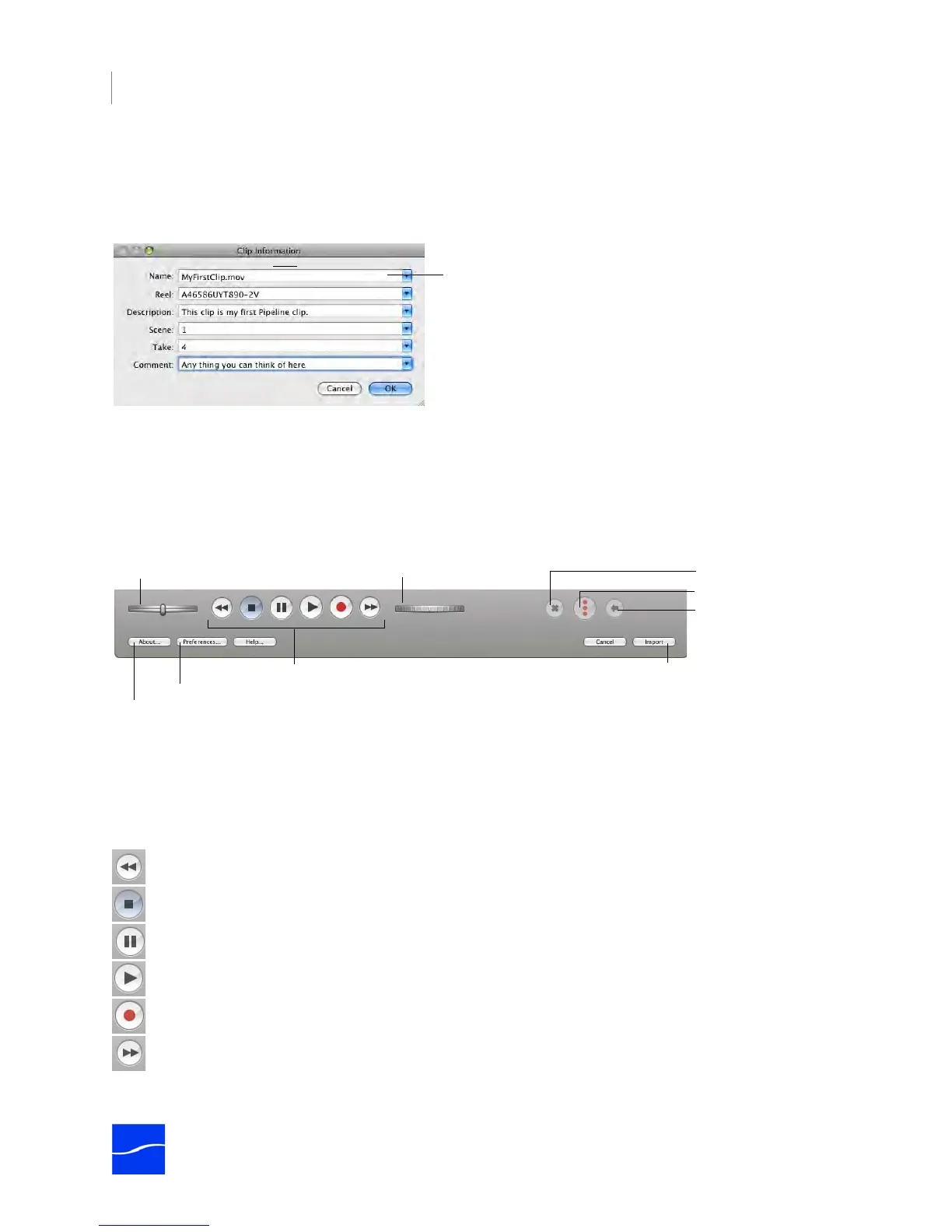
At any time when a clip list is displayed, you can view or edit metadata. To view or edit metadata, double-
click a specific clip list entry to display the Clip Information dialog:
Figure 6–13. The Clip Information dialog allows you to view and enter metadata values.
Edit the values for each metadata tag, or select recently added values from the popup menu. Click OK to
close the window and save the metadata
Control Panel
The control panel contains VTR, shuttle/jog controls, clip list buttons, and Preferences and Import buttons.
Figure 6–14. Use the control panel to control your VTR and import clips.
VTR Controls
Shuttle. Click and drag to roll left and right, moving the tape reverse and forward, increasing in speed the
farther from center you go. When you release the wheel, it returns to center and stops the tape. You can
also click on the shuttle wheel to left or right of center to shuttle in small increments and then return to
center. The further from center you click, the more frames you’ll play, in either direction.
Fast Reverse. Click to rewind tape at double speed.
Halt. Click to stop tape.
Pause. Click to pause tape – this command sends a shuttle zero command to the VTR.
Play. Click to preview/play video at normal forward speed.
Capture. Click once to start capture/crash recording. During capture, click to stop.
Fast Forward. Click to roll tape forward at double speed.
Jog. Click and drag to Click to roll tape forward or reverse frame by frame.
Enter metadata values, or select from recently-
added values in the popup menu.
Delete Clip
VTR Controls (for detail, see below)
Click Import to add these clips to
the currently selected project in
Final Cut Pro.
Shuttle Wheel
Jog Wheel
Batch Capture
Preview Clip
Displays Preference window
Displays version number.



 To Next Page