Chapter 4
Using Pipeline Direct
38
March, 2009
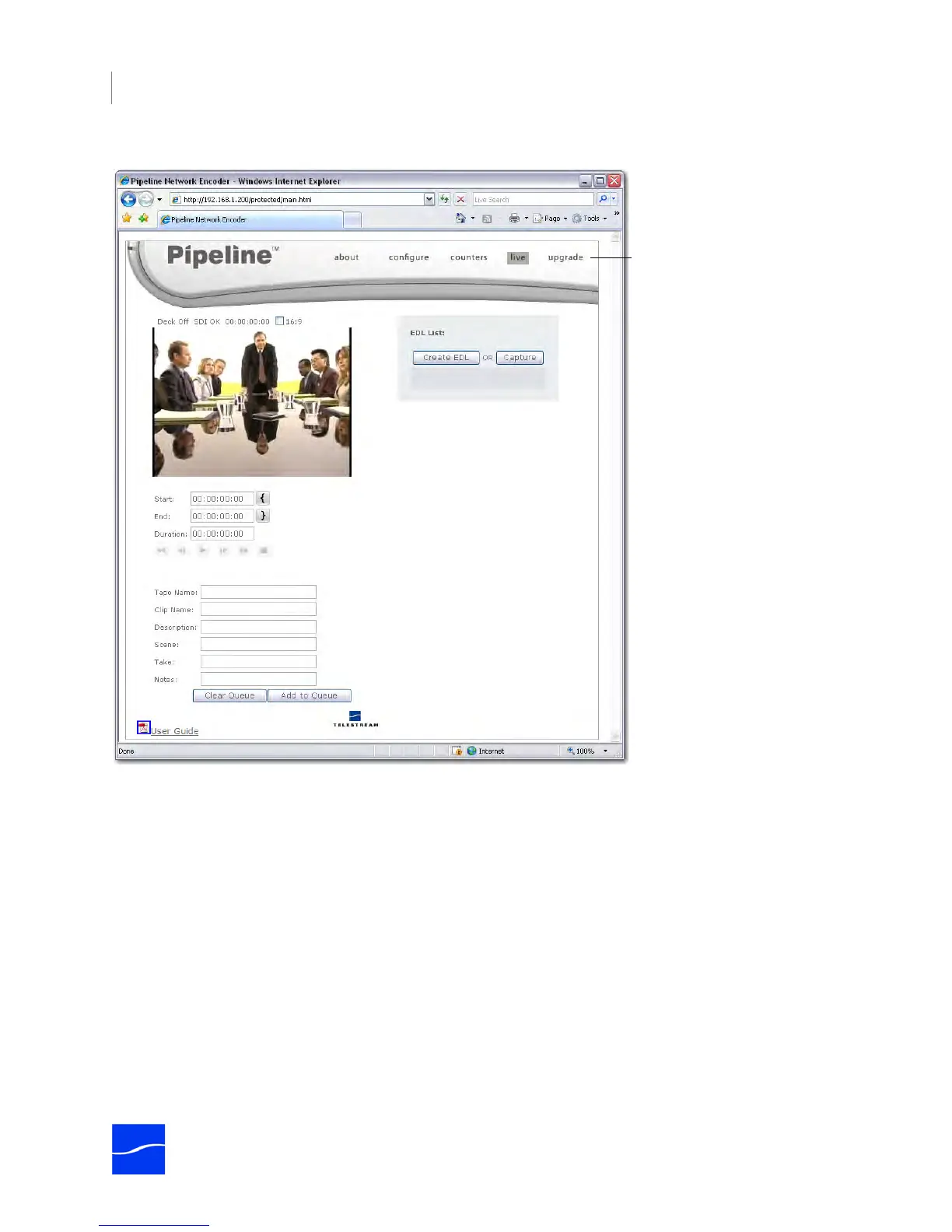
Figure 4–3. The Live panel displays by default when you connect to a Pipeline.
Whenever you connect to a Pipeline and display Pipeline Direct, the Live panel displays by default.
Pipeline Direct Panels
Pipeline Direct has several panels you can use to perform various tasks:
1. About – provides general information about Pipeline, and registration.
2. Configure – displays Pipeline and network settings, allows you to change network settings and options.
3. Counters – displays statistical information about Pipeline.
4. Live – displays streaming media, provides VTR control, and enables you to create EDLs for submitting
media to FlipFactory for transcoding.
5. Upgrade – allows you to select an upgrade file (a firmware-xxxxx.pln file where xxxxx is the version
number), and upgrade the firmware and Pipeline DIrect in your Pipeline.
You can access to the Pipeline User’s Guide (the document you are currently reading) from each panel by
clicking the User’s Guide link at the bottom of each panel.
Pipeline Direct has a menu bar
at the top – just click an item to
display its panel.
To display the Bonjour panel,
select View > Explorer Bar >
Bonjour. Then, double-click the
Pipeline you want to use.



 To Next Page