Chapter 7
Using Pipeline Control
96
March, 2009
OPENING PIPELINE CONTROL
How you open Pipeline Control depends on the computer you’re using:
On Mac OS X, you can also add the Pipeline Control icon to the Dock for convenient access. To add it to
the dock, open the Application folder and drag the Pipeline Control icon directly onto the dock. Position it
among the other icons where you want it displayed, and release it.
You can also open Pipeline Control by double-clicking a Pipeline schedule document you’ve saved or by
dropping a Pipeline schedule document onto the Pipeline Control icon in the Applications folder or in the
dock.
By default, Pipeline documents are saved in your Documents folder. When you open Pipeline Control in
this manner, the Pipeline document you double-clicked is displayed.
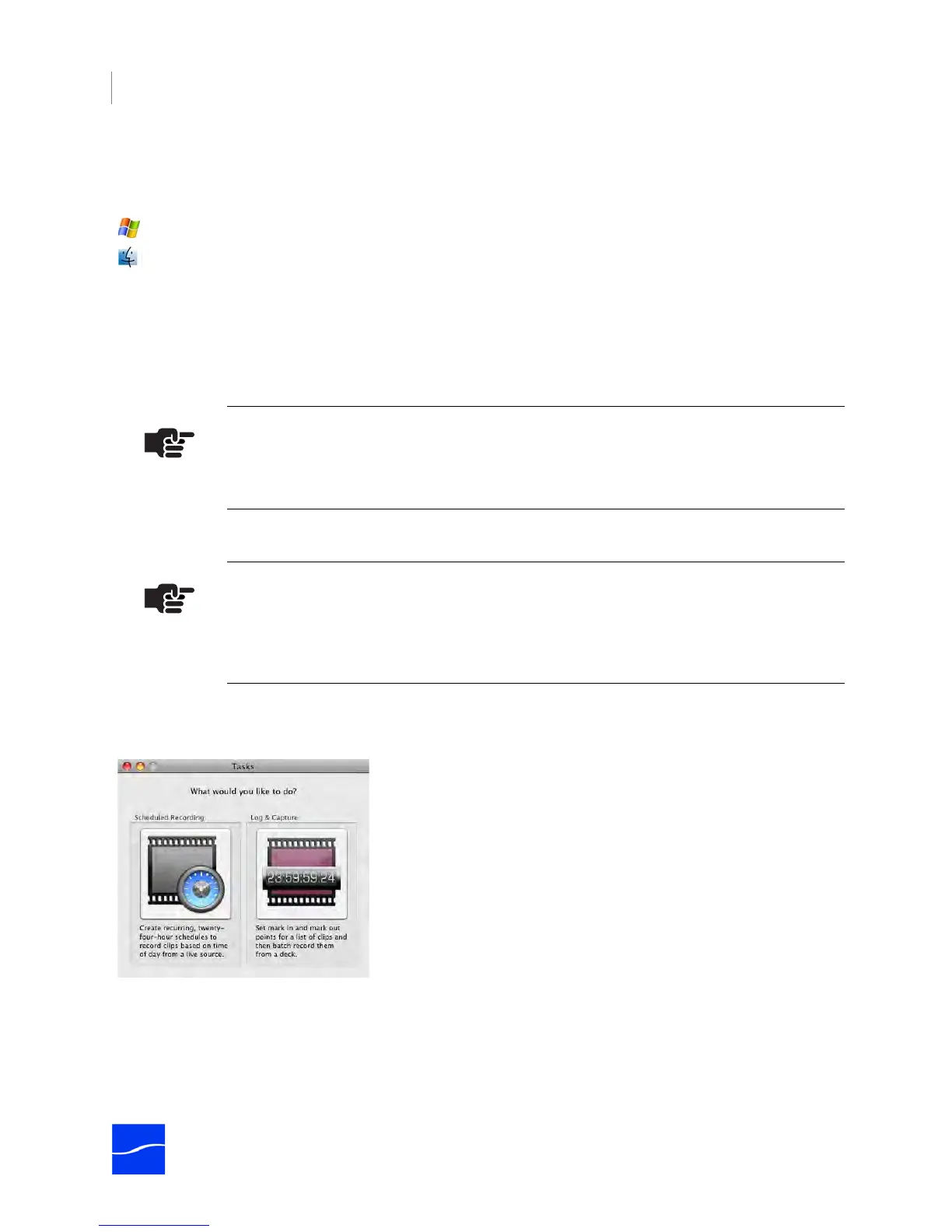
On Mac OS X, when you open Pipeline Control, it presents a dialog that allows you to choose the type of
task you want to perform.
Figure 7–1. Task Selector in Pipeline Control (Mac OS X)
When you select the task, Pipeline Control displays the appropriate document in a window.
Click Start > All Programs > Telestream > Pipeline.
In the Finder, double-click the Pipeline Control icon in the Applications folder.
Note
When you open schedules created in previous versions, you may need to reset the
audio and video settings before using them.
Note
If you’re opening Pipeline Control for the first time, you should set up preferences. For
details on setting up Pipeline Control preferences, see Preferences – Mac OS X (page
119) or Preferences – Windows (page 122).



 To Next Page