Chapter 5
Using Pipeline with FlipFactory
62
March, 2009
SUBMITTING STREAMING MEDIA FROM PIPELINE
You can ingest media from Pipeline into FlipFactory in real time by using the Pipeline Streaming feature in
the Submit Job window in FlipFactory, specially configured to accept streaming media in real time.
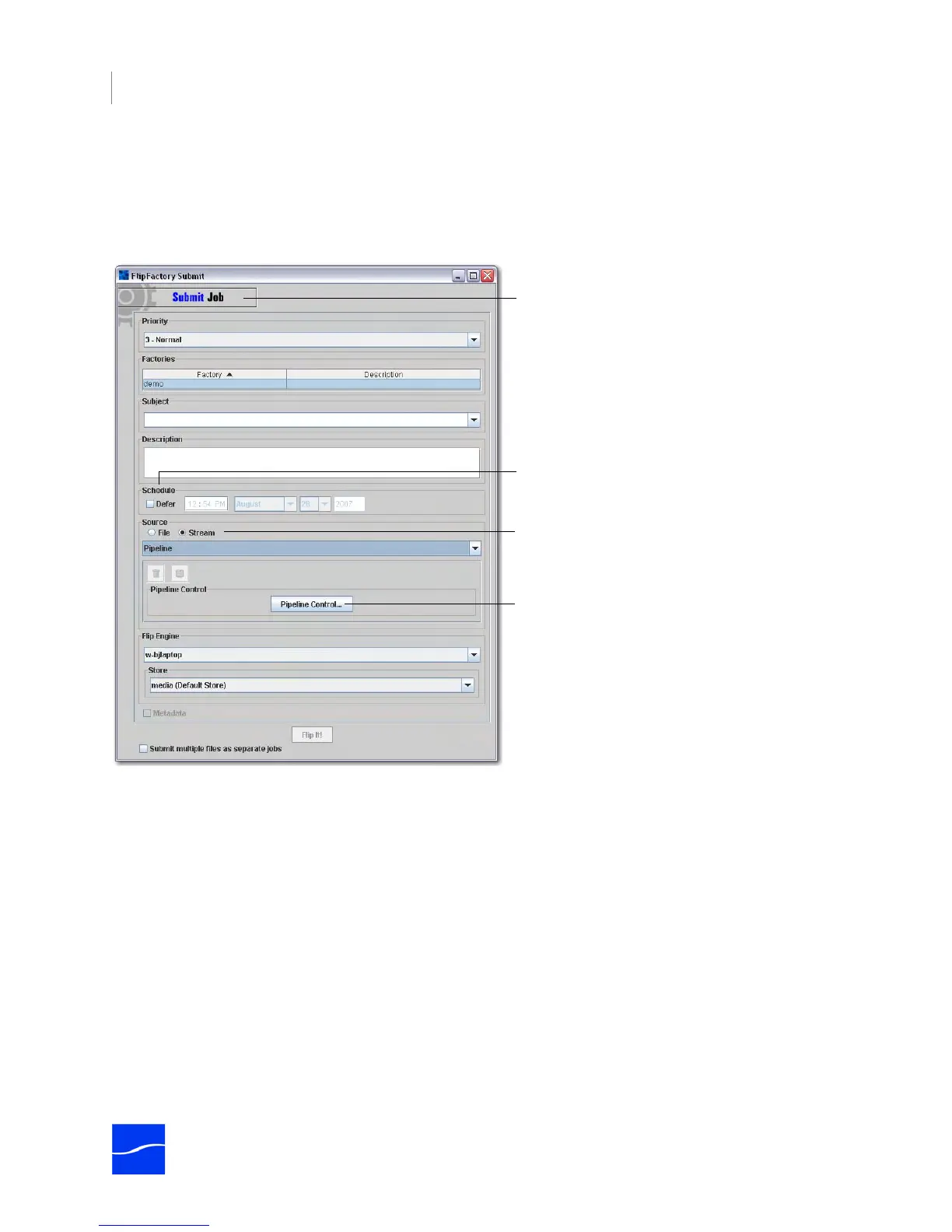
Figure 5–2. Use the Submit Job window to stream media from Pipeline in real time.
Overview
To submit jobs that stream media into FlipFactory from Pipeline in real time, you’ll follow these general
steps (the sections following describe this process in detail):
1. Log on to the FlipFactory console and click Submit Job to display the Submit Job window (above).
2. Use the Submit Job window to select the factory that you want to use, and optionally set up a deferred
schedule. Make all other job settings (priority, factory selection, subject and description, flip engine and
store, and optional metadata) before proceeding.
3. In Source, select Stream, and then select the Pipeline from the source type dropdown menu.
4. Next, click Pipeline Control to display the Pipeline Capture Editor (details shown below).
5. In the Settings tab, select the Pipeline and codec and, optionally, adjust pre-roll and offset values.
6. In the Capture tab, select Automatic or Manual, enter the respective values, and click Add to Queue or
Flip It! to stream the media into FlipFactory for encoding (streaming will occur immediately unless
you’ve set up a deferred job).
Optionally, set up a schedule to defer job until
the specified time.
Use Submit Job window to stream media info
FlipFactory (FlipFactory console > Submit Job).
Select Stream, then select Pipeline from the
Stream type dropdown menu.
Next, click Pipeline Control to display the
Pipeline Capture Editor, where you can select
and control the Pipeline.



 To Next Page