Submitting Streaming Media from Pipeline
Pipeline User’s Guide
63
74-0085-05
Using the Submit Job Window to Stream Pipeline Media
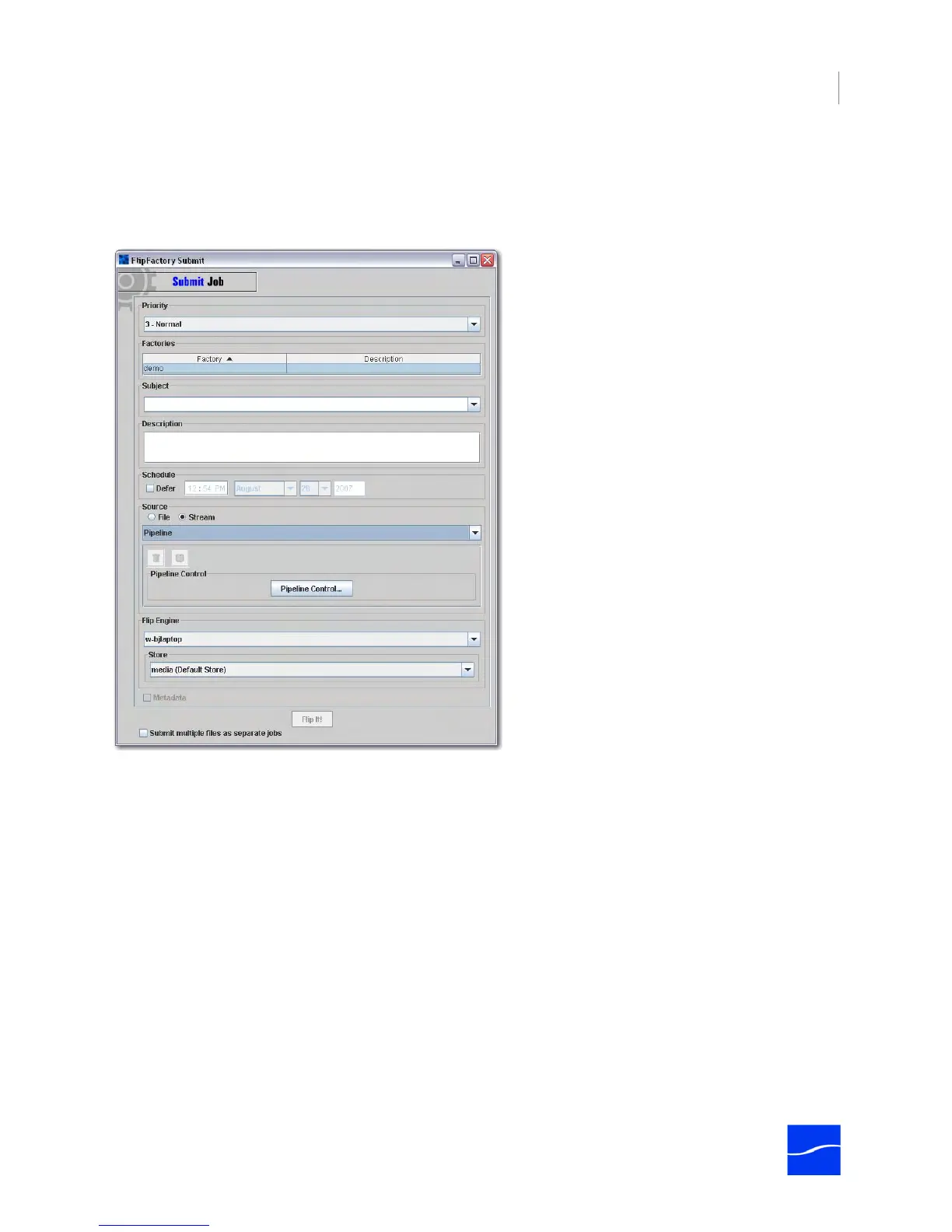
The Submit Job window is used to provide general information about any job. Pipeline-specific details are
configured in the Pipeline Capture Editor, which is explained following.
Figure 5–3. Set up the general job details before displaying the Capture Editor.
Before displaying the Pipeline Capture Editor (by clicking Pipeline Control), configure the following items:
Priority of Submitted Jobs (optional). Select the job submission priority (1 - 4). When the FlipEngine
accepts another job from the job queue, it selects the job to process next, based on its job priority.
Factory (required). Select a Pipeline factory from the Factories list. To select more than one factory, use
the Control or Shift key to select additional factories.
Subject (required in 5.1). Type the subject for this job (required). This information is included in the
notification email sent to the account owner and displayed with the job entry in the Job Status window.
Description (optional). Type a Description. This information is also included in the notification email sent
to the account owner and displayed with the job entry in the Job Status window.
Schedule (optional). Leave Defer unchecked to process this job immediately upon submission. To delay
processing, click to select Defer. Enter the time, and select the month and date and year.
When you submit a deferred job, FlipFactory accepts the job and stores it in the database for later
processing at the time you specify. For example, you may be streaming broadcast media into a Pipeline –
a competing newscast, for example, and you want to capture it beginning at 10:00 PM.



 To Next Page