The Pipeline Settings Toolbar
Pipeline User’s Guide
103
74-0085-05
A green bullet icon indicates that this Pipeline is available for connection. A red bullet indicates that it is
currently busy (connected and dedicated to another client). Gray indicates offline; orange indicates an
unknown state. Pipelines that are busy, offline, or in an unknown state can’t be selected.
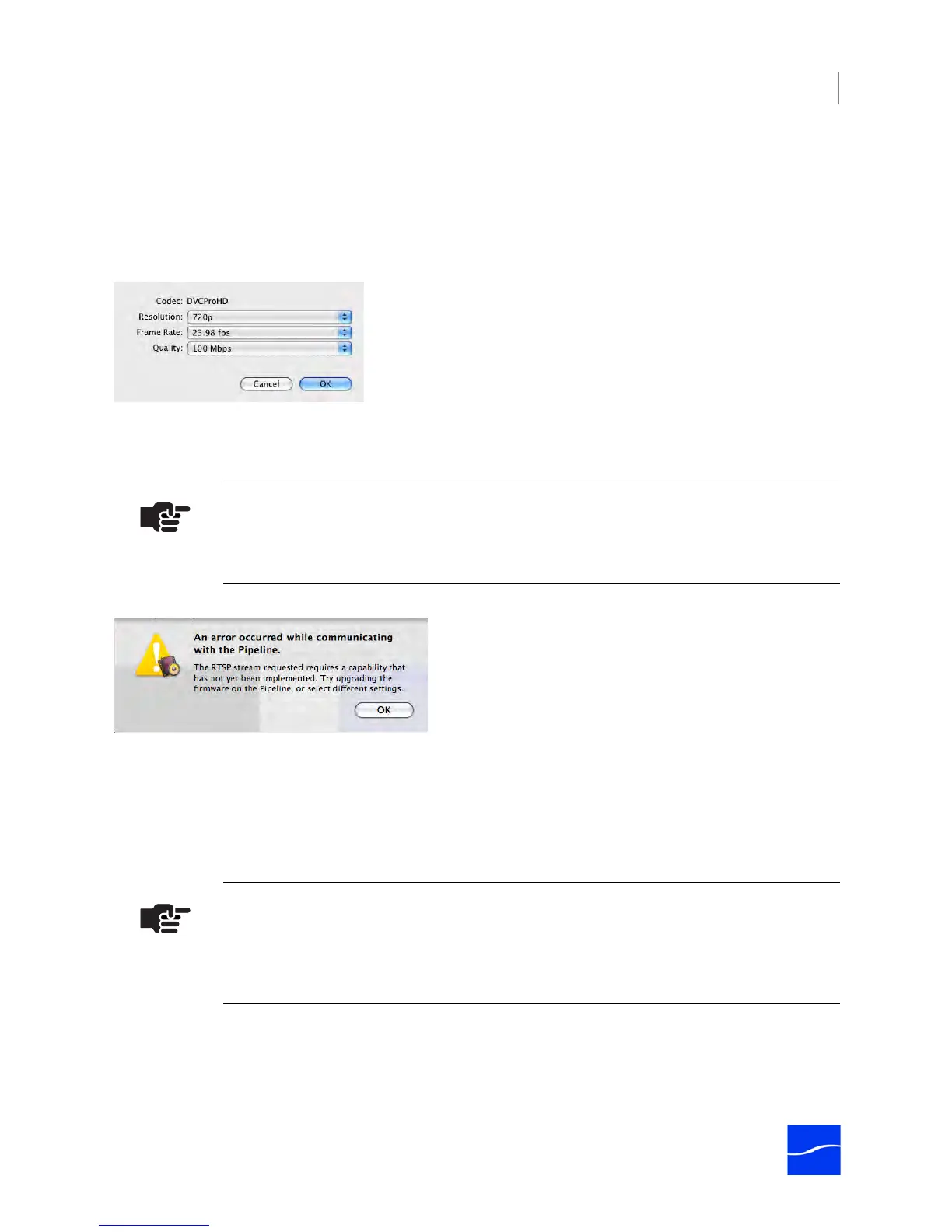
Selecting and Configuring a Video Codec. Click the Video drop down menu to select the video codec
you want to use and configure it to meet your workflow requirements.
Figure 7–8. Typical video codec settings panel.
When you don't have a Pipeline selected (None), all codecs display. When you select a specific Pipeline,
only those codecs supported by the target Pipeline display. When choosing your frame rate, make sure
you’re providing an appropriate (NTSC or PAL) source.
Figure 7–9. Pipeline Control notifies you when a codec is not supported by the Pipeline.
Based on your Pipeline, you can select from Uncompressed, DV, DVCPro, IMX, DVCPro HD, ProRes,
DNxHD, or Motion JPEG codecs. Each codec has one or more profiles from which you can choose.
Each codec’s profile details are located in Appendix C, Pipeline Control Codec Profiles on Page 151.
When you select a codec only the resolutions that apply to that codec are selectable. Frame Rate and
Quality settings are filtered based on the resolution you select. Based on the SDI signal of the connected
Pipeline, resolutions and frame rates that display a green circle are compatible with the current signal.
The SD SDI stream being ingested by the Pipeline may be an NTSC or a PAL source: if you select an
NTSC codec to encode PAL video or a PAL codec to encode NTSC, the Pipeline software will display an
error and prevent the capture from occurring.
Note
If you’ve already selected a codec – and you select a Pipeline that doesn't support it –
Pipeline Control will notify you that it doesn’t support the selected codec.
Note
If your source is HD and you choose an SD codec, Pipeline will down-convert the video
per your codec settings. However, the quality of the video may not meet your workflow
requirements.



 To Next Page