Chapter 2
Pipeline Hardware, Installation & Setup
16
March, 2009
CONNECTING PIPELINE DIRECTLY TO MAC OS X OR
WINDOWS COMPUTERS
Pipeline can be connected to a Mac OS X computer – a Final Cut Pro workstation or Episode Engine
server, for example. Or, it can be connected to a Windows computer – a FlipFactory server, for example.
You can connect Pipelines directly or via LAN using a Gigabit Ethernet (Gig-E) switch for Pipeline
Quad|HD Dual or 100MB Ethernet for Pipeline SC.
Use the instructions in this section to make Ethernet and video connections to your Pipeline when
connecting it directly to a Mac OS X or Windows computer – either directly or via a switch.
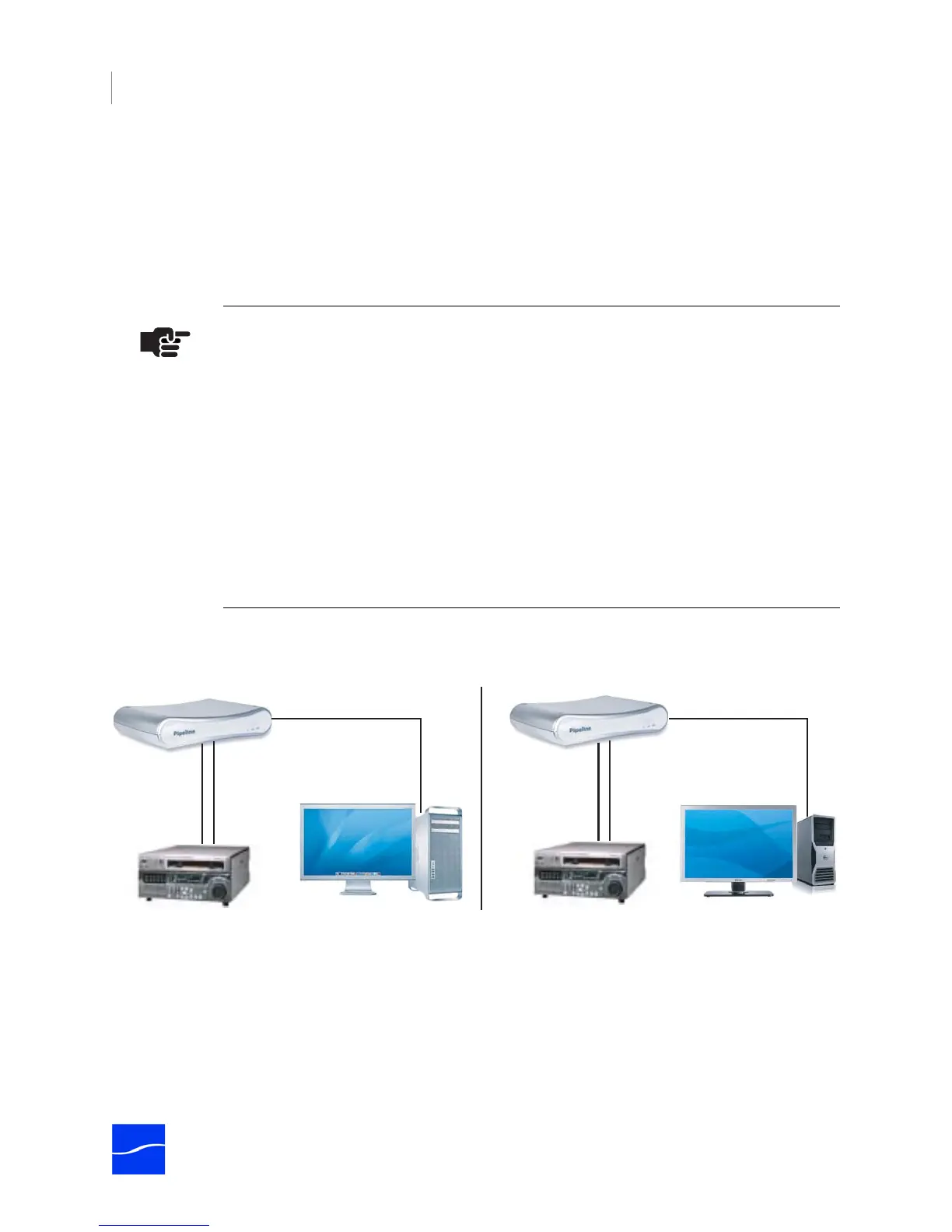
Figure 2–8. Pipeline video, VTR & network connections
1. Make sure the Pipeline is not plugged in.
2. Connect the Pipeline Ethernet port directly or via a switch to the computer with an Ethernet cable.
3. Connect your VTR SDI Out port to the Pipeline SDI In port with a BNC coax cable connected to your
video source – a VTR, for example.
4. (Optional) Connect the VTR RS-422 Out port to the Pipeline RS-422 port.
5. (Pipeline Quad – Optional) Connect video equipment to your Sync In and Sync Out video ports.
Note
For workstations or servers with multiple network adapters, you should always connect
the Pipeline (or switch) to Ethernet 1 (en0 in Mac OS X).
If the 169.254 route (or route of the IP address you’ve assigned the Pipeline) isn’t on
Ethernet 1 (en0), run these commands in a command window (verify with your network
administrator):
To remove:
sudo route delete -net 169.254
To add it back to en1 (Windows).
For Mac OS X, change the last parameter to en0:
sudo route add -net 169.254 -interface en1
Telestream recommends turning off your WiFI card when using Pipelines.
Ethernet
RS-422
VTR Control
SDI
Video/Audio
Ethernet
RS-422
VTR Control
SDI
Video/Audio



 To Next Page