Importing Media Into Final Cut Pro |
Episode Desktop
85
74-0085-05
Keyboard Shortcuts
The Pipeline Plugin enables you to use keyboard shortcuts for video control – Play, Rewind, Log, Mark
Out, Fast Forward, Mark In, Step Forward, Step Backward, Go To Mark In, and Go To Mark Out. Keyboard
shortcuts can be customized to your own preferences, or you can select default Final Cut Pro or Avid
shortcuts. To view and customize shortcuts, see Keyboard Preferences (page 79).
Clip Buttons
Delete. Click to permanently remove the selected clips from the list. Or, press Delete on the keyboard.
Capture. Click to capture selected clips. If not captured, they must be captured or discarded during Import.
Preview. Click to preview the selected clips.
Buttons
About. Click to display the About dialog, which displays the version that is installed.
Preferences. Click to display the Preferences dialog (see below).
Cancel. Click to close the dialog without importing media.
Import. Click to save all of the clips as files and add them to the bin. Clips that haven’t been captured as
temporary files, must be captured (or discarded) during the Import process.
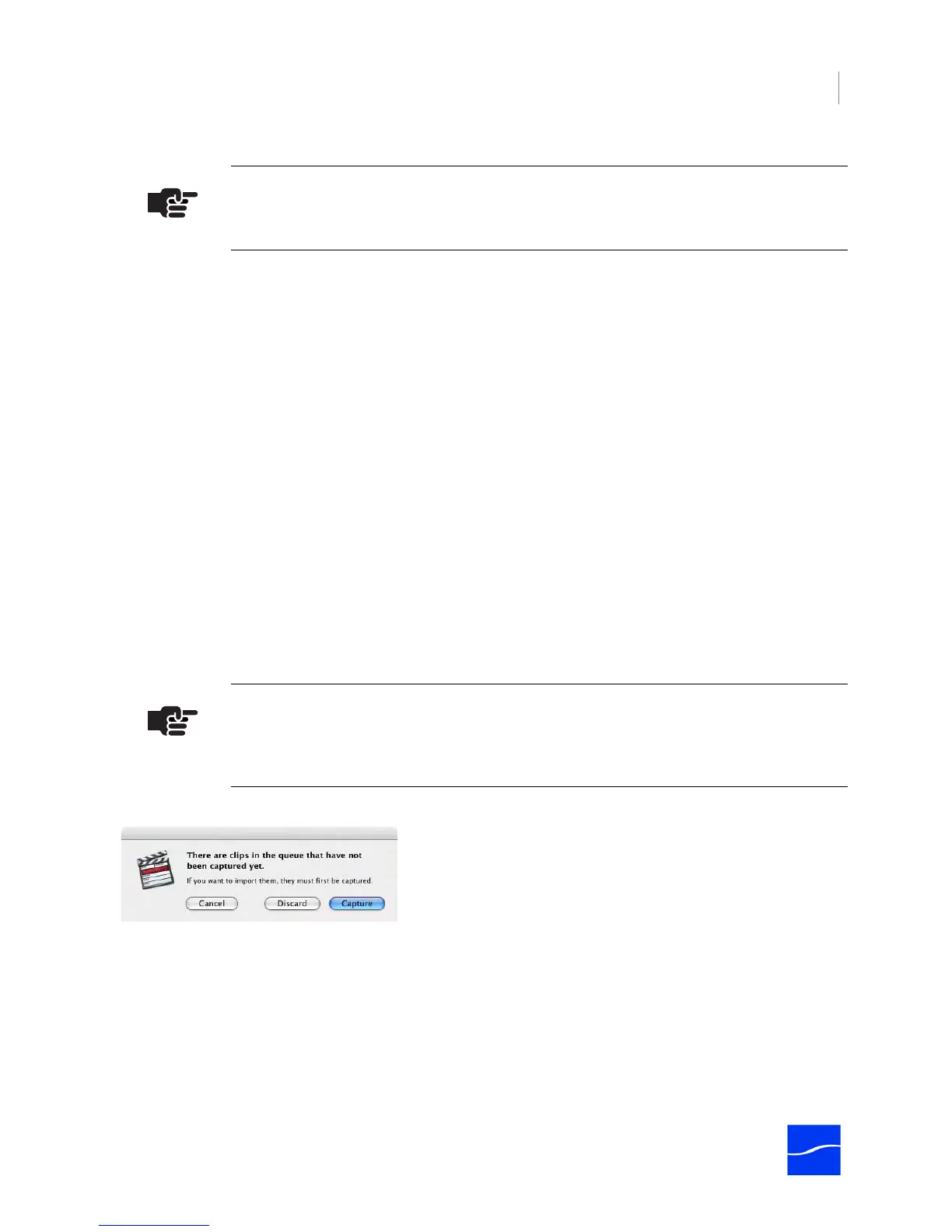
The Pipeline Plugin displays a dialog so you can choose how to treat clips you haven’t captured yet:
4. Import Clips into Bin (Final Cut Pro). After you’ve created your clips, click Import to capture any
previously uncaptured clips, save them as files, and import them into the bin.
The Pipeline Plugin ingests the uncaptured clips by controlling Pipeline via the VTR to encode the clip and
stream it to the plugin, then writes the media as a QuickTime movie (.mov) file, and saves each file in the
destination folder. After the files have been captured, they are all added to the Final Cut Pro bin.
When the import process completes, the Pipeline Import dialog is closed.
Note
You can also jog media using the scroll wheel or scroll ball on a mouse so equipped.
Note
Clips that display a green check logo already have been captured, and have a
permanent (non-temporary) file. If you click Cancel, these files will be deleted.



 To Next Page