Chapter 7
Using Pipeline Control
122
March, 2009
PREFERENCES – WINDOWS
Use the Preferences panels to set up Pipeline Control the way you want to use it.
General Preferences
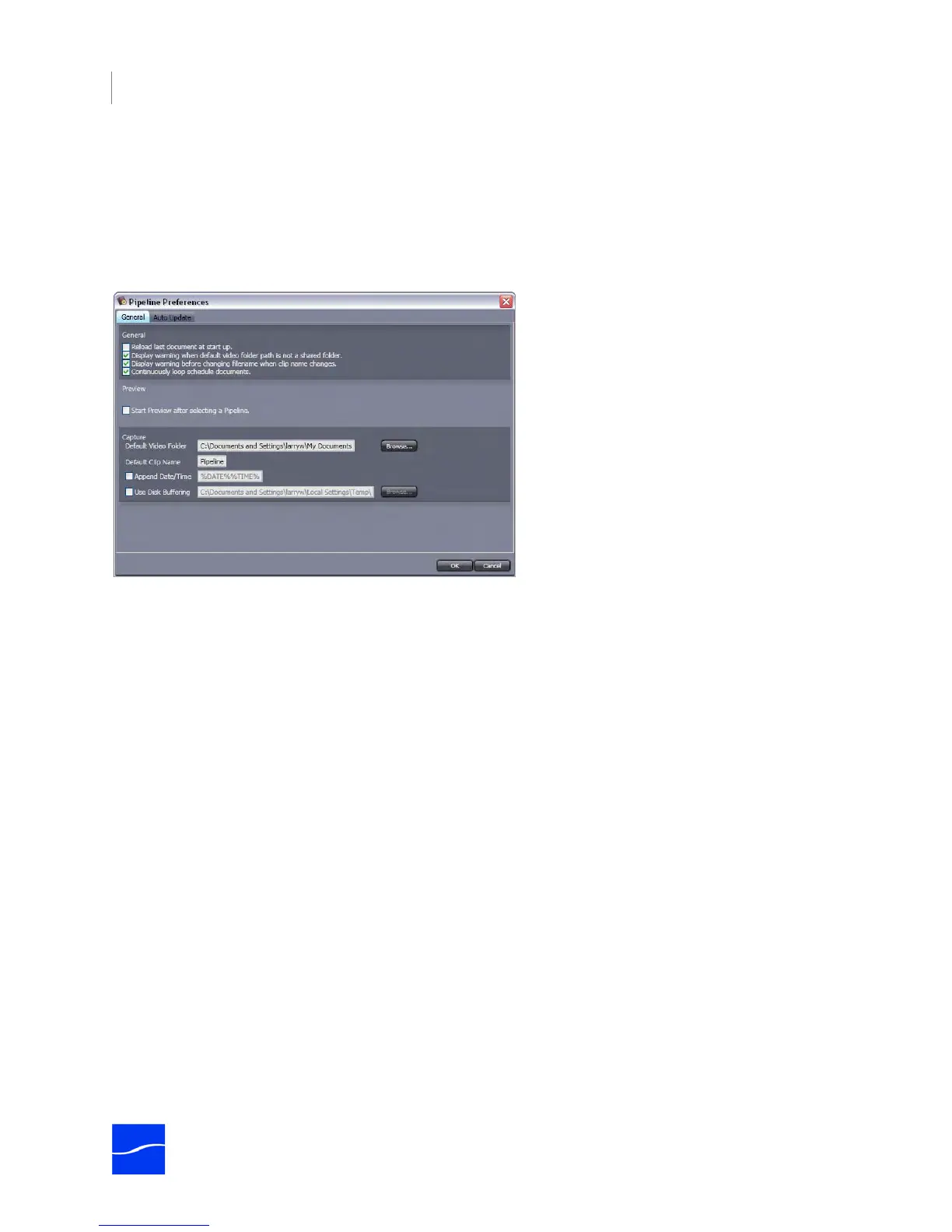
Figure 7–25. General Preferences (Windows)
Reload last document at startup. Check to always open the last document saved when you used
Pipeline Control last.
Display warning when default video folder path is not a shared folder. Check to display a warning
when the video folder you select is not a share.
Display warning before changing filename when clip name changes. Check to display a warning
when you change the name of a file associated with an event in the active schedule. For example, a
schedule has been running for an entire cycle, and has captured 24 one hour events. The event scheduled
at 8 am is named 8AMevent, and is associated with a file named 8AMevent.mov on the Pipeline host’s disk
drive. You change the mode to Idle, and modify the file name in the Scheduled Item Editor dialog. Pipeline
displays the “Display warning….” to warn you that the file name will be renamed as well as the event name.
Continuously loop schedule documents. Check to continuously process schedules. If unchecked, the
schedule runs to the end of the current 24-hour period and stops.
Start Preview after selecting a Pipeline. Check to automatically stream video from the connected
Pipeline and display it in the Preview panel.
Capture Default Video Folder. Click browse to navigate to and select the default folder where captured
video files are written.
Default Clip Name. Enter the phrase to use as the root name for new video files.



 To Next Page