Chapter 5
Using Pipeline with FlipFactory
66
March, 2009
Video Preview Panel
The Video Preview panel displays video when you’re connected to a Pipeline. Use the VTR controls to
adjust your timecode settings before submitting them as a job.
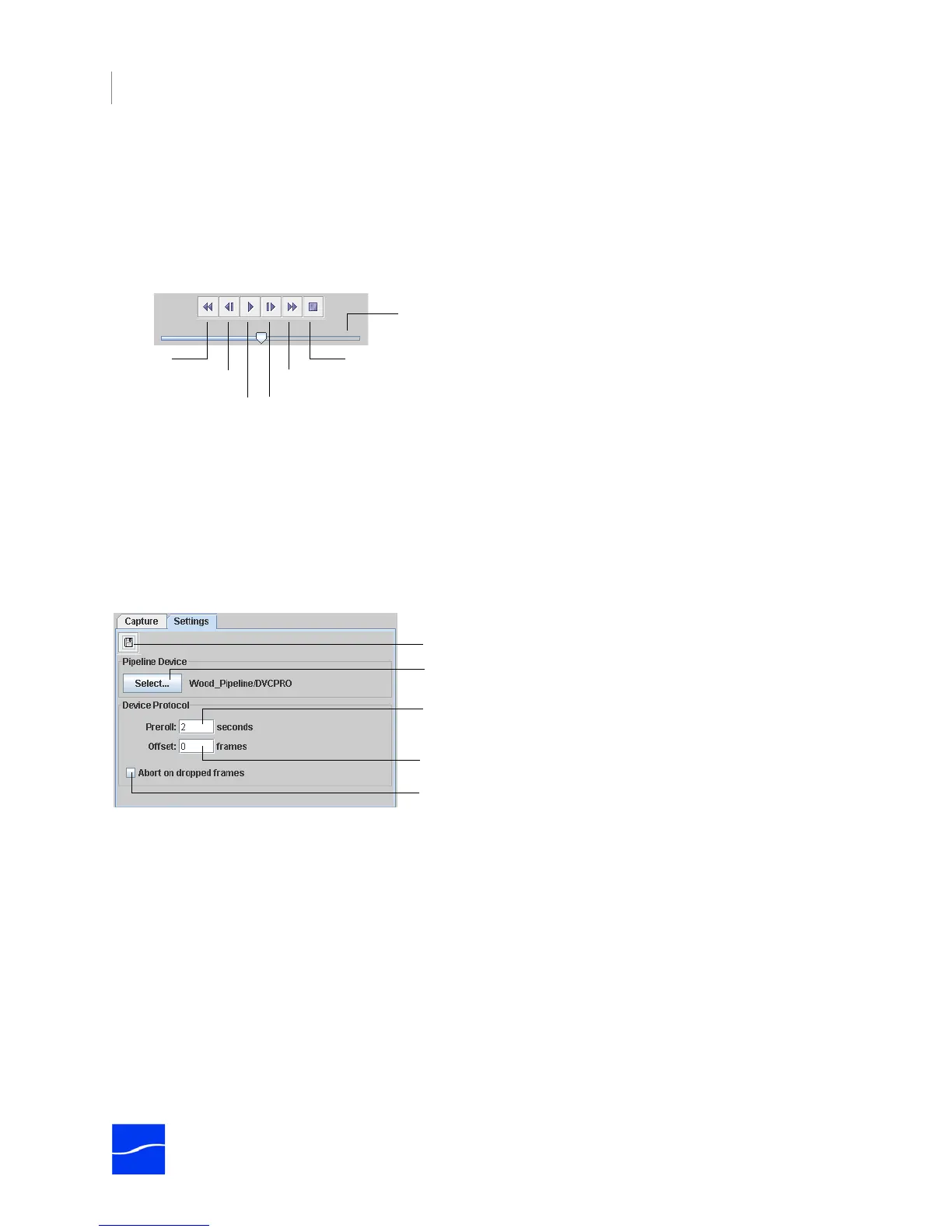
VTR Controls. Use the VTR controls to control video preview when a VTR is attached. Disabled if the
deck is off, the RS422 cable is disconnected, or the deck is in local mode.
Figure 5–6. VTR controls in Pipeline Capture Editor.
Shuttle. Use the shuttle to quickly play through the content at different speeds, in fast and slow motion. It
also shifts the pitch of audio as it plays at varying speeds. In slow motion, this can make it easier to locate
specific words and sounds for editing. Drag the slider to the right to fast-forward and to the left to rewind.
Playback speed varies depending on the distance of the slider from the center of the control.
Using the Capture Editor’s Settings Tab
Use the Settings Tab to select a Pipeline and related control settings.
Figure 5–7. Settings tab in Pipeline Capture Editor.
Each control is described in the following table.
Rewind
Step Back
Play Step Forward
Stop
Fast Forward
Shuttle
Click Select to display a list of Pipelines and connect,
as well as selecting the codec to use for this session.
Set your pre-roll value here.
Set your offset value here.
Check if you want to abort the job when frame drops are detected.
Click to name and save your custom stream settings.



 To Next Page