Exporting Media to Pipeline From Final
Cut Pro
93
74-0085-05
Video Panel
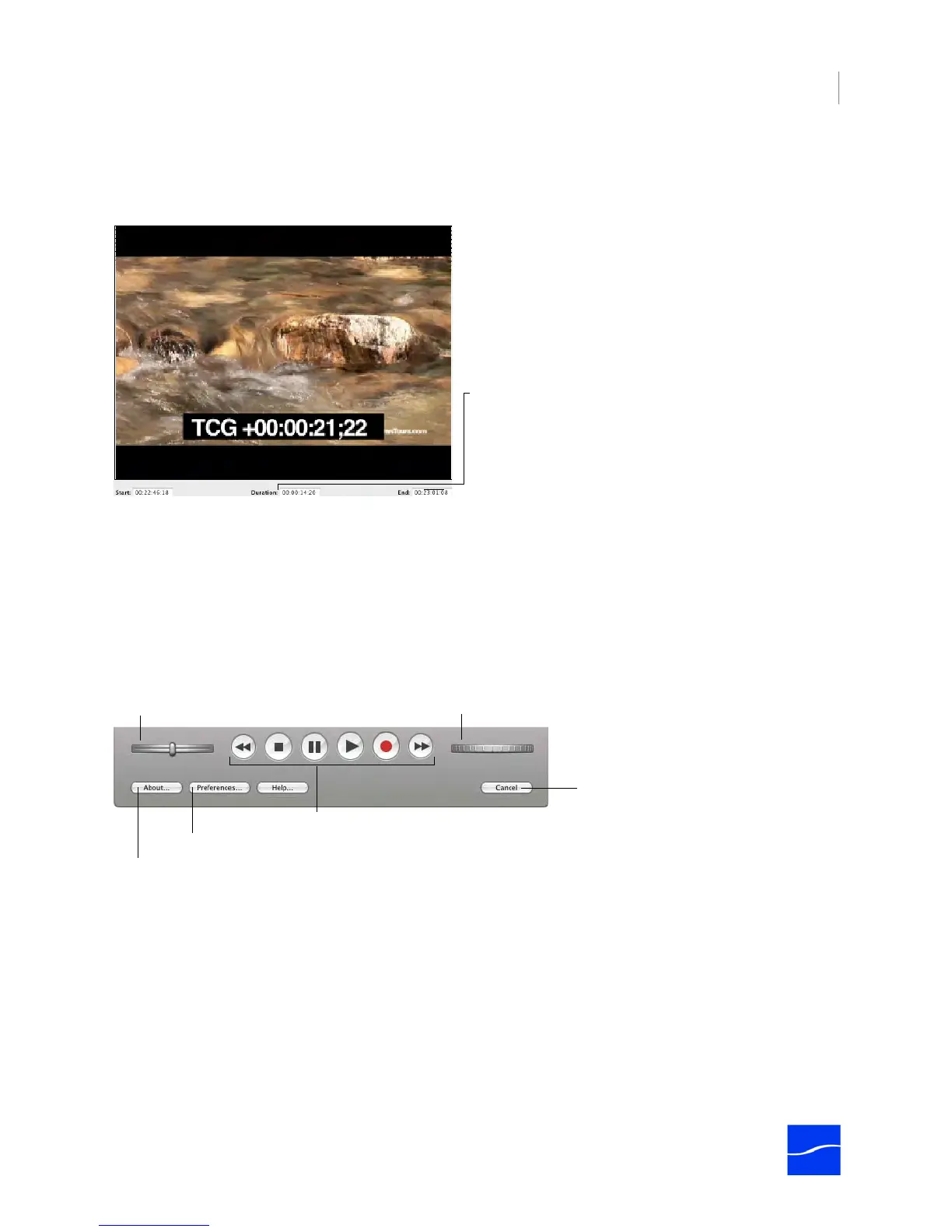
The video panel displays the encoded video stream in real time.
Figure 6–23. Pipeline Export dialog video panel.
At the bottom, the video panel displays start (comes from start point of tape in VTR), duration (from the clip
or segment you selected to export_ and end timecode (timecode + duration).
Non-drop-frame timecode separators are all colons. Drop-frame notation displays a semi-colon between
the seconds and frame values. For example: 00:29:30;16 is a drop-frame timecode.
Control Panel
The control panel contains VTR, shuttle and jog controls, plus a Preferences button.
Figure 6–24. Use the control panel to control your VTR and export clips.
VTR Controls
Shuttle. Click and drag to roll left or right, moving the tape reverse or forward, increasing in speed the
farther from center you move the wheel. When you release the wheel, it returns to center and stops the
tape. You can also click on the shuttle wheel to left or right of center to shuttle in small increments and then
automatically return to center and stop. The further from center you click, the more frames you’ll play, in
either direction.
Fast Reverse. Click to rewind tape at double speed.
Halt. Click to stop tape.
Pause. Click to pause tape.
Start: Timecode of beginning of current clip.
Duration: Calculated length of current clip, when available.
End: Timecode of end of current clip.
VTR Controls (for detail, see below)
Click to stop exporting and
close the Control Panel.
Shuttle Wheel
Jog Wheel
Displays Preference dialog
Displays version number.



 To Next Page