Loading and Saving Clip List Files
Pipeline User’s Guide
87
74-0085-05
LOADING AND SAVING CLIP LIST FILES
The Pipeline Plugin enables you to load the clip list from an EDL or an XML file. You can also save any clip
list in Final Cut Pro’s XML Interchange format. Loading and saving clip lists via files improves the transfer
of clip lists between applications without manually re-creating them. The XML file is created immediately
when the event starts, so that the XML file can be imported into Final Cut Pro as the import is occurring.
For example, you can export a clip list as XML from the Pipeline Plugin in Final Cut Pro, and then import
the list into the Pipeline Plugin in Episode so that you can ingest the clips from tape directly into Episode.
These interchange files can be used for time-shifting your work, to avoid performing the same actions
multiple times, or to participate in workflow tasks with others. For example, one person can define a list of
clips, save the list as an XML file, and then pass the file on to someone else on the network who uses the
clip list to ingest the required media.
To load or save clip lists, use the buttons just below the clip list panel:
Figure 6–15. The Clip List buttons allow you to open clip list files and save clip lists as a file.
Loading the Clip List from an EDL File
To load the clip list from an EDL file, click Load EDL. EDL files can be created from Pipeline Direct.
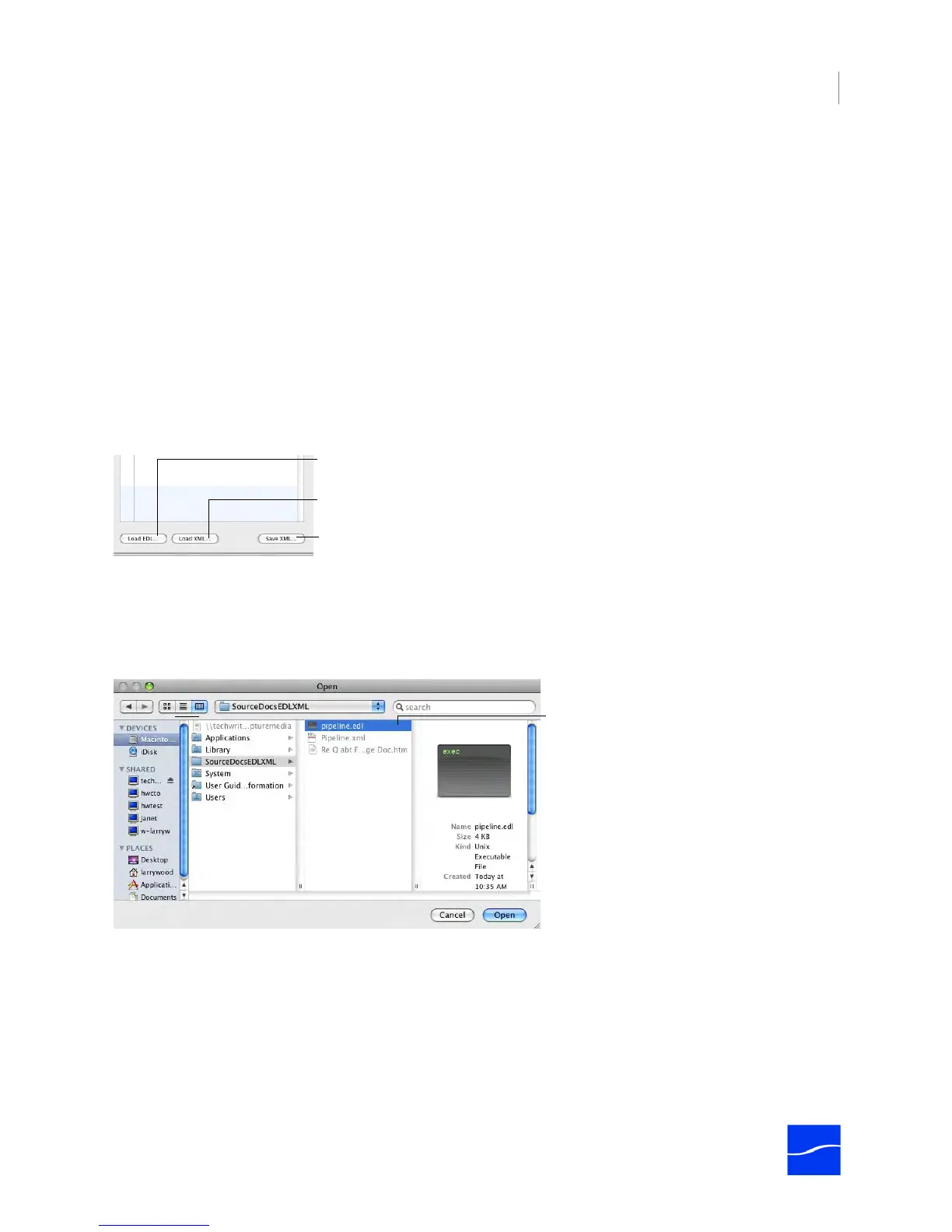
Figure 6–16. Click Load EDL to locate a clip list EDL file and load the entries into the Clip list.
When you click Load EDL, Pipeline Plugin displays a File Open dialog, which you can use to browse and
locate the EDL file you want to load. Select the file (only files with the edl suffix are available), click Open to
load the clips in the list into your Clip list.
Click Load EDL to populate the clip list with entries from a
Pipeline EDL file.
Click Load XML to populate the clip list with entries from an
EDL file in Final Cut Pro XML Interchange Format.
Click Save XML to create a file with entries for this clip list, in
Final Cut Pro XML Interchange Format.
Use the Open window to browse and open EDL
files you’ve saved previously.



 To Next Page